
This article is for store owners whose Convi chat bubble (the Bubble widget chatbot), or another Convi widget, doesn't show on their live store. Work through the checks below in order, starting with Convi's app embed in your Shopify theme.
Plans: every plan and the free trial · Where: Convi admin › Widgets, and your online store · Who: the store owner, and team members whose role allows it
If Convi shows on your store but doesn't answer, read Why isn't Convi answering shoppers? instead.
Check 1: Is Convi's app embed on in your theme?
Every Convi widget loads through the Convi app embed in your Shopify theme. When the app embed is off, no widget shows, even the blocks you placed. If the banner on Widgets already says Live on your storefront, or Live on your storefront during your trial, the app embed is on: go to Check 3. If it says Your widgets are hidden from shoppers, do Check 2 first. A paid plan that has paused still shows Live on your storefront: if your plan may have used up its spending limit, read Check 2 first. To check the app embed and turn it on:
In the Convi admin, go to Widgets.
If the banner at the top says Shopify app embed is off, select Activate in theme editor. The Shopify theme editor opens in a new tab.
Under App embeds, check that Convi is on. The button turns it on for you; if it is off, turn it on.
Select Save in the theme editor.
Go back to the Convi admin and reload the page.
On Widgets, the banner now says Live on your storefront, or Live on your storefront during your trial.
While Home still shows its setup steps (until your store's first conversation, or until you hide them), they also offer Turn it on for me, which switches the app embed on without the theme editor. It can't do this on a theme you have never customized.
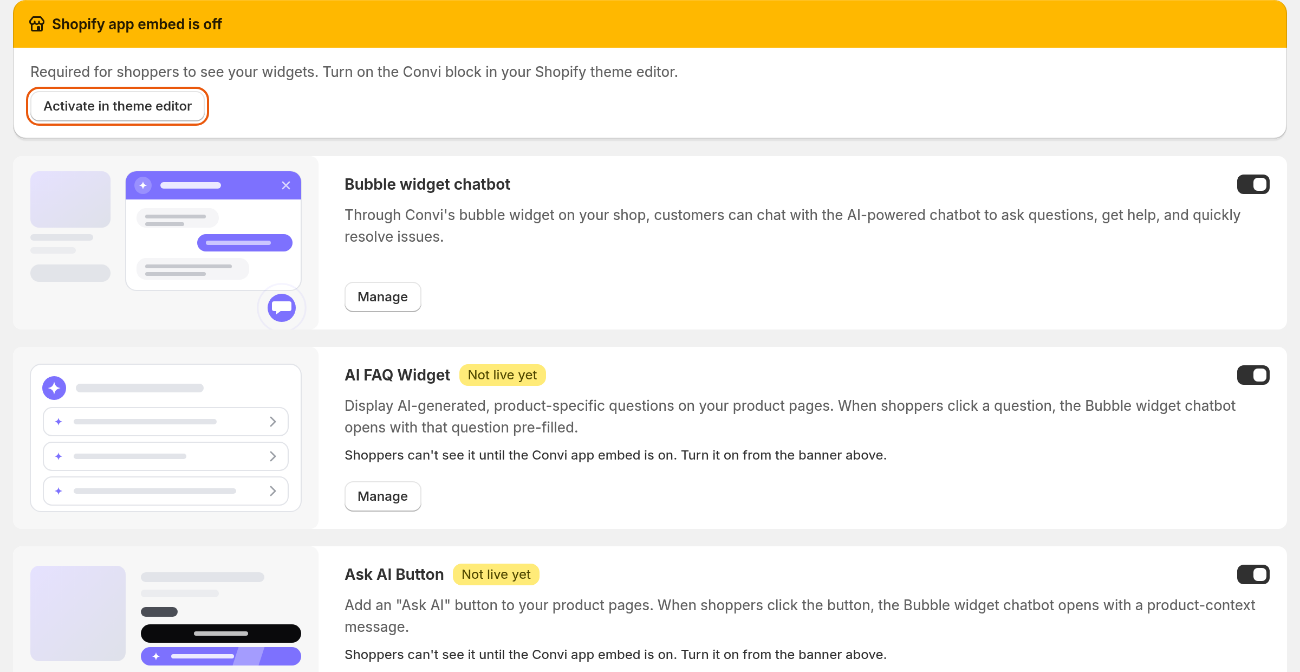
When the app embed is off, the banner on Widgets says so and opens the theme editor for you.
Note: Convi checks your published theme. If you edit another theme, turn the Convi app embed on in that theme too before you publish it.
Check 2: Has your trial ended, or do you have no plan?
Convi hides all its widgets when the free trial ends and no plan is picked. The trial ends after 7 days or 100 conversations, whichever comes first. To check it:
Go to Widgets.
If the banner says Your widgets are hidden from shoppers, select Pick a plan.
Settings › Plan & billing opens. Under Subscription plans, select a plan's button, for example Choose Starter, and approve it in Shopify.
Your widgets show again as soon as the plan is active. Everything you set up stays saved. On a paid plan, the widgets are hidden only while Convi is paused, for example when the plan's spending limit is used up: see Why isn't Convi answering shoppers?.
Then go back to Widgets and reload the page. If the banner now says Shopify app embed is off, do Check 1.
Check 3: Is the widget turned on?
Each widget has its own switch. Only the Bubble widget chatbot is on when you install Convi; you turn on the others yourself. To check a widget:
Go to Widgets.
Find the widget's card, for example AI FAQ Widget.
If its switch is off, turn it on. The change is saved at once.
Open your store on a page where the widget should appear: it shows there. If it doesn't, go on to Check 4.
The WhatsApp Widget can only be turned on after you add a WhatsApp number in its settings.
Check 4: Does the widget need a block, or a product page?
Some widgets show on every page, some only on product pages, and two only where you place their block in the theme editor. The table below lists where each widget appears and what it needs.
Widget | Where it appears | What it needs |
Bubble widget chatbot | Every page, as a floating button, or in AI Mode as a bar at the bottom of the page | Nothing more |
WhatsApp Widget | Every page, as a floating button | A WhatsApp number |
AI FAQ Widget | Product pages, below Add to cart, or where you place the Convi FAQ block | Questions for that product |
Ask AI Button | Product pages, below Add to cart, as a floating tab, or both (Placement mode) | Nothing more |
Find similars | Product pages, near Add to cart | One visible Add to cart button. Show for can limit it to Only unavailable variants |
AI Review Summary | Product pages, below Add to cart, or where you place the Convi Review Summary block | At least 3 written reviews of the product, synced to Shopify by your reviews app. The first time, it can take a few minutes to appear |
Inline chat | Only where you place the Convi Inline Chat block | The block in your theme |
AI Search Bar | Only where you place the Convi AI Search Bar block | The block in your theme |
To place a block:
In your Shopify admin, go to Online Store › Themes and select Customize on your published theme. The theme editor opens.
Go to the page, and choose the section where you want the widget. It must be a section that accepts app blocks.
Select Add block, then choose the Convi block, for example Convi Inline Chat. If no section on the page offers the Convi block, email [email protected] with your theme's name and the widget you want to add.
Select Save.
Back in the Convi admin, go to Widgets and find the widget's card. If it still says Not live yet or Status unknown, select Check again: the card shows Live once Convi sees the block.
The cards of the AI FAQ Widget, the Ask AI Button, Inline chat and the AI Search Bar show Live, Not live yet or Status unknown while they are turned on. When a widget isn't live, the card says why and offers a fix, such as Add to product page, Show floating tab or Check again. When the AI Search Bar isn't live, its card lists the steps to place it, with Open theme editor.
Check 5: Is the Bubble widget chatbot off?
The AI FAQ Widget, the Ask AI Button and the AI Review Summary open the chat from the Bubble widget chatbot. When the bubble is off, these widgets still show, but nothing opens when shoppers click them. To fix it:
Go to Widgets.
Turn on the Bubble widget chatbot.
Check 6: Are you looking at a fresh page?
A browser that saw your widgets hidden, for example before you picked a plan, may keep most of them hidden on the first page it loads after that. To check what shoppers see now:
Reload the page, or open your store in a private window.
Go to the page where the widget should appear, and check it there.
Still not working?
If the checks above pass and a widget still doesn't show, email [email protected]. Send:
your store's address (your-store.myshopify.com);
the page where the widget should appear, and which widget it is;
a screenshot of the Widgets page.
Don't send shoppers' personal details.
Related
Go live with the setup steps on Home — the four steps that put Convi on your store.
Why isn't Convi answering shoppers? — when the widget shows but Convi doesn't answer.
What is Convi? — every widget, and where it appears.