
Home is the first page of the Convi admin. It shows where your store stands with Convi, and what to do next. This article is for store owners who want to know what each card on Home means.
Plans: every plan and the free trial · Where: Convi admin › Home · Who: the store owner, and team members whose role allows it
Why does Home change?
Home shows one of three views, depending on your store:
No shopper chats in the last year, on the free trial or with no plan. The subtitle reads "Convi is not yet live on your storefront.", even when your widgets are already live during the trial: the setup steps card shows whether shoppers can see Convi.
No shopper chats in the last year, on a paid plan. The subtitle reads "Live on your storefront — waiting for the first shopper."
Once shoppers chat: at least one shopper has chatted with Convi in the last year. The subtitle reads "Keep an eye on what Convi is doing for your shoppers."
At the top of every view, Home greets you by your first name and the time of day, for example "Good afternoon, Sophie".
What does Home show with no shopper chats in the last year?
When no shopper has chatted in the last year, Home helps you finish your setup if you are on the free trial or have no plan. It shows these cards:
The Free trial card: the day of your trial and the conversations used, for example "Day 3 of 7" and "12 of 100", with the days and conversations left beside each, and Choose a plan. With no plan, the card shows "No plan" and Pick a plan.
The setup steps, in a card titled Convi is not live yet, or Convi is live on your storefront once shoppers can see Convi. It lists what stands between your store and your first answered shopper, each with the button that fixes it.
The product limit, only if your catalog has more than about 1,000 products and you have no paid plan: "Convi has read … of your … products", with the badge Free plan limit. The admin calls this the Free plan: Convi reads only about 1,000 of your products until you pick a plan. Every paid plan reads your whole catalog.
Messages about reading your store, while Convi is still reading it ("Import in progress"), or if it found no store policies ("No store policies were imported", with Add custom FAQ).
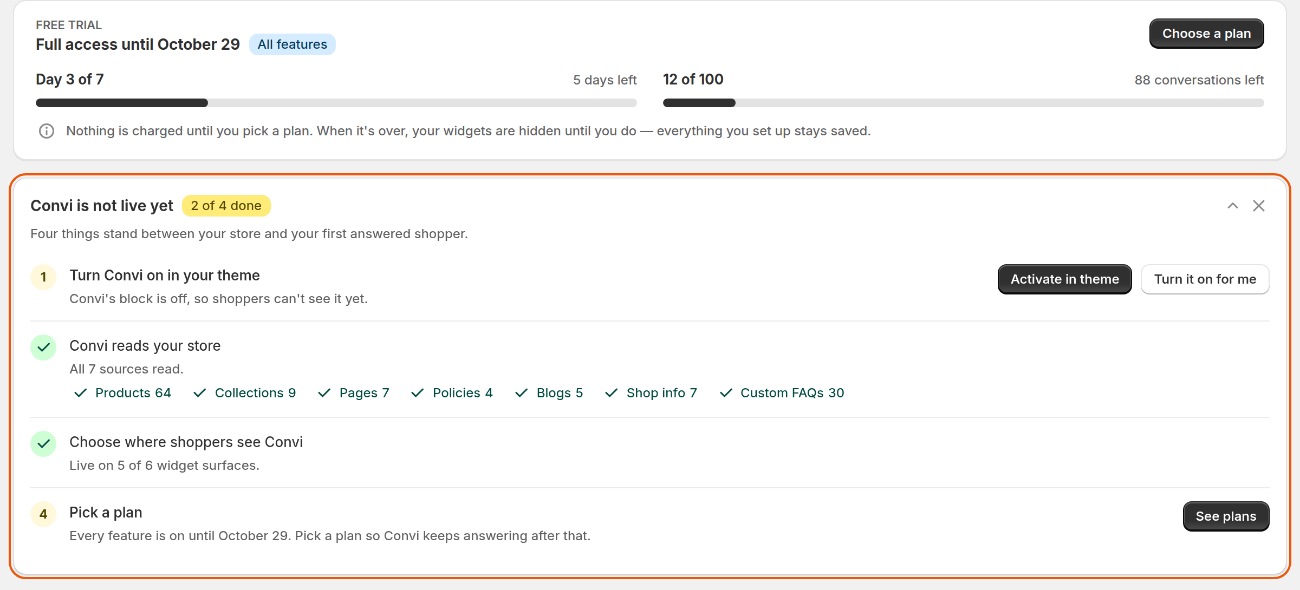
Before shoppers chat, Home shows your trial and the setup steps that are left.
If you hide the setup steps and Convi's app embed is still off, a banner says "Turn on Convi so shoppers can see it", with Activate in theme.
What does Home show on a paid plan with no shopper chats in the last year?
With a paid plan and no shopper chats in the last year, Home shows the Your plan card, the setup steps until they are done or hidden, and then one card that tells you whether shoppers can reach Convi:
Convi is live on your storefront, with Start a test conversation, which opens your store in a new tab.
Or Convi can't reach shoppers yet, when Convi's app embed is off or no chat widget is on. It shows Activate in theme or Choose widgets.
A chat on your live store counts like any shopper's conversation.
What does Home show once shoppers chat?
Once shoppers have chatted with Convi, Home shows what Convi is doing now, and what needs you. The cards are:
The Your plan card: your conversations this cycle, for example "312 / 500 included", with Billing history and Manage plan. During the free trial, it is the Free trial card described above. It is the same card as in Settings › Plan & billing.
Live: how many shoppers are in a chat now, for example "7 shoppers in a chat now". Open Live opens the Live tab in Analyze.
Needs your attention: up to 5 open conversations that are with your team and were active in the last 7 days, the most recently active first. Each row shows the shopper, how long ago the conversation was last active, the last message and the topic. Every row also carries the badge Low Confidence, whatever the reason for the handover: open the conversation to see why it was handed over. Select a row to open the conversation, or View all to open Conversations. The card is hidden when no conversation waits for you.
Overview: your key numbers for Last week, Last 30 days, Last 90 days or All time. Each number shows the change against the period before, for example "9% vs last week", except for All time.
Knowledge gaps from real conversations: View recommendations opens Learn › Improve, with the questions Convi couldn't answer confidently.
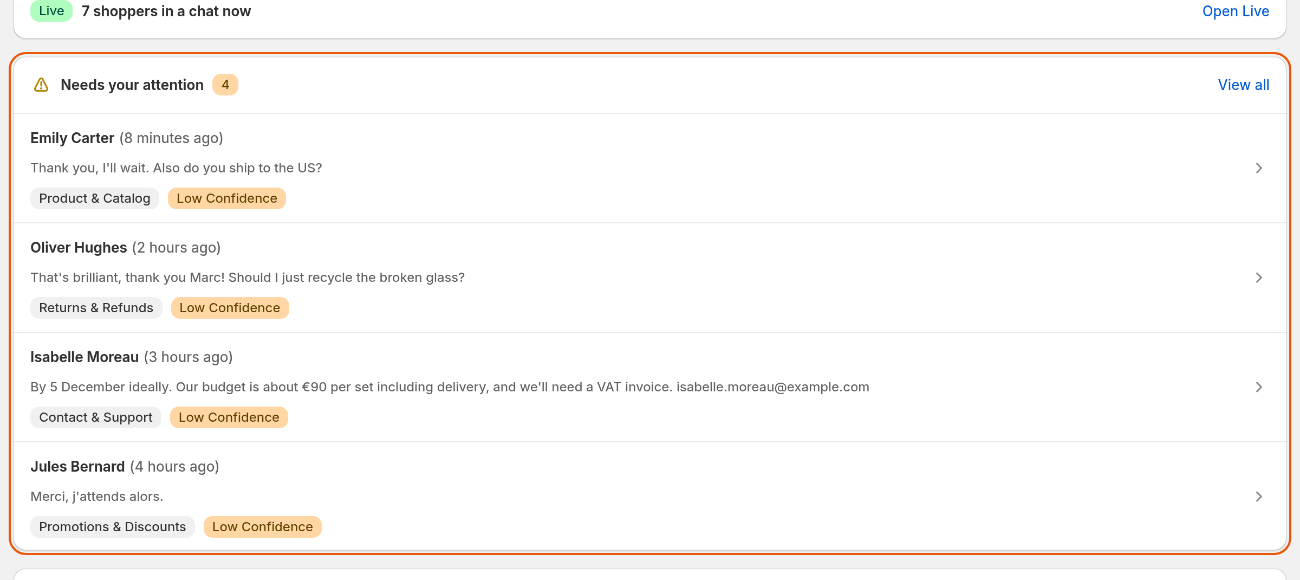
Needs your attention lists the open conversations that are with your team.
The table below explains the numbers in Overview.
Number | What it counts |
Conversations | Conversations shoppers started in the period. Test chats in the live preview and Shopify POS conversations are left out. |
AI Resolution | The share of those conversations that Convi resolved without handing them over to your team. |
Convi-attributed sales | On a paid plan only: the sales of the orders credited to Convi in the period. |
Conversations counts every conversation, also those your team finished, so it can be higher than the count on the Your plan card. See What counts as a conversation?.
Select the plus button on a number to add it to My dashboard in Analyze, or View more in Analyze for the full reports.
What else is on Home?
Every view of Home can also show these cards:
Get more out of Convi: suggestions for what to do next, such as a skill or a widget you haven't switched on yet, or the questions shoppers asked that Convi couldn't answer confidently. Each card has its button, such as Turn on or Add answers, and Not now to skip it.
Have any questions while working with Convi?: Book a demo session books a free session with the Convi team. Select the X to hide it.
Once shoppers chat, Use Convi from Claude or ChatGPT: connect your own AI assistant, so it can find what shoppers couldn't get answered, write the fixes and explain your numbers.
The bell at the top right of every page shows what's new in Convi. See Contact the Convi team.
Related
Install Convi and finish setup — install the app and switch it on in your theme.
Find and filter conversations in the inbox — open the conversations that need you.
How billing works: included and extra conversations — what the numbers on the Your plan card mean.