
This article shows you how to install Convi on your Shopify store and finish its setup, so Convi can answer your shoppers. It is for store owners who are installing Convi for the first time.
Plans: the free trial, for every new store · Where: Shopify App Store, then the Convi admin · Who: the store owner · Time: about 10 minutes
Before you start: you need a Shopify store where you can install apps and edit the theme. You don't need a card: the free trial is never charged.
Install Convi from the Shopify App Store
You install Convi like any other Shopify app. To install it:
Open Convi's page on the Shopify App Store: apps.shopify.com/convi.
Select Install, then approve the permissions Shopify shows you.
Convi opens inside your Shopify admin, on the first setup step. Three things happen at once:
Your free trial starts: 7 days or 100 conversations, whichever comes first. Each store gets one trial: reinstalling Convi doesn't start a new one. See How does the free trial work?.
Convi starts reading your store: products, collections, pages, policies, blog posts and shop info.
The chat bubble (the Bubble widget chatbot) is on. Shoppers see it once Convi's app embed is on in your theme (step 5 below).
Go through the six setup steps
The setup has six steps, and the numbers at the top of each screen show where you are. Until you finish them, the Convi admin shows only the setup. The table below lists the steps and what you do on each.
Step | What you do | To move on |
1. Intro | Read how Convi works. The box that says you agree to Convi's Terms of Service is ticked. | Get started |
2. Convi is learning your store… | Watch Convi read your store and your theme's look (fonts, colors, shadows, corner radius). It usually takes a few minutes, and you don't have to wait: Convi emails you when it's done. | Continue, or Continue without waiting |
3. "Meet" and your assistant's name, for example "Meet Léa" | Set the Assistant name, the Tone of voice, the Brand color, the Logo and the Starter questions shoppers can tap. The preview on the right changes as you edit. | Continue |
4. Is your assistant ready to go live? | Choose Yes — make Convi live, or Not yet — I want to explore more to see where to teach Convi more later. Both lead to the theme step, and neither keeps Convi hidden (see the warning below). | Continue; after Not yet — I want to explore more, then Continue to theme setup |
5. Switch Convi on in your theme | Turn on Convi's app embed (see below). | Continue, once the app embed is on |
6. Choose your plan | Keep the trial, or pick a plan. | Continue on trial, or a plan's button |
You can change everything from step 3 later: the name and the tone in Learn › Persona, and the look and the starter questions (called Predefined inquiries there) in Widgets, under Bubble widget chatbot.
Warning: Step 4 says "your first month is 100% on us". That offer has ended. Approving a plan in Shopify ends your free trial at once and starts your first 30-day billing period. Until you approve a plan, the trial costs nothing.
Warning: Not yet — I want to explore more doesn't keep Convi hidden, although the screen says "No shopper sees Convi until you publish." The theme step still needs Convi's app embed on, and once it is, shoppers see the chat bubble during your trial, and their chats count toward its 100 conversations. To keep Convi off your store while you explore, turn off the switch on the Bubble widget chatbot card in Widgets after the setup, and turn it back on when you're ready.
Switch Convi on in your theme (step 5)
Shoppers see Convi only when its app embed is on in your Shopify theme. The theme step keeps Continue greyed out until it is. To turn the app embed on:
On Switch Convi on in your theme, select Turn it on for me. Convi switches its block on in your published theme.
If Convi says it couldn't switch its block on, select Activate in theme editor. The Shopify theme editor opens in a new tab.
In the theme editor, under App embeds, check that Convi is on. The button turns it on for you; if it is off, turn it on.
Select Save in the theme editor.
Back in Convi, the step says "Convi's app embed is on. Shoppers can see your widget once you go live." Select Continue.
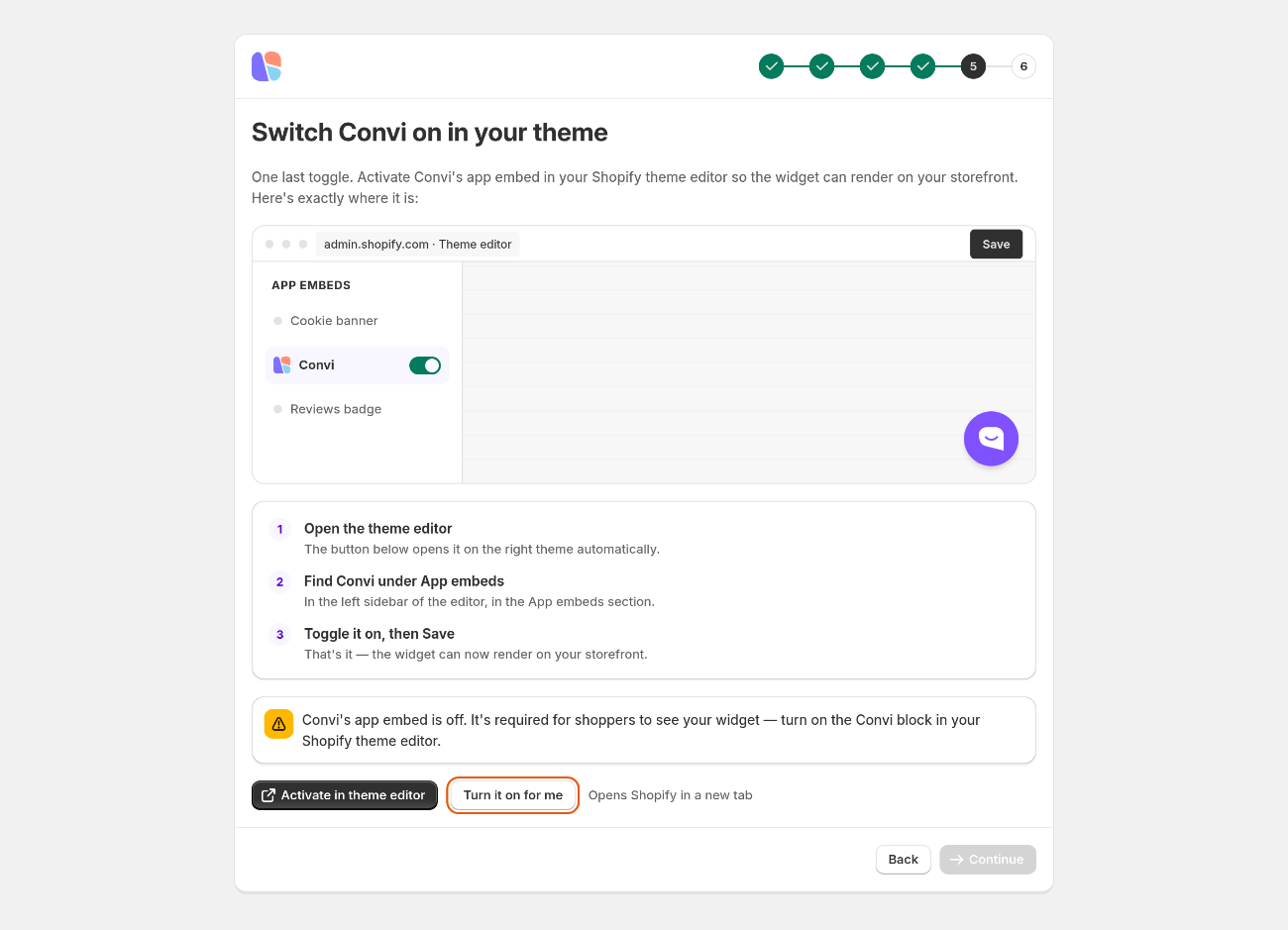
The theme step. Continue stays greyed out until Convi's app embed is on.
If Convi can't read your theme, the step says so and lets you continue. Check the Convi block in your theme editor later.
Keep the trial or pick a plan (step 6)
The last step, Choose your plan, shows when your trial ends and how many conversations it has. You can decide now or later:
To keep exploring, select Continue on trial. You can pick a plan any time in Settings › Plan & billing.
To pick a plan now, select its button, for example Choose Starter, and approve it in Shopify. Approving a plan ends the trial at once.
If your store has no trial left, the step says so, and Continue on trial isn't there. Pick a plan, or select Finish without a plan: Convi stays in your admin, but shoppers don't see it until you pick one.
After Continue on trial, Convi opens Home. See Convi's plans and prices to compare the plans.
Check that Convi is live on your store
After the setup, Home shows the setup steps that are left, in a card titled Convi is not live yet, or Convi is live on your storefront once shoppers can see it. To check it yourself:
Open your store in a private browser window.
Find the chat bubble at the bottom of the page.
Ask a question, such as "Do you ship to my country?".
Convi answers in the chat. A chat on your live store counts like any shopper's conversation. To test without using your trial's conversations, use the live preview in Learn, where test chats don't count.
What can go wrong during setup?
The table below lists what you may see during setup, and what to do.
What you see | Why | What to do |
Continue is greyed out on the theme step | Convi's app embed is still off in your theme | Turn it on as in step 5, and select Save in the theme editor. The step checks again every few seconds. |
"Your theme hasn't been customised yet, so Convi can't switch its block on for you." | Turn it on for me works only on a theme you have customized at least once | Select Activate in theme editor and turn Convi on there. |
A "Missing" line on Convi is learning your store…, for example "Missing: Return policy" | Your store has no such policy in Shopify | Add the policy in Shopify, or add the answer as an FAQ in Learn › Knowledge. |
"… products won't be read on the Free plan" | During the trial, Convi reads about 1,000 products of a larger catalog. The admin calls this the Free plan: it means your trial's limit. | Pick any paid plan, and Convi reads your whole catalog. |
If Convi still doesn't show on your store after the setup, see Convi's widgets don't appear on my store.
Related
What does Convi's Home page show? — understand the Free trial card and the setup steps card.
How does the free trial work? — what the trial includes and when it ends.
Customize how the Bubble widget chatbot looks — change the chat's colors, logo, position and texts.