
This article is for store owners who have just installed Convi. It explains the four setup steps on Home, and how to finish each one so Convi goes live on your storefront.
Plans: every plan, and the free trial · Where: Convi admin › Home · Time: about 10 minutes
What the setup steps on Home are
The setup steps are a card on Home called Convi is not live yet. It lists the four things that stand between your store and your first answered shopper, and shows how many are done, for example "2 of 4 done".
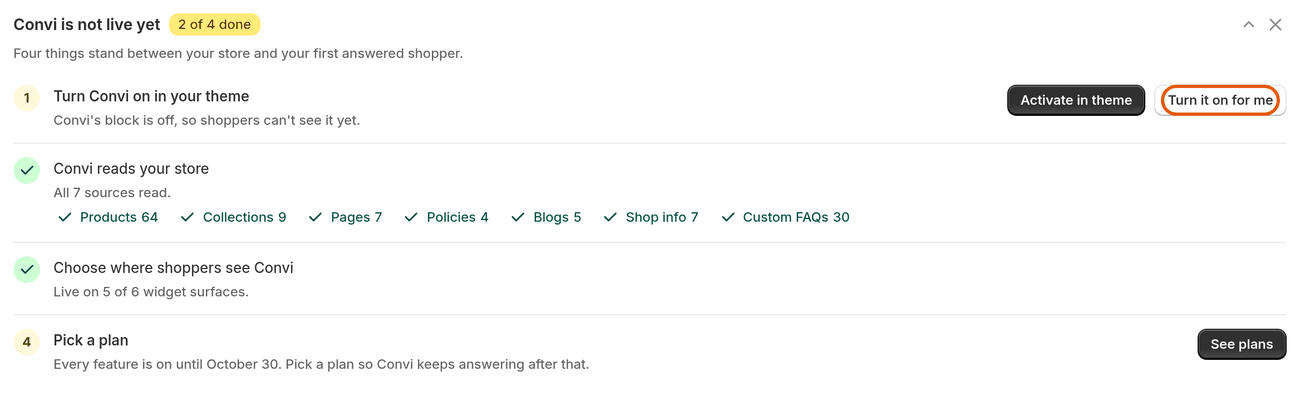
The setup steps card. A step that needs you shows the button that fixes it.
Each step has a status line. A step that needs you also has a button that takes you to the fix. If the theme step isn't done, it moves to the top of the card, because shoppers can't see Convi without it.
The table below lists the four steps.
Step | Done when | Button |
Convi reads your store | Convi has read every source your store has | None: it finishes on its own (unless the check fails: then Open Knowledge) |
Choose where shoppers see Convi | At least one widget is on, such as the chat bubble | Choose widgets, Test it |
Turn Convi on in your theme | Convi's app embed is on in your Shopify theme | Activate in theme, Turn it on for me |
Pick a plan | You have a paid plan | See plans |
Step 1: Let Convi read your store
The setup step Convi reads your store finishes on its own. Convi starts reading your store as soon as you install it, and you don't need to do anything. If the step says "We couldn't check what's been read. Open Knowledge to see where it stopped.", select Open Knowledge to see which source stopped.
While Convi reads, the step shows how many sources are done, for example "3 of 7 sources read — this finishes on its own." The sources are products, collections, pages, policies, blogs, shop info and custom FAQs, counting only the ones your store has. When it's done, the step lists each source with how many items Convi read. To see the entries, go to Learn › Knowledge.
Step 2: Choose where shoppers see Convi
The setup step Choose where shoppers see Convi is done when at least one widget is on. Convi can answer in several places on your storefront: the chat bubble, product FAQs, the Ask AI button, inline chat, the AI search bar and Find similars. To turn one on:
On Home, select Choose widgets in this step. The Widgets page opens.
Turn on a widget, for example Bubble widget chatbot.
The step then says how many widget surfaces are live, for example "Live on 1 of 6 widget surfaces."
To try Convi before shoppers do, select Test it in the same step. The live preview opens in Learn, where test chats don't count toward your usage.
Step 3: Turn Convi on in your theme
The setup step Turn Convi on in your theme switches on Convi's app embed in your Shopify theme. Shoppers see Convi only when it's on. To turn it on:
On Home, select Turn it on for me in this step.
The step then says "Convi's block is on in your Shopify theme."
If you see a message that Convi couldn't switch its block on, turn it on in the Shopify theme editor:
Select Activate in theme. The Shopify theme editor opens.
Under App embeds, find Convi.
Turn it on.
Select Save in the theme editor.
Back on Home, the step says "Convi's block is on in your Shopify theme."
Note: Turn it on for me doesn't work on a theme you have never customised. Use Activate in theme instead.
Step 4: Pick a plan
The setup step Pick a plan is done when you have a paid plan. Every new store starts with a free trial that has everything in Pro, except team members and the public API. During the trial, your widgets are live and Convi answers shoppers. The step shows when the trial ends, for example "Every feature is on until October 30."
To keep Convi answering after the trial:
On Home, select See plans in this step. Settings › Plan & billing opens.
Choose a plan.
Approve the plan in Shopify.
The step then says "Paid plan active." If that was the last setup step, the card goes away instead.
Warning: When the trial ends without a plan, your widgets are hidden and Convi stops answering shoppers. Everything you set up stays saved, and you're live again as soon as you pick a plan.
How do I know Convi is live?
Convi is live on your storefront when at least one widget is on and Convi's block is on in your theme, during the trial or on a plan. The setup card's title then changes to Convi is live on your storefront. Once all four steps are done, the card goes away. To check Convi yourself:
Open your store in a private browser window.
Find the Convi widget you turned on, for example the chat bubble.
Ask a question, such as "Do you ship to my country?".
Convi answers in the widget.
Hide the setup steps
You can hide the setup steps card on Home at any time. To hide it:
Select the X icon at the top right of the card.
You'll see "Setup steps hidden" with Undo. To bring the card back later, select Show setup steps on Home. The card also goes away by itself once every step is done or shoppers have started chatting.
Related
Hand over a conversation and take it back — decide what happens when Convi can't answer.
How does Convi learn about my store? — what Convi reads, and how to teach it more.
Why isn't Convi answering shoppers? — what to check when Convi doesn't answer.