
The WhatsApp Widget adds a WhatsApp button to every page of your store. A shopper writes a message in a small panel, and WhatsApp opens with the message already typed, addressed to your number. This article shows you how to add your number, turn the button on and change its texts. It is for store owners whose team answers shoppers on WhatsApp.
Plans: every plan and the free trial · Where: Convi admin › Widgets › WhatsApp Widget, and every page of your store · Who: the store owner, and team members whose role allows it · Time: about 3 minutes
Before you start: Convi's app embed must be on. See Add Convi to your theme: the app embed and app blocks. You need a WhatsApp number that your team reads.
Add your number and choose a corner
The switch on the card stays off until the widget has a number. To add it:
In the Convi admin, go to Widgets.
On the WhatsApp Widget card, select Add number (or Manage, if a number is already there). Settings opens.
In WhatsApp number, enter the full number in digits: the country code first, with no plus sign or spaces, for example 33639981234. It must have 8 to 15 digits.
In Corner, choose Bottom right or Bottom left.
Select Save. You'll see "WhatsApp widget saved".
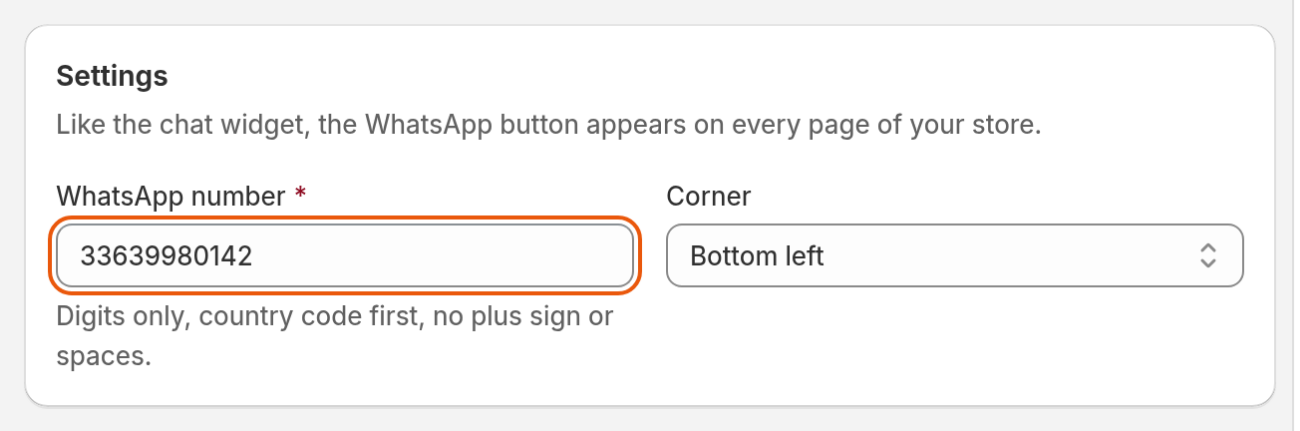
WhatsApp Widget › Settings: the number shoppers write to, and the corner of the button.
Turn on the WhatsApp button
Once the widget has a number, you can turn it on. To turn it on:
Go back to Widgets.
Turn on the WhatsApp Widget switch. The change is saved at once.
Open your live store. You'll see the WhatsApp button in the corner you chose, on every page.
If the Bubble widget chatbot is in the same corner, the WhatsApp button sits above it.
What do shoppers see?
When a shopper selects the WhatsApp button, a panel opens above it. The panel shows your logo, the name and line you set, your greeting and a message box. The shopper writes a message, up to 1,000 characters, and sends it. WhatsApp then opens in a new tab or in the WhatsApp app, with the message already typed and addressed to your number. The shopper sends it from WhatsApp.
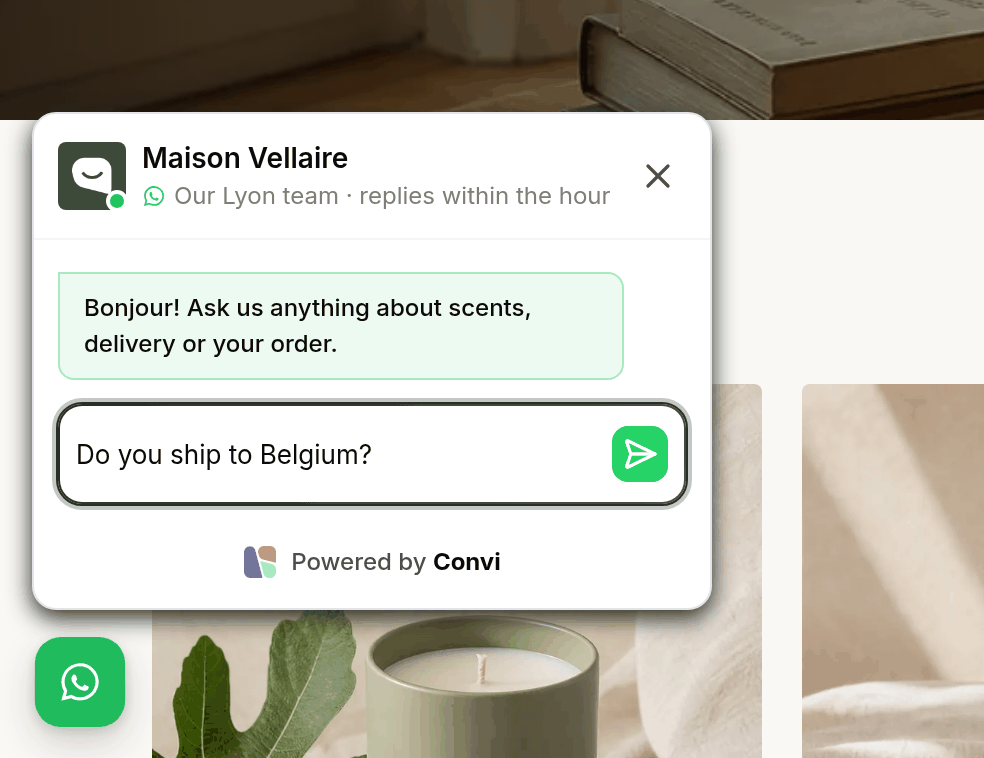
The panel on the home page. The shopper's message opens in WhatsApp, ready to send to your number.
Your team answers the message in WhatsApp, as any other WhatsApp message. The panel itself isn't a chat with Convi: it only prepares the message for WhatsApp.
Change the texts and translate them
Content holds the texts of the panel and the button, in your store's main language. To change them:
On the WhatsApp Widget card, select Manage, then select Content.
Under Panel, edit Name shown to shoppers, Greeting, Line under the name or Message box placeholder. The name appears at the top of the panel, above the greeting.
Under Button, edit Button label. The button shows only the WhatsApp mark: screen readers read this label aloud.
Select Save. You'll see "WhatsApp widget saved".
The name stays the same in every language. To translate the other texts, select Translations, then Edit beside a language, and select Save. The colors and style come from the Bubble widget chatbot: change them under Appearance in that widget.
What the WhatsApp Widget doesn't do
The WhatsApp Widget has some limits:
It shows on every page of your store. You can't choose pages.
It doesn't send the message for the shopper. Nothing reaches your number until the shopper sends it in WhatsApp.
It stays on when Convi is paused, for example when a plan's spending limit is used up, while Convi's AI widgets hide. See Why isn't Convi answering shoppers?
It hides when your store has no active plan and the free trial is over. If the trial ended at 100 conversations, the button stays until the trial's 7 days are over.
Related
Convi's widgets don't appear on my store — what to check when the button doesn't show.
Customize how the Bubble widget chatbot looks — the colors, style and spacing this button takes from the chat.
Translate Convi's widgets into your store's languages — how translations work across the widgets.