
Find similars adds a button to your product pages. When a shopper selects it, a window shows products from your store that are close to the one they are viewing. This article shows you how to turn it on, choose when the button shows, and change its texts. It is for store owners who want fewer shoppers to leave when a product isn't right for them.
Plans: every plan and the free trial · Where: Convi admin › Widgets › Find similars, and your product pages · Who: the store owner, and team members whose role allows it · Time: about 3 minutes
Before you start: Convi's app embed must be on. See Add Convi to your theme: the app embed and app blocks.
Turn on Find similars
The button has no block to place: Convi puts it near Add to cart by itself. To turn it on:
In the Convi admin, go to Widgets.
Turn on the Find similars switch. The change is saved at once.
Open a product page on your live store. You'll see the button Find similar products near Add to cart.
Manage on the card stays greyed out while the switch is off.
Choose when the button shows and how many products
Settings sets which product pages show the button, and how many products the window can show. To change them:
On the Find similars card, select Manage. Settings opens.
In Show for, choose All products, or Only unavailable variants. With Only unavailable variants, the button shows only when the variant the shopper selected is sold out, and it changes when the shopper picks another variant.
In Maximum results, choose a number from 1 to 8. New stores start with 4.
Select Save. You'll see "Find similars settings saved".
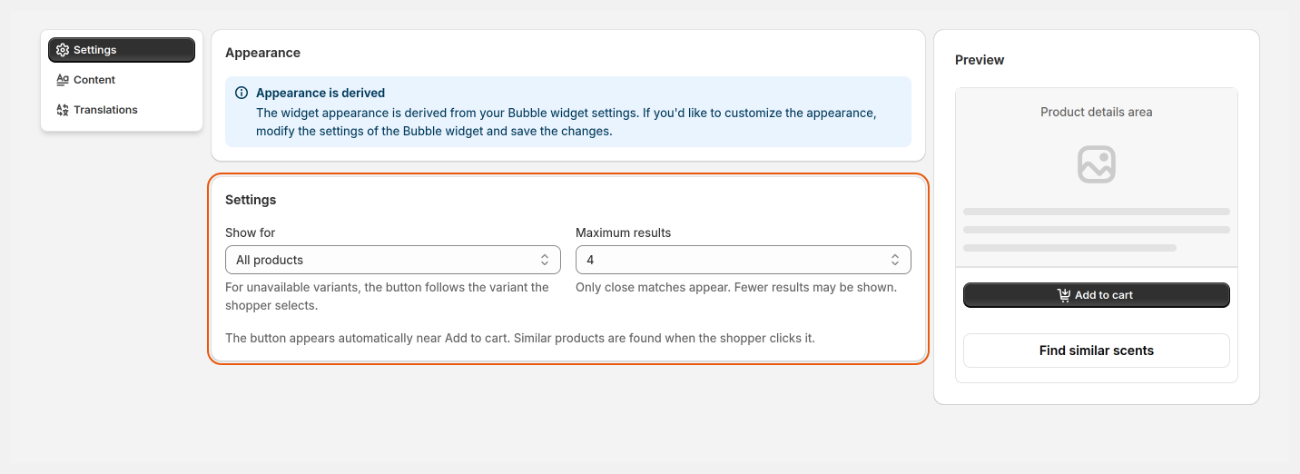
Find similars › Settings: when the button shows, and how many products the window can show. This store changed the button text under Content.
Only close matches show, so a shopper can see fewer products than your maximum.
What do shoppers see when they select the button?
When a shopper selects Find similar products, Convi looks for close matches in your catalog and shows them in a window on the same page. It shows only products that the shopper can buy. The table below lists the parts of the window.
Part | What it does |
The products | Each one has its picture, name, price and, when it matters, its variant, such as a size. Selecting a product opens its details on the same page |
Ask about this product | Under each product. Opens the chat and asks if this product is a good alternative to the one the shopper was viewing |
Help me choose | At the bottom. Opens the chat and asks which of these products is the best alternative. With no close matches, it asks what the shopper could get instead |
No close matches | The window says "No close matches right now", with a link to the product's collection or to all your products |
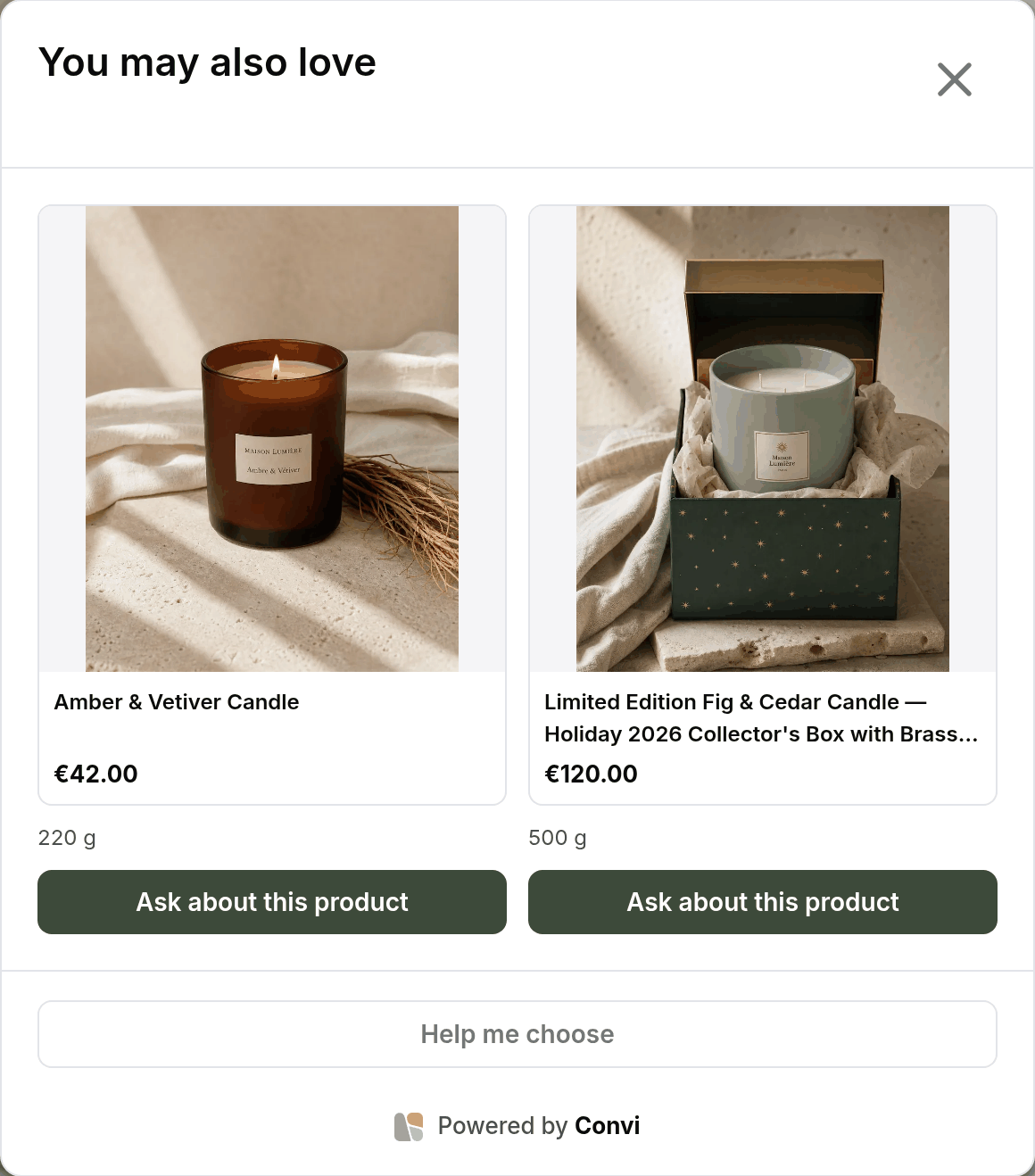
The window on a product page, with Maximum results set to 2. This store changed the heading under Content.
Looking at similar products doesn't start a conversation. A conversation starts only when the shopper asks in the chat. The two chat buttons show only when the Bubble widget chatbot is on.
Change the texts and translate them
Content holds every text of the button and the window, in your store's main language. To change them:
On the Find similars card, select Manage, then select Content.
Under Texts, edit Button text, Results heading, No results message, Browse collection button or Chat action. Each one is required. In Browse collection button,
{collection}is replaced by the collection's name.Under Storefront wording, edit any of the other texts, such as While results load or Ask about a result. Leave a field empty to use Convi's own wording, in the shopper's language.
Select Save. You'll see "Find similars settings saved".
Each text can be up to 160 characters. To translate the texts, select Translations, then Edit beside a language, and select Save. Shoppers see your main language when a translation is missing. The colors and style come from the Bubble widget chatbot: change them under Appearance in that widget.
What Find similars doesn't do
Find similars has some limits:
You can't pick the products. Convi chooses them from your catalog for each product.
You can't place the button yourself. If it shows in the wrong place on your theme, contact the Convi team: they can move it for your store.
It shows only on product pages.
Each store can show similar products up to 6 times a minute and 300 times a day. The Similar tab of "You might also like" counts too. The window says "We couldn't load similar products. Please try again." when your store passes these limits, when more than 2 shoppers use it at the same moment, or when many stores use it at once. After the minute limit, shoppers can try again a little later. The day limits count for 24 hours from their first use: after the 300 a day, or when all stores together reach theirs, it works again when those 24 hours end.
It hides when Convi is paused, for example when a plan's spending limit is used up.
Related
Show "You might also like" on product pages — the section that adds a Similar tab when Find similars is on.
Convi's widgets don't appear on my store — what to check when the button doesn't show.
What counts as a conversation? — how a chat started from the window is counted.