
The Ask AI Button lets shoppers start a chat about the product they are looking at. This article shows you how to turn it on, choose where it shows and change its words. It is for store owners who want the chat closer to the buy button.
Plans: every plan and the free trial · Where: Convi admin › Widgets › Ask AI Button, and your product pages · Who: the store owner, and team members whose role allows it · Time: about 3 minutes
Before you start: Convi's app embed and the Bubble widget chatbot must be on. See Convi's widgets don't appear on my store.
Turn on the Ask AI Button
The Ask AI Button needs no block in your theme. To turn it on:
In the Convi admin, go to Widgets.
Turn on the Ask AI Button switch. The change is saved at once.
Open a product page on your live store. You'll see the button below Add to cart and a floating tab at the edge of the screen.
Go back to Widgets and reload the page. The card shows Live.
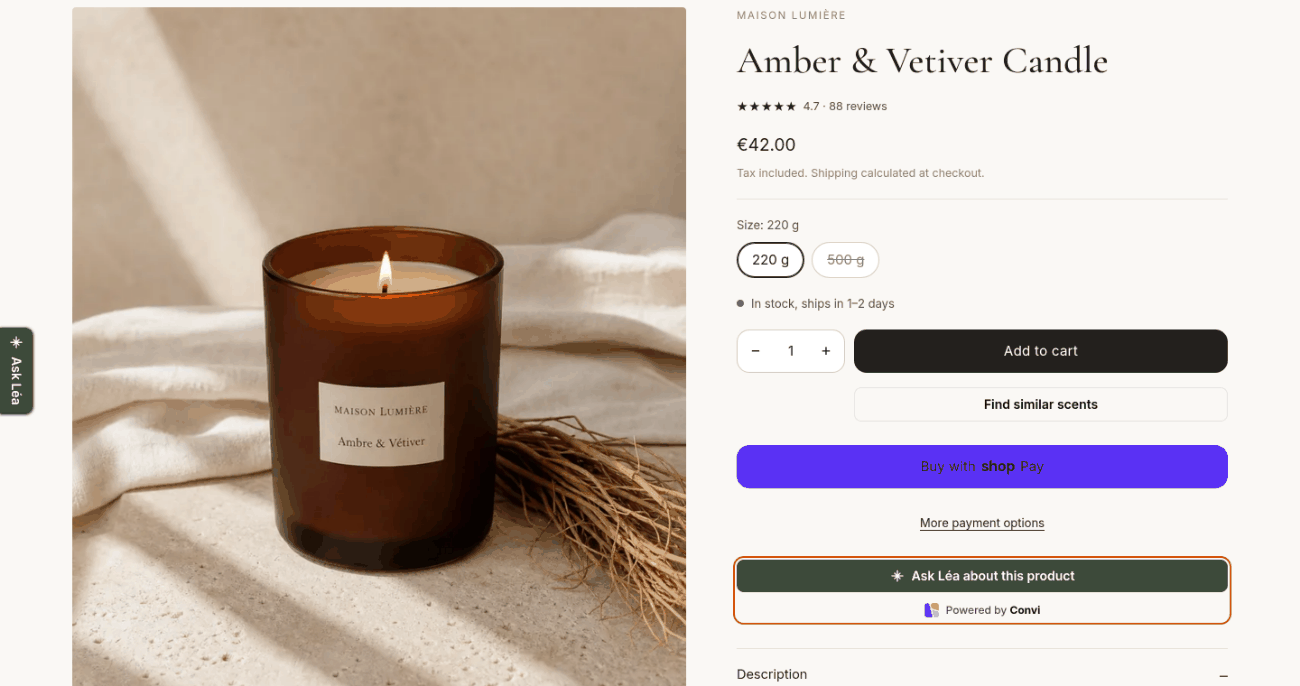
The inline button below the buy buttons, and the floating tab at the edge of the page. This store changed both texts and moved the tab to the left.
When a shopper selects the button, the chat opens and sends "I have a question about" and the product's name, in the shopper's language. Convi then replies about that product. The conversation counts like any other.
Choose where the button shows
Placement mode sets where shoppers see the button. To change it:
On the Ask AI Button card, select Manage.
In Settings, choose a Placement mode.
If the mode has a floating tab, choose the Floating tab position: Left or Right.
Select Save. You'll see "Ask AI Button settings saved."
The table below lists the modes.
Placement mode | What shoppers see |
Both (Inline + Floating) | The button below Add to cart and the floating tab. New stores start with this one, with the tab on the right |
Inline button only | Only the button below Add to cart |
Floating tab only | Only the tab at the edge of the screen |
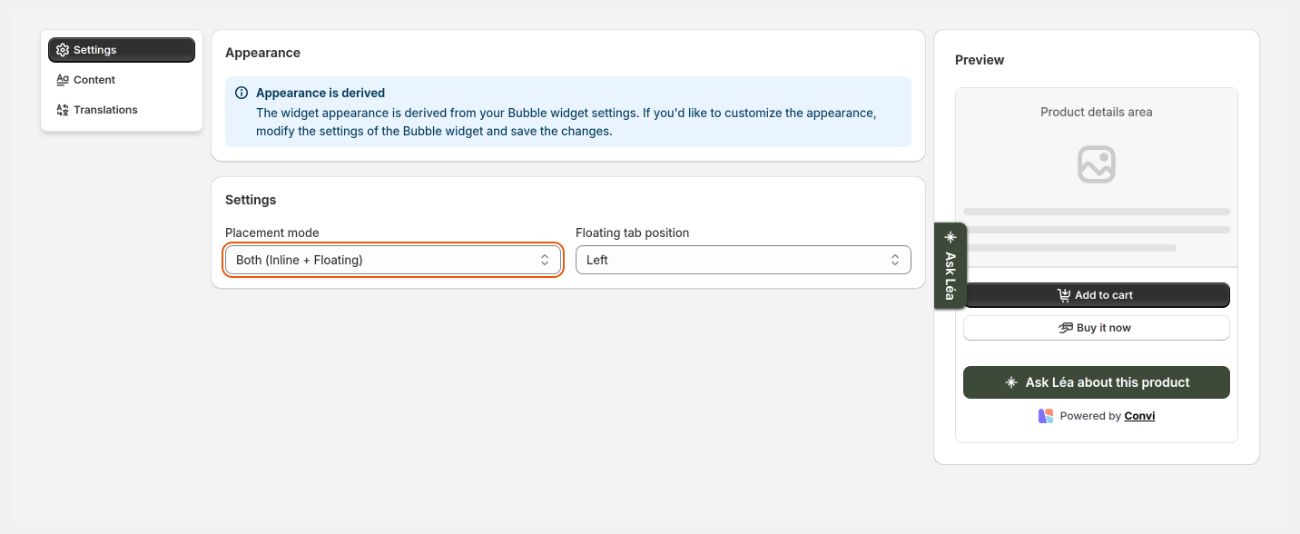
Settings: the placement mode and the side of the floating tab.
Change the button's words
The button and the tab have their own texts. To change them:
On the Ask AI Button card, select Manage, then select Content.
Edit Inline button text, which starts as "Ask AI about this product", and Floating tab text, which starts as "Ask AI".
Select Save. You'll see "Ask AI Button settings saved."
To translate these texts, select Translations, then Edit beside a language, and select Save. The colors and style come from the Bubble widget chatbot: change them under Appearance in that widget.
What if the button doesn't show?
The inline button needs a spot Convi recognizes below Add to cart. Some themes don't have one. On Both (Inline + Floating), the floating tab still shows and the card says Live, even if the inline button has no spot. On Inline button only, the card says Not live yet and offers Show floating tab. This sets Placement mode to Both (Inline + Floating), and the floating tab needs no spot in your theme.
There is no app block for the Ask AI Button, so you can't move the inline button in the theme editor.
What the Ask AI Button doesn't do
The button has some limits:
It shows only on product pages.
It needs the Bubble widget chatbot on. With the bubble off, shoppers who select the button still get the chat, and the conversation counts, but they have no chat bubble to come back to. The Ask AI Button window can't be saved until you turn the bubble on.
It hides when Convi is paused, for example when a plan's spending limit is used up.
Related
Convi's widgets don't appear on my store — what to check when the button doesn't show.
Customize how the Bubble widget chatbot looks — the colors and style this button takes from the chat.
What counts as a conversation? — how a chat started from the button is counted.