
Convi's widgets work in every language your Shopify store sells in. This article explains which language shoppers see, and shows you how to translate the texts you write. It is for store owners with more than one language on their store.
Plans: every plan and the free trial · Where: Convi admin › Widgets › a widget's Manage › Translations · Who: the store owner, and team members whose role allows it · Time: about 10 minutes
Before you start: publish the language on your store in your Shopify admin.
Which languages can Convi's widgets show?
Convi's widgets use the languages published on your Shopify store. There is no list of languages to set up in Convi:
Your store's default language is the one you edit under Content in each widget.
Every other published language gets its own row under Translations.
When you publish a new language in Shopify, it appears under Translations by itself.
When you unpublish a language in Shopify, its row and its translations in Convi are deleted.
How does Convi choose the language a shopper sees?
Convi looks at two things: the language of the store page, for the widget's words, and the language of the shopper's message, for the answers. It doesn't use the language of the shopper's browser. The table below shows what follows what.
What shoppers read | Which language it follows | Who writes it |
Your widget texts, such as the chat's welcome and the suggested questions | The language of the store page the shopper is on. Where a translation is missing, shoppers see your default language. | You, under Content and Translations |
Convi's own words, such as buttons and product card labels | The language of the store page. Convi has them ready in 15 languages, listed below. In any other language, shoppers see them in English. | Convi |
The assistant's answers | The language of the shopper's latest message. There is nothing to set up. | The AI |
Convi's own words come in English, Spanish, French, German, Italian, Portuguese (Portugal), Portuguese (Brazil), Dutch, Arabic, Swedish, Polish, Turkish, Chinese (Simplified), Japanese and Danish.
The widgets follow your store's text direction, so they read right to left on a right-to-left storefront, such as Arabic.
Translate a widget's texts
Each of the eight widgets keeps its own translations, under Translations in its settings. To translate the chat:
In the Convi admin, go to Widgets.
On the Bubble widget chatbot card, select Manage.
Select Translations. Your first other language opens, marked Editing.
To work on another language, select Edit beside it.
Each text shows your default language on the left. Type the translation in the box on the right.
Select Save. You'll see "New settings have been saved."
While you work, Preview shows the chat in the language you are editing.
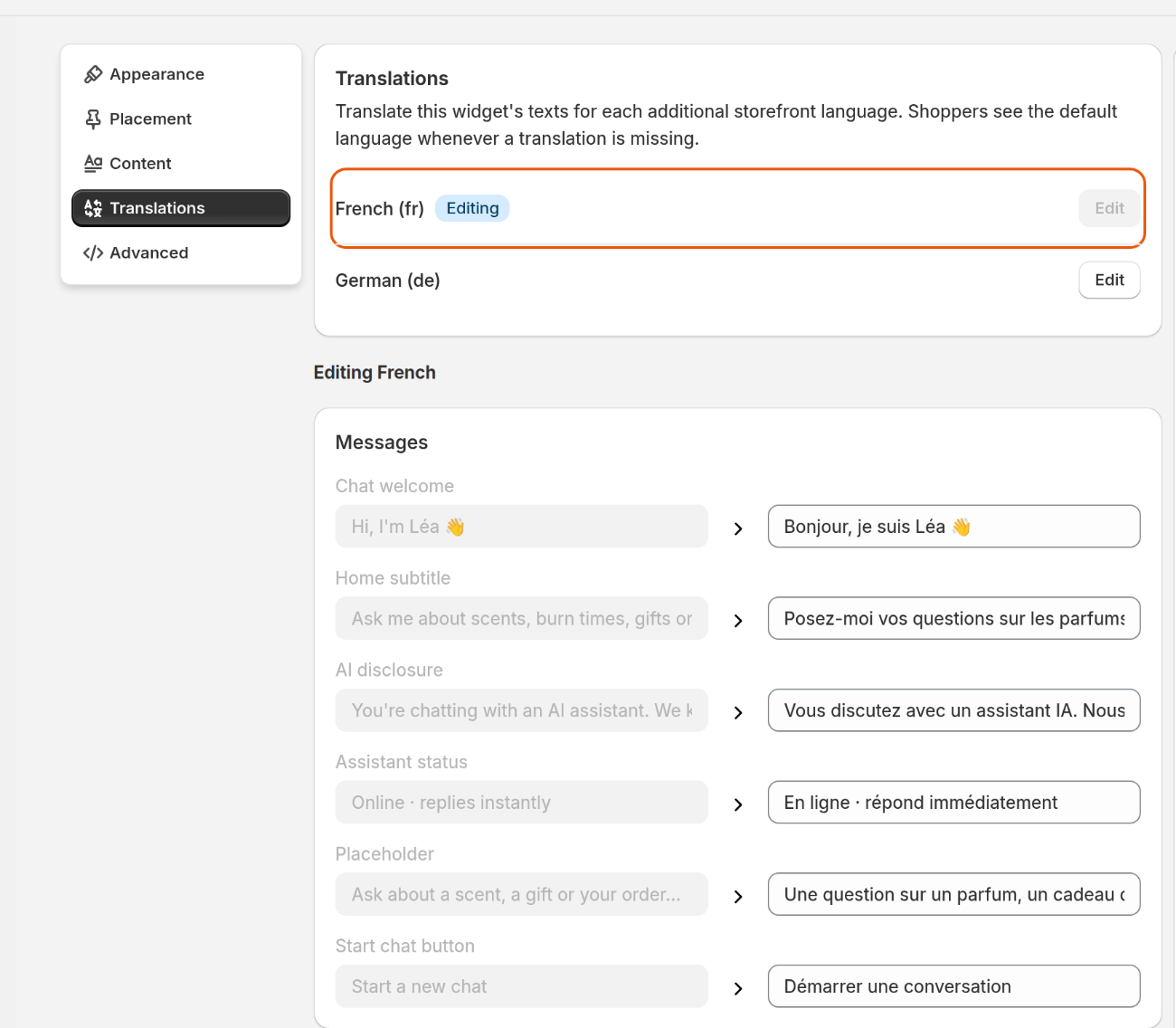
Translations: one row for each of your other languages. The texts of the language you are editing appear below.
To translate another widget, open its Manage and follow the same steps. If Translations says "No additional languages", your store has only one language: add one in your Shopify admin first.
If Inline chat uses Use the same messages and predefined inquiries as the Bubble widget, it also takes the Bubble widget's translations, so there is nothing more to translate.
What does Convi translate for you?
When you add a language in Shopify, Convi fills in its texts, so you start from a draft. What you get depends on the text:
A text you never changed: Convi's own wording in the new language, if it is one of the 15 languages above. Otherwise, a copy of your default-language text. The WhatsApp Widget's texts always start as a copy.
A text you changed: a copy of your default-language text. Translate these yourself. Shoppers see them untranslated until you do.
Suggested questions Convi picked for your store: already translated, if the language is one of the 15. If you have saved the Bubble widget before, some or all of them can be a copy in your default language, so check them.
Suggested questions you wrote: a copy in your default language. Translate these yourself.
Changing a default-language message later doesn't change its translations, so update each language yourself. Suggested questions work differently: see Add suggested questions to the chat.
Check a translation on your store
To see what shoppers see, open your store in the language you translated:
Open your store, and switch to the language with your theme's language selector.
Open the chat.
Check the welcome, the suggested questions and the other texts.
Send a message in that language. Convi answers in the same language.
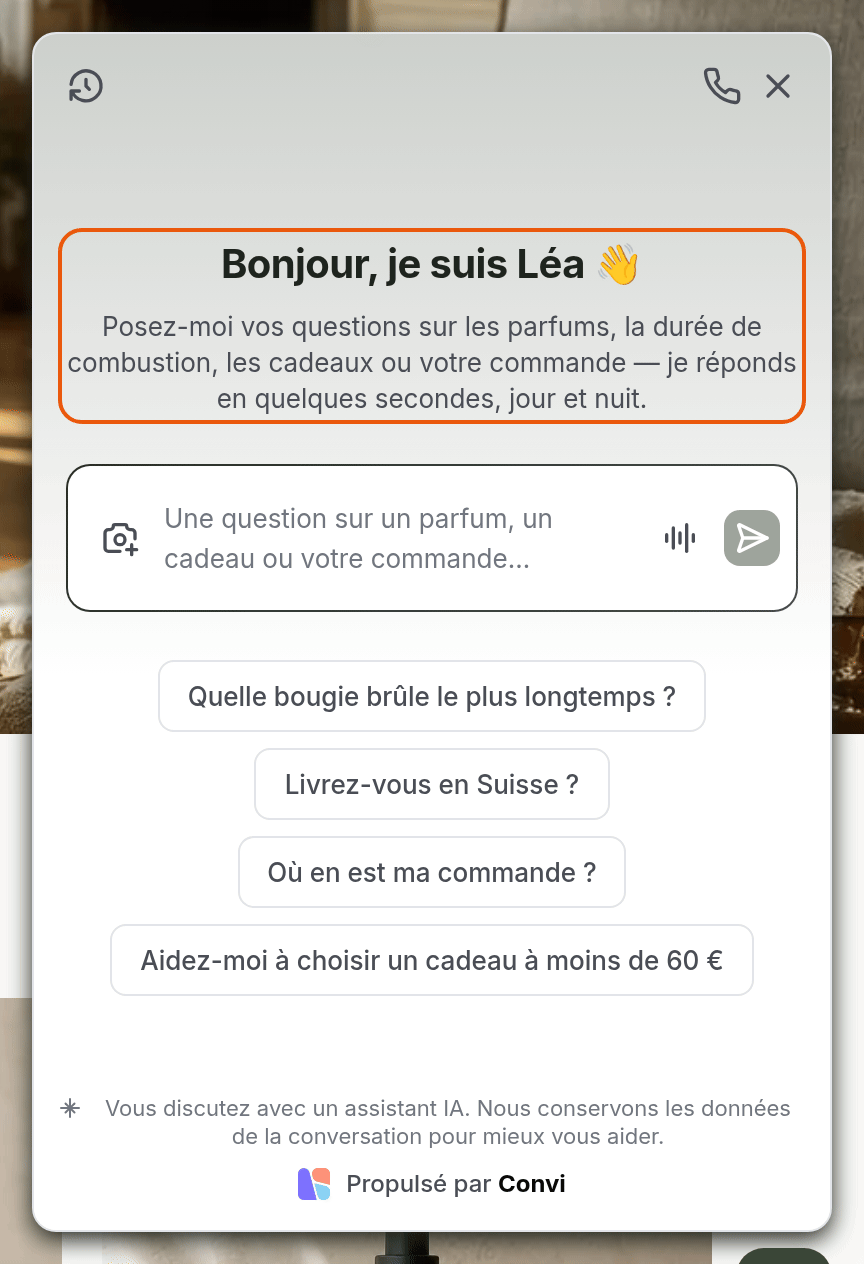
The same chat on the French version of the store: your translated texts, with Convi's own words in French.
What do shoppers in other countries see?
If you sell in several countries with Shopify Markets, Convi follows the market the shopper is browsing in. This works with no setup:
Product cards in the chat show the shopper's currency and their market's price.
Links to products, collections and the cart stay in the shopper's market.
A product you don't sell in that market shows "Not available in your country", and it can't be added to the cart.
What can't you translate here?
A few things are outside Translations:
Convi's own words, such as buttons and product card labels: you can't edit them. The texts of photos and voice chats are the exception: they are in the Bubble widget's Content and Translations.
The language of the Convi admin: this is a separate setting, under Panel language in Settings › Language. It changes only what you see, never what shoppers see.
The language of the answers: you can't set it. Convi answers in the language the shopper writes in.
Related
Change the texts shoppers see in the chat — the default-language texts you translate here.
Add suggested questions to the chat — the questions shoppers tap to start a chat.
Customize how the Bubble widget chatbot looks — the chat's mode, colors and position.