
You might also like is a section on your product pages. It shows products that shoppers often buy with the one they are viewing, so they can add more to their order. This article shows you how to add it and what it shows. It is for store owners who want to sell more with each order.
Plans: every plan and the free trial · Where: the Shopify theme editor, your product pages, and Convi admin › Analyze › Activity · Who: the store owner, or anyone who can edit your theme · Time: about 3 minutes
Before you start: Convi's app embed must be on. See Convi's widgets don't appear on my store.
Add "You might also like" to your product pages
The "You might also like" section has no card or switch on Widgets. You turn it on by adding its block, and off by removing it. To add it:
In your Shopify admin, go to Online Store › Themes and select Customize on your published theme. The theme editor opens.
Go to a product page.
In a section that accepts app blocks, select Add block, then choose Convi You might also like.
Select Save.
Open a product on your live store. If it has products bought together, you'll see the section with the title "Often bought with" and the product's name. A product without such products shows nothing, so check a best seller.
What does "You might also like" show shoppers?
The "You might also like" section shows up to 6 products, and each one must be in stock and available to buy. Shoppers can add a product from its card with Add to cart. A product with several variants shows Choose options, which opens its details in a window on the same page. Shoppers can also select any product to see those details. Prices follow the shopper's market. The table below lists the section's parts.
Part | What it shows | What it needs |
Bought together | Products bought in the same order as this one | At least 5 orders with both products in the last 180 days, and a clear pattern. Convi drops pairs that look like chance |
Similar | A second tab with products like this one, up to your Find similars limit | Find similars turned on |
Ask which goes best | A button that opens the chat and asks which of these products goes best with this one | The Bubble widget chatbot turned on |
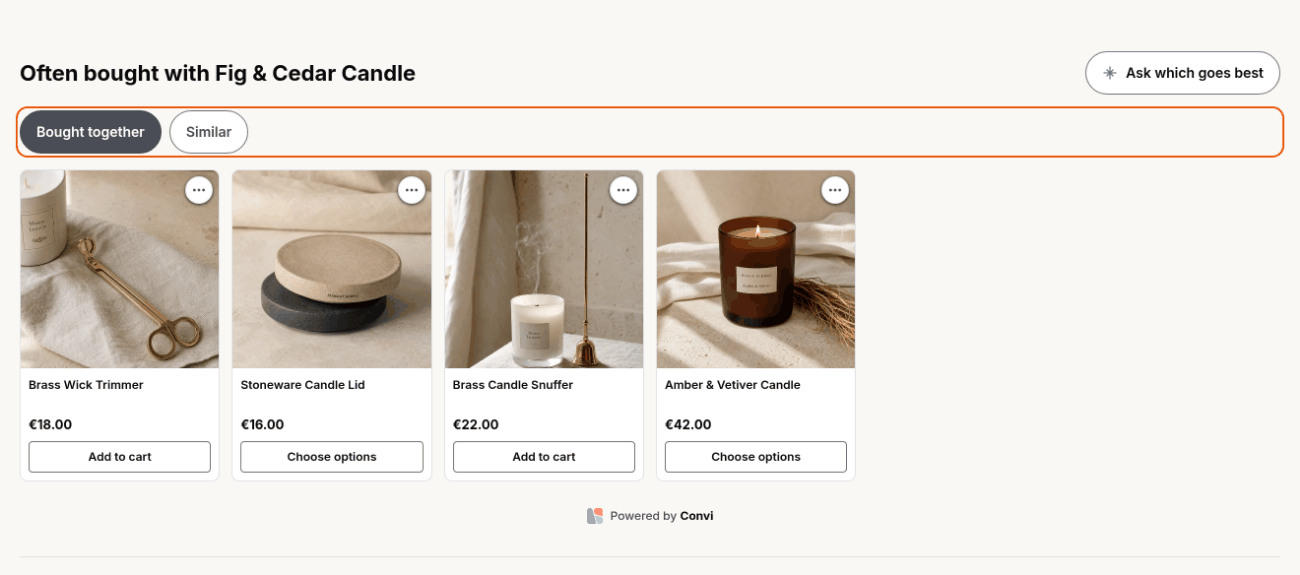
The section on a product page. Bought together shows first, and shoppers switch to Similar with the tab.
Without Find similars, the section has no tabs and shows only the products bought together. On a phone, Convi's floating buttons hide while the products are on screen, so they don't cover them.
See how "You might also like" performs
Analyze shows how shoppers use the section. To see it:
In the Convi admin, go to Analyze › Activity.
In View by, choose Widget.
Under Conversations by widget, find the You might also like row.
Below the row's name, you'll see the section's impressions, clicks and adds.
What "You might also like" doesn't do
The section has some limits:
It needs order history. A new store, or a product that is rarely bought with another, shows nothing. Similar products don't fill the gap, because the section shows only when there are products bought together. Convi updates these lists once a day.
You can't choose the products or change the texts. Convi picks the products from your orders. The section's labels use the shopper's language when a translation is available; otherwise, they show in English.
It shows only on product pages, where you placed the block.
It hides when Convi is paused, for example when a plan's spending limit is used up.
Related
Convi's widgets don't appear on my store — what to check when a section or widget doesn't show.
Why isn't Convi answering shoppers? — what happens when Convi is paused.
Customize how the Bubble widget chatbot looks — the chat that Ask which goes best opens.