
The AI FAQ Widget shows questions about each product on its page. When a shopper selects one, the chat opens and Convi answers it. This article shows you how to turn the widget on and choose how it appears. It is for store owners who want more shoppers to ask before they buy.
Plans: every plan and the free trial · Where: Convi admin › Widgets › AI FAQ Widget, and your product pages · Who: the store owner, and team members whose role allows it · Time: about 5 minutes
Before you start: Convi's app embed and the Bubble widget chatbot must be on. See Convi's widgets don't appear on my store.
Turn on the AI FAQ Widget
Convi writes the questions for you when you turn the widget on. To turn it on:
In the Convi admin, go to Widgets.
Check that the Bubble widget chatbot is on. Convi starts writing questions only if it is.
Turn on the AI FAQ Widget switch. The change is saved at once.
Open a product page on your live store. The questions show below Add to cart, under the title "Have a question? Ask our AI". A large catalog can take some time.
Go back to Widgets and reload the page. The card shows Live.
If the bubble was off when you turned the widget on, Convi wrote no questions. Turn on the bubble, then turn the AI FAQ Widget switch off and on again.
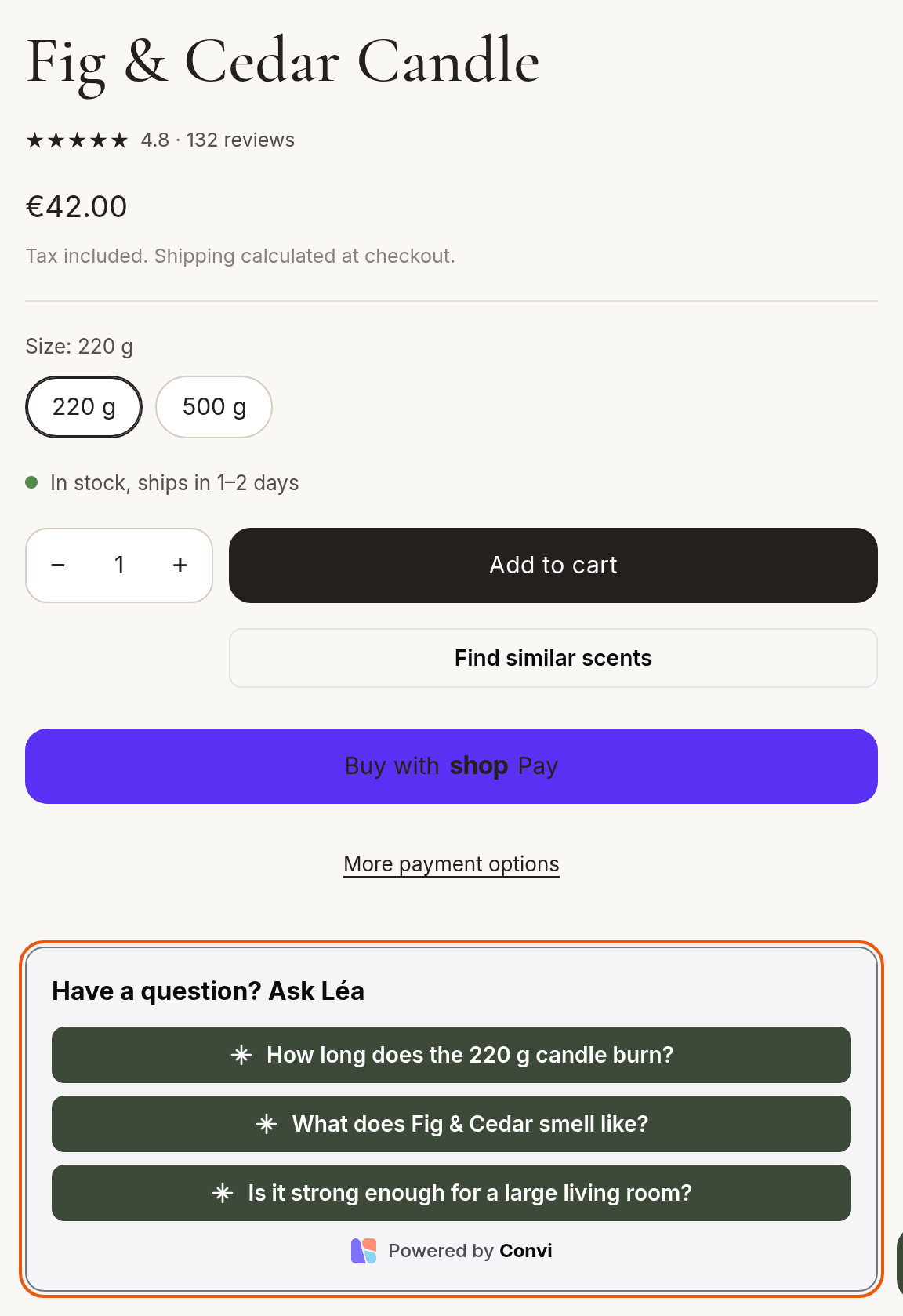
The widget on a product page: three questions about this candle, below the buy buttons. This store changed the title.
How does Convi write the questions?
Convi writes up to 4 questions for each product, from its title, description, type, vendor and tags. It writes them in your store's main language and in each language published in Shopify, and shoppers see their own language when it is available.
When you change a product's title or description while the widget is on, Convi writes its questions again.
A product with no questions shows no widget. When a shopper selects a question, the chat opens, the question is sent, and Convi answers it. The conversation counts like any other.
Choose how many questions show
Settings sets how many questions show on each product page. To change it:
On the AI FAQ Widget card, select Manage.
In Settings, choose Number of questions: 2, 3 or 4. New stores start with 3.
Select Save. You'll see "FAQ widget settings saved."
Show the questions somewhere else on the page
Convi places the widget automatically, right below Add to cart. To put it somewhere else:
On the AI FAQ Widget card, select Manage.
Under Placement, select Open theme editor. The theme editor opens on a product page, in a new tab.
Add the Convi FAQ block where you want the questions, and select Save.
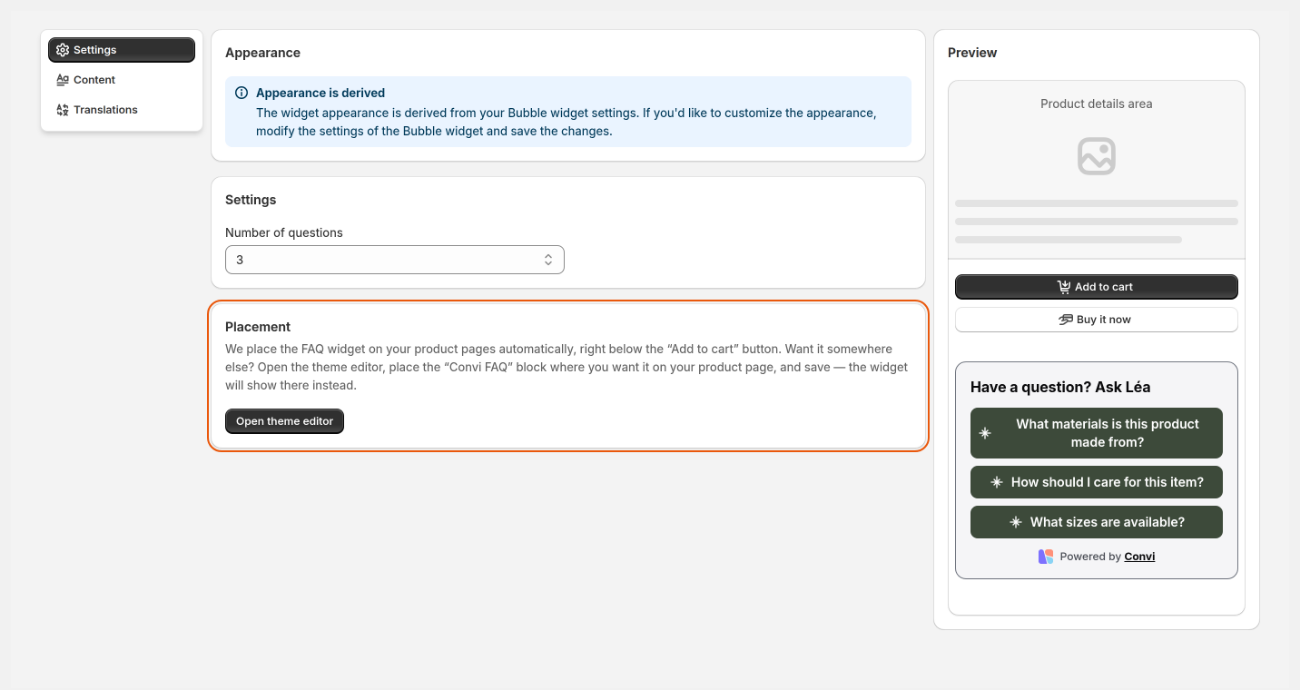
Under Placement, select Open theme editor to choose another spot for the questions.
The widget now shows where the block is. If you remove the block, it goes back below Add to cart.
If the card says Not live yet because your theme has no spot Convi recognizes, select Add to product page, and save the block in the same way.
Change the widget's title and translate it
The title above the questions is yours to change. To change it:
On the AI FAQ Widget card, select Manage, then select Content.
Edit Widget title.
Select Save. You'll see "FAQ widget settings saved."
To translate the title, select Translations, then Edit beside a language, and select Save. The colors and style come from the Bubble widget chatbot: change them under Appearance in that widget.
What the AI FAQ Widget doesn't do
The widget has some limits:
You can't write or edit the questions. Convi writes them. You choose only how many show.
It shows only on product pages.
It needs the Bubble widget chatbot on. With the bubble off, shoppers who select a question still get the chat, and the conversation counts, but they have no chat bubble to come back to. The FAQ Widget window can't be saved until you turn the bubble on.
It hides when Convi is paused, for example when a plan's spending limit is used up.
Related
Convi's widgets don't appear on my store — what to check when the questions don't show.
What counts as a conversation? — how a chat started from a question is counted.
Customize how the Bubble widget chatbot looks — the colors and style this widget takes from the chat.