
You can add a lot of content to Convi at once: many pages from a website, or a PDF such as a product manual. This article shows you how to run both imports and what each one leaves out. It is for store owners and team members who keep Convi's answers up to date.
Plans: every plan and the free trial · Where: Convi admin › Learn › Knowledge › Add knowledge · Who: the store owner, and team members whose role allows it · Time: about 10 minutes
Import a website
Import a website when your content lives outside Shopify, such as a separate help center. Convi finds the pages, and you pick which to add. To import a website:
Go to Learn › Knowledge.
Select Add knowledge, then Import a website.
Under Website URL, enter the site's address, for example https://help.example.com.
Select Find pages. You'll see "Finding pages…". On a large website this can take a minute or two.
Read the list of pages. Pages are grouped into folders, and every page starts ticked.
Untick what you don't want. To find a page, use Search pages.
Select Import selected, which shows the number of pages. You'll see how many are done, for example "Importing pages: 2 of 8 done".
When you see Import finished, read the result, and select Done.
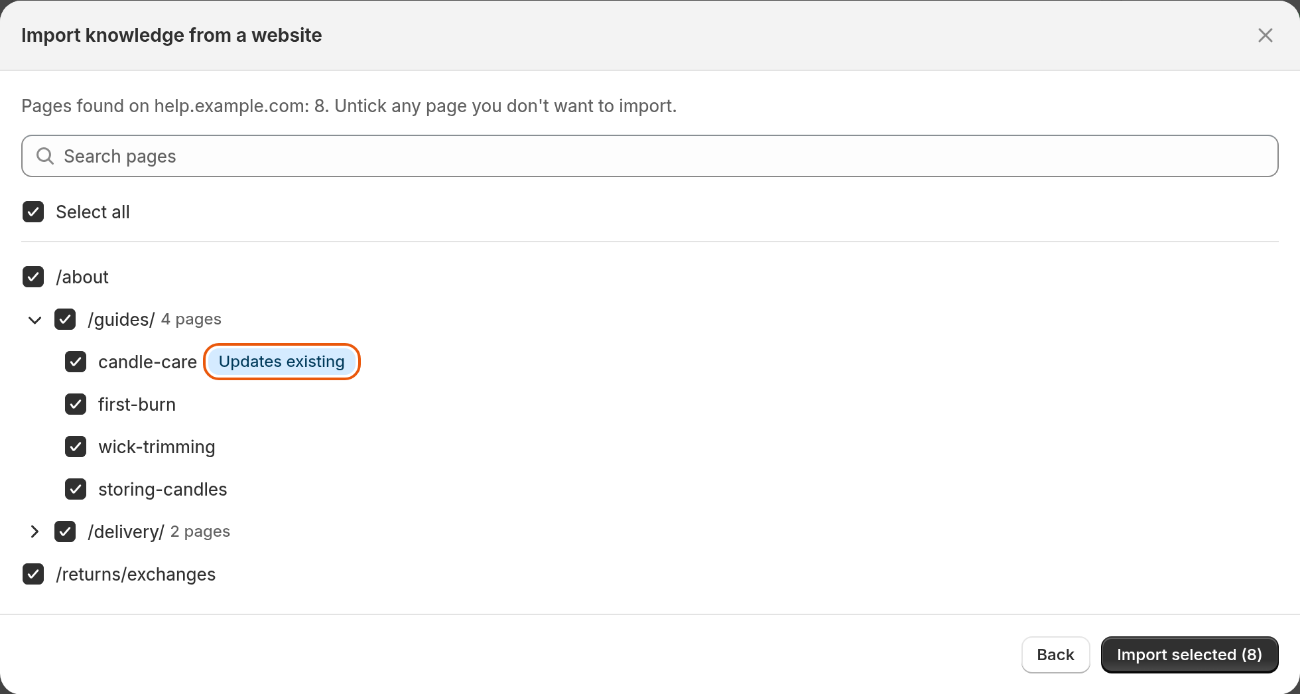
Every page starts ticked. Updates existing marks a page you already imported. Untick a folder to skip all its pages.
You can close the window while pages import. The import keeps running, and pages appear in your knowledge as they're added. Each page becomes one entry with the source URL.
Convi writes each entry from its page, and adds it without showing you the text first. After the import, read the new entries on the URL tab of Learn › Knowledge, and edit any that need it.
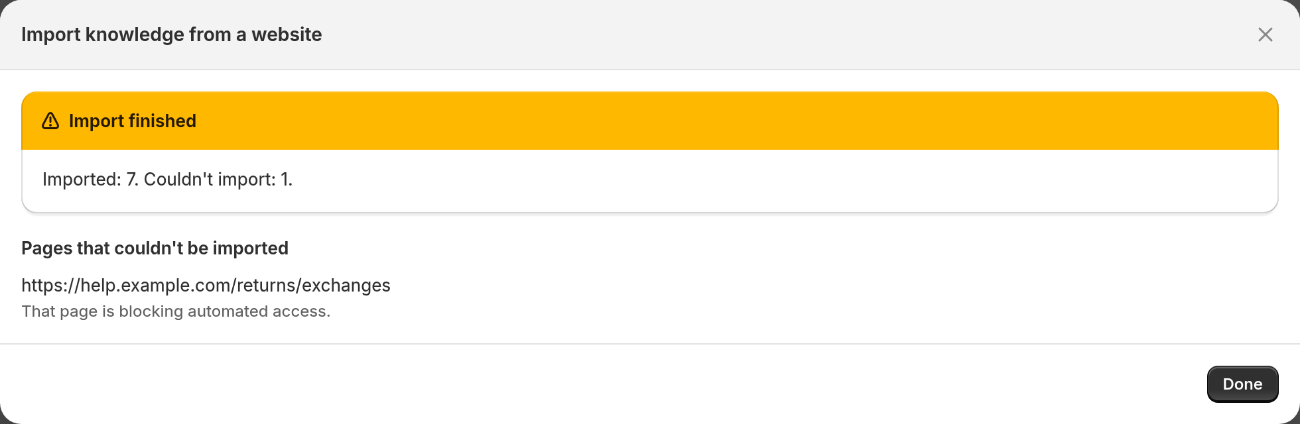
The result says how many pages were imported, and why any page failed.
Which pages does a website import find?
A website import looks in the site's sitemap. If the sitemap lists no other pages, it follows the links on the site. When it follows links, it finds pages up to three links away from the address you entered. It opens the address you entered and up to 60 more pages to look for those links, so it may miss some pages. The list below says what it finds and what it leaves out. If a page is missing, use Import a page.
Up to 200 pages. For a bigger site, enter the address of one section, for example https://help.example.com/guides. Convi then looks only at pages under that address.
Pages on the same site only. Links to other websites are left out.
Pages only. Files such as PDFs, images and spreadsheets are left out. So are cart, checkout, account, login and search pages.
Pages the site allows. Pages that the site's robots.txt file blocks are left out, apart from the address you entered.
On your own Shopify store, products, collections, pages, blogs and policies are left out, because Convi already reads them.
If a page needs a sign-in, it can't be imported. Convi reads the first 10,000 characters of each page's text.
Import the same website again
Imported pages don't update on their own. To refresh them, run the import again. A page you already imported, with this import or with Import a page, shows the badge Updates existing.
Warning: Importing a page marked Updates existing replaces the entry's title and text with what Convi reads now. Any edits you made in Convi are lost. To keep your edits, untick that page.
Only one website import can run at a time. If one is running, you'll see "A website import is already running. Showing its progress."
Import a PDF
Import a PDF for content that exists only as a file, such as a product manual or a care guide. To import one:
Go to Learn › Knowledge.
Select Add knowledge, then Import a PDF.
Select Choose a PDF, or drop the file in the box. You can add one PDF at a time, up to 10 MB.
Select Extract content. You'll see "Reading the PDF…". This usually takes a few seconds, and longer for big files.
Check the Title and Content that Convi wrote from the file, and edit them if you need to.
Select Add to knowledge.
You'll see "Knowledge imported successfully.", and the entry appears in the list with the source FAQ.
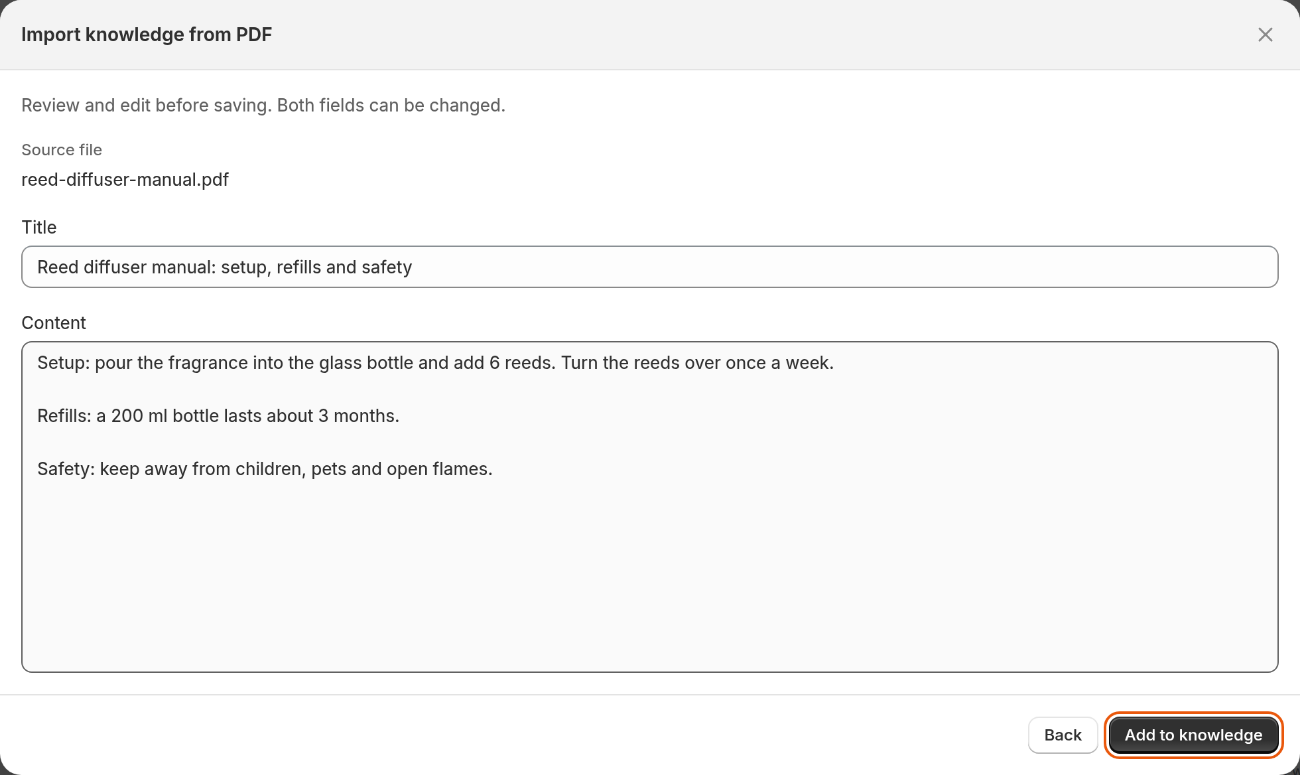
Convi keeps the facts from the file in one entry. You can edit both fields before you add it.
Convi keeps the text, not the file: it deletes the PDF after reading it. One PDF becomes one entry, with up to 8,000 characters of text.
Why did an import fail?
Convi tells you why, in a short message. The table below lists the messages that are specific to these imports, and what to do. For pages, see also Add and edit what Convi knows.
Message | What to do |
"We couldn't find any pages to import on that website. Pages Convi already syncs from your store are left out." | Check the address. On your own store, there may be nothing to add. |
"Finding pages took too long. Try a more specific address, like a help-center section." | Enter the address of one section. |
"That PDF is larger than 10 MB. Please choose a smaller file." | Split the file, or make it smaller. |
"That file isn't a PDF. Please choose a .pdf file." | Save the file as a PDF first. |
"This PDF has too much text to import at once. Split it into smaller files and import them one by one." | Split the file, and import each part. |
"We read the PDF but didn't find any readable content in it." | Copy the text you need into an FAQ. |
What imports don't do
Imports add entries to Convi's knowledge. Convi writes each entry from your page or file, so it isn't an exact copy. They have these limits:
They don't follow later changes. When the source changes, import it again, or edit the entry.
They don't change your website or your Shopify store.
A website import can't read pages behind a sign-in. Write that content as an FAQ.
Related
How does Convi learn about my store? — what Convi reads on its own, so you import only what's missing.
Add and edit what Convi knows — edit or delete imported entries.
Fix conflicting answers in Convi's knowledge — when an import disagrees with your store's content.