
This article is for store owners and the team members who look after Convi. When Convi doesn't answer shoppers, or answers "I don't know" too often, the cause is usually your plan, a handover or missing knowledge. Work through the checks below in order.
Applies to: every plan and the free trial · storefront widgets and channels
If shoppers can't see Convi on your store at all, start with the setup steps on Home instead: Go live with the setup steps on Home.
Check 1: Has your trial ended, or have you no plan?
Convi stops answering when the free trial ends and no plan is picked. The trial ends after 7 days, or earlier when its conversations run out. To check and fix it:
Go to Settings › Plan & billing, or look at the free trial card on Home.
If the trial has ended, or no plan is active, choose a plan.
Approve the plan in Shopify.
Your widgets come back and Convi answers again as soon as the plan is active. Everything you set up stays saved.
Warning: When the trial ends without a plan, your widgets are hidden and Convi stops on every channel. If a shopper writes again in a conversation that was already open, the message goes to your team under Needs help in Conversations, marked Reply limit reached.
Check 2: Has your plan reached its spending limit?
On today's plans, a paid plan doesn't stop at its included conversations. Each extra conversation is billed at your plan's rate, up to the spending limit you approved in Shopify. Convi pauses only when that limit is used up. To check it:
Go to Settings › Plan & billing.
Read AI conversations this cycle and Extra conversations.
If you think you've reached the limit, email [email protected] and we'll check it with you. The prices and the spending limit are on conviapp.com/pricing.
While Convi is paused, the next message in an open conversation goes to your team, marked Reply limit reached.
Check 3: Was the conversation handed over to your team?
Convi doesn't answer a conversation that was handed over to your team. That is on purpose: a person answers it now. To check a conversation:
Go to Conversations and open the conversation.
Look at the top. Handed over · Sensitive topic, or another reason, means it is waiting for your team.
Reply yourself, or select Give back to AI.
After Give back to AI, Convi answers the shopper's next message. If the reason is Reply limit reached, giving it back doesn't help until your plan or its spending limit allows replies again: see Checks 1 and 2. If many conversations are handed over, review When to hand over in Learn › Skills › Handover to human.
Check 4: Did the conversation reach its length limit?
Convi stops answering a single conversation when it reaches its length limit for AI replies. Convi then tells the shopper "This conversation has reached its length limit. Please start a new chat if you need more help." and resolves the conversation. To check a conversation:
Go to Conversations and open the conversation.
Read the last message from Convi.
If it is the length-limit message, the shopper can start a new chat, and Convi answers there. Other conversations are not affected.
Check 5: Does Convi lack the answer?
Convi answers only from your store's content and the skills you turn on. When nothing in your content matches, Convi says so and offers to pass the shopper to your team. To find and fill these gaps:
Go to Learn › Improve.
Under What to fix next, select Answer questions. You'll see the questions shoppers asked that Convi couldn't confidently answer.
Next to a question, select Add an answer.
Write the answer.
Select Save.
You'll see "Answer added to Convi's knowledge", and the question leaves the list. To see how Convi answers a question before you add anything, select Test next to it: the question opens in the live preview.
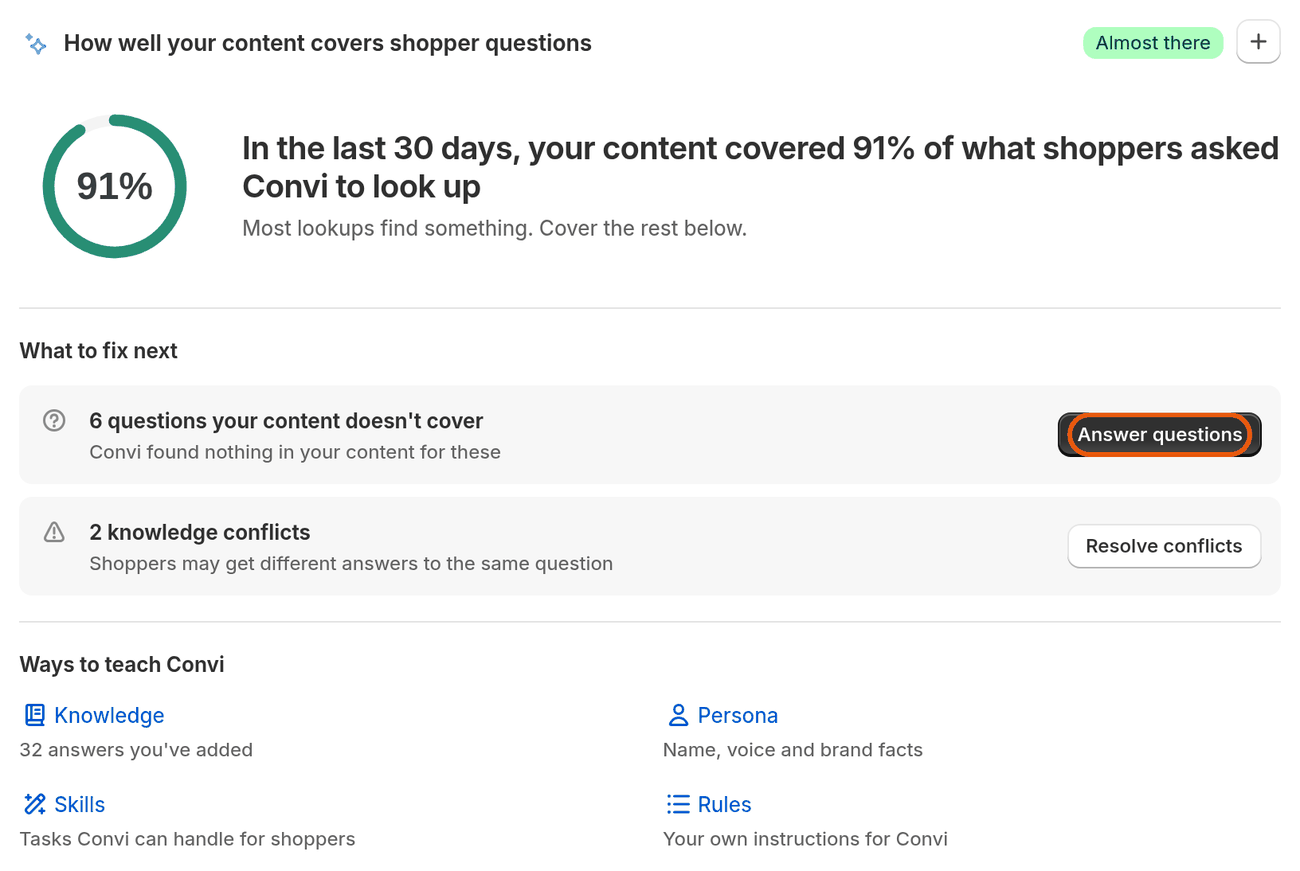
Learn › Improve shows how well your content covers shopper questions, and what to fix next.
If Convi gives two different answers to the same question, fix the Knowledge conflicts listed on the same page.
Check 6: Is the skill turned off?
Convi can only do a task, such as tracking an order, when its skill is on. To check a skill:
Go to Learn › Skills.
Find the skill, for example Order tracking. If it shows On, the skill is turned on.
If it's off, select Configure.
Turn on Use this skill.
Select Save.
You'll see "Skill updated successfully". If the card shows Upgrade instead of Configure, your plan doesn't include that skill. Some skills need setup first, and their card says so, for example "Prerequisite: Handover email configured".
Check 7: Is Convi still reading your store?
Convi may miss new products or pages while it is still reading your store, right after you install it or after big catalog changes. To check:
Go to Learn › Improve.
If it says Your score updates when syncing finishes, Convi is still reading.
Wait a few minutes, then ask again. In your first days, the setup steps on Home also show this under Convi reads your store.
Test it yourself
You can ask Convi the same question your shopper asked, without counting toward your usage. To test:
Go to Learn. The live preview is on the right of every tab.
Ask the question.
Convi answers in the preview, the way it answers shoppers.
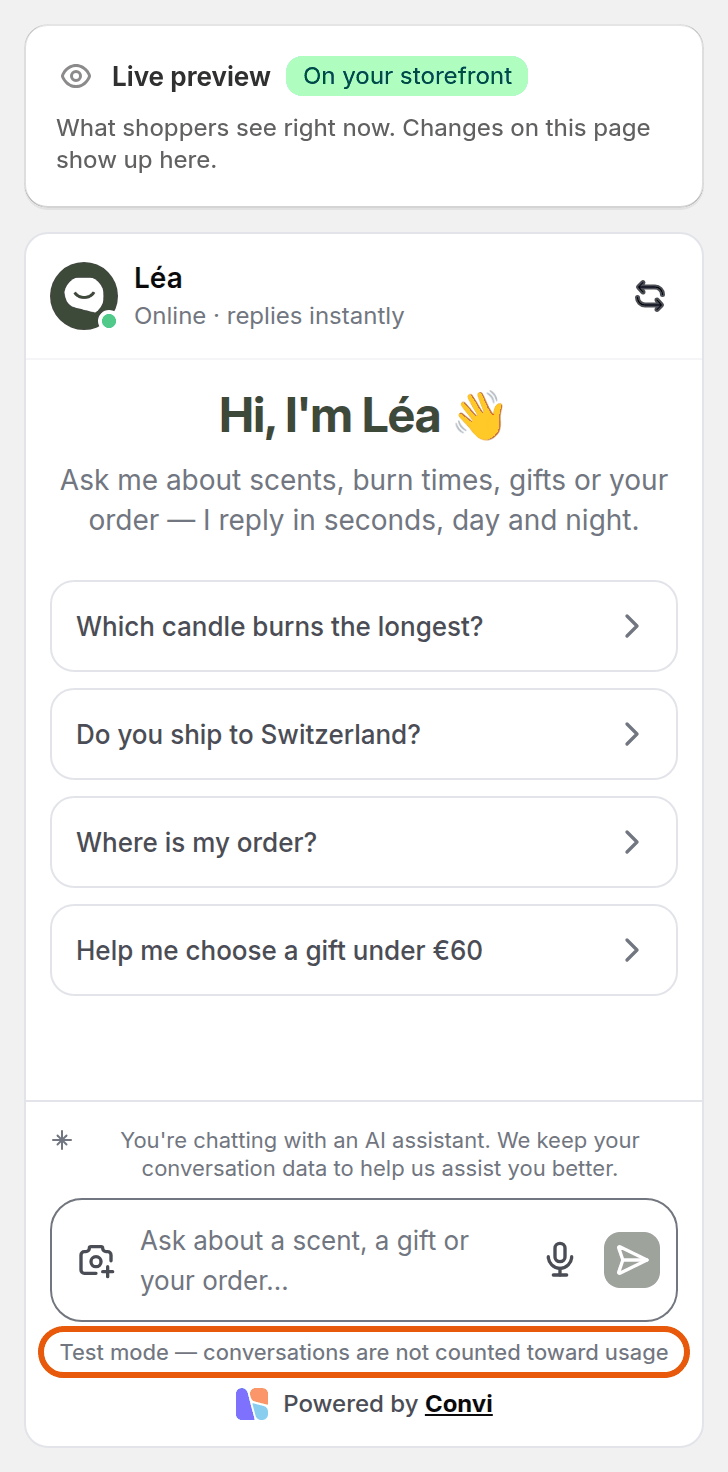
The live preview shows what shoppers see. Test chats are not counted toward your usage.
Still not working?
If your plan is active and the live preview doesn't answer either, email [email protected]. Send:
your store's address (your-store.myshopify.com);
the link to the conversation in Conversations;
the time it happened, and what you expected Convi to say.
Don't send shoppers' personal details, such as their address or payment details.
Related
Hand over a conversation and take it back — choose when Convi hands over, and answer handed-over chats.
How does Convi learn about my store? — the content Convi answers from, and how to add more.