
Learn › Knowledge lists Convi's knowledge entries: what it reads from your Shopify store, and the knowledge you add. Your products and collections aren't listed here. This article shows you how to add an FAQ, import a page, and edit or delete an entry. It is for store owners and team members who keep Convi's answers up to date.
Plans: every plan and the free trial · Where: Convi admin › Learn › Knowledge · Who: the store owner, and team members whose role allows it · Time: about 5 minutes
What's in Learn › Knowledge?
Learn › Knowledge shows one list of entries. Each entry has a title, its text and a Source that says where it came from.
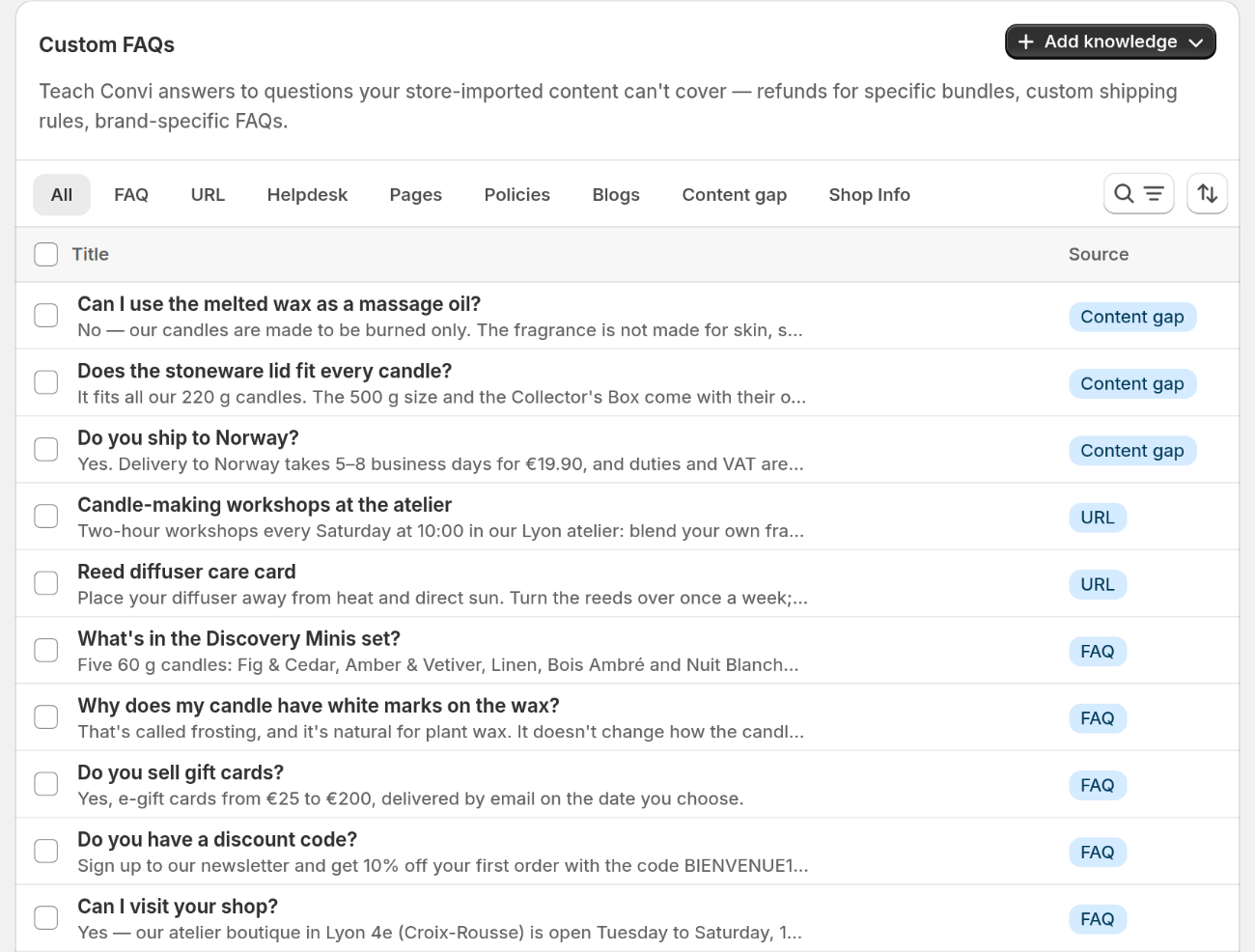
The list shows each entry's source. Use the tabs to see one source at a time.
To find an entry, use the search box, which looks in titles and text, or select a tab: All, FAQ, URL, Helpdesk, Pages, Policies, Blogs, Content gap or Shop Info. You can sort by Date, Title or Source. The list shows 20 entries a page, newest first. The table below explains each source.
Source | Where it comes from | Where you edit it |
FAQ | Questions and answers you wrote, and PDFs you imported | In Convi |
URL | Pages and websites you imported | In Convi |
Helpdesk | Content imported from Gorgias or Freshdesk | In Convi |
Content gap | Answers you added to questions Convi couldn't answer | In Convi |
Policies, Pages, Blogs, Shop Info, Metaobjects | Your Shopify store | In Shopify |
Metaobjects have no tab of their own. You'll find them under All.
Add an FAQ
An FAQ is one question and its answer, in your words. Use one for a fact your store content doesn't cover. To add one:
Go to Learn › Knowledge.
Select Add knowledge, then Write an FAQ.
Under Question, write the question the way a shopper asks it.
Under Answer, write the answer. Or select Fix with AI to have Convi draft one, and check every fact in the draft.
Select Add FAQ.
You'll see "FAQ added successfully.", and the entry appears at the top of the list. Convi can use it shortly after you save it.
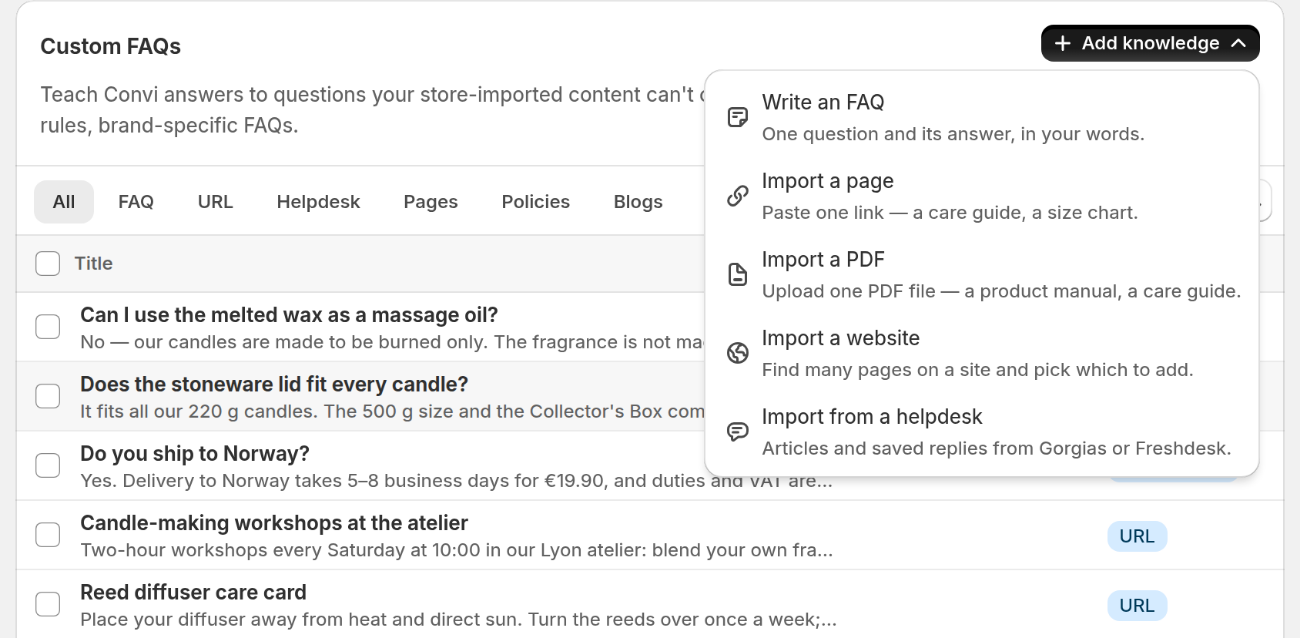
The Add knowledge menu holds every way to add knowledge.
Tip: Keep to one question in each FAQ. Convi finds answers by meaning, so "How long does shipping take to Germany?" works better than a heading such as "International shipping".
Import one page
Import a page when the content is already on a public web page, such as a care guide or a size chart. To import one:
Go to Learn › Knowledge.
Select Add knowledge, then Import a page.
Under Page URL, paste the page's address.
Select Extract content. You'll see "Reading the page…".
Check the Title and Content that Convi wrote from the page, and edit them if you need to.
Select Add to knowledge.
You'll see "Knowledge imported successfully.", and the entry appears in the list with the source URL.
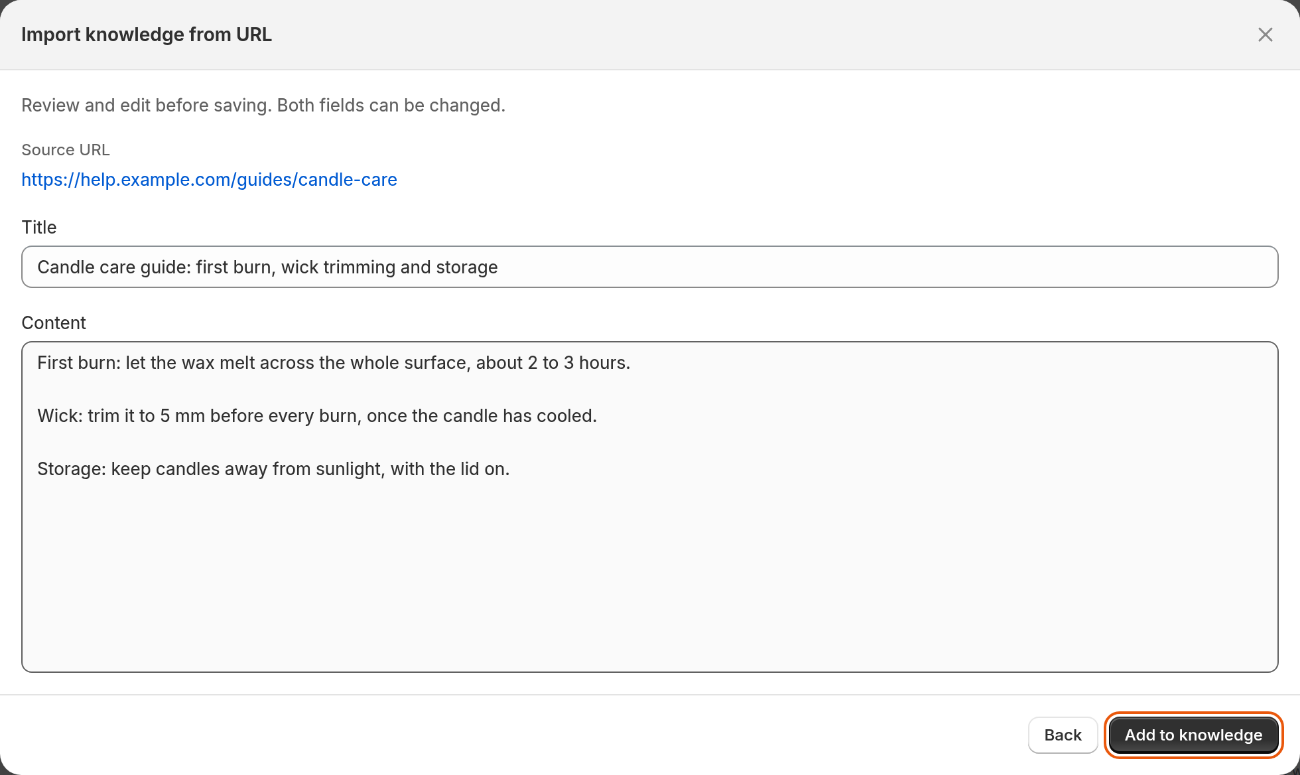
Convi turns the page into a short entry. You can edit both fields before you add it.
Why can't Convi import a page?
Convi tells you why a page can't be imported, in a short message. The table below lists the most common messages and what to do.
Message | What to do |
"That page requires a sign-in, so we can't read it." | Write the content as an FAQ. |
"That page is blocking automated access." | Write the content as an FAQ. |
"That URL doesn't point to a web page we can read." | If the link opens a PDF, download the file and use Import a PDF. |
"That page is unusually large. Try a more specific URL within the same site." | Use the address of a smaller page. |
"Page not found at that URL." | Check the address. |
"We couldn't extract useful content here. Reach out if we missed something." | Write the content as an FAQ, or email [email protected]. |
Other ways to add knowledge
The Add knowledge menu has three more imports for larger amounts of content. The table below says when to use each.
Menu item | Use it for |
Import a PDF | One PDF file up to 10 MB, such as a product manual |
Import a website | Many pages on a site. Convi finds them and you pick which to add |
Import from a helpdesk | Saved replies from Gorgias, or articles and saved replies from Freshdesk |
Answers you add while you work elsewhere also land here. For example, an answer you add under Learn › Improve is listed as a Content gap entry. See Answer the questions Convi couldn't answer.
Edit or delete an entry
You can edit or delete every entry that doesn't come from Shopify. To edit one:
Go to Learn › Knowledge, and select the entry in the list.
Change the text. An FAQ has Question and Answer. Other entries have Title and Content.
Select Save for an FAQ, or Edit knowledge for any other entry.
The window closes, and Convi uses the new text from then on.
To delete entries:
Tick the box beside each entry.
Select Delete.
Select Delete again in the Delete knowledge items window.
The entries leave the list, and Convi stops using them.
Warning: Deleting can't be undone. Convi can't delete entries that come from Shopify, so if your selection includes one, nothing is deleted. Untick it and try again.
Change something that comes from Shopify
Entries from Shopify are read-only in Convi, because your store is where they live. To change one:
Go to Learn › Knowledge, and select the entry in the list.
Select Update in Shopify. The right page of your Shopify admin opens in a new tab.
Change the content there, and save it in Shopify.
Convi picks up the change automatically.
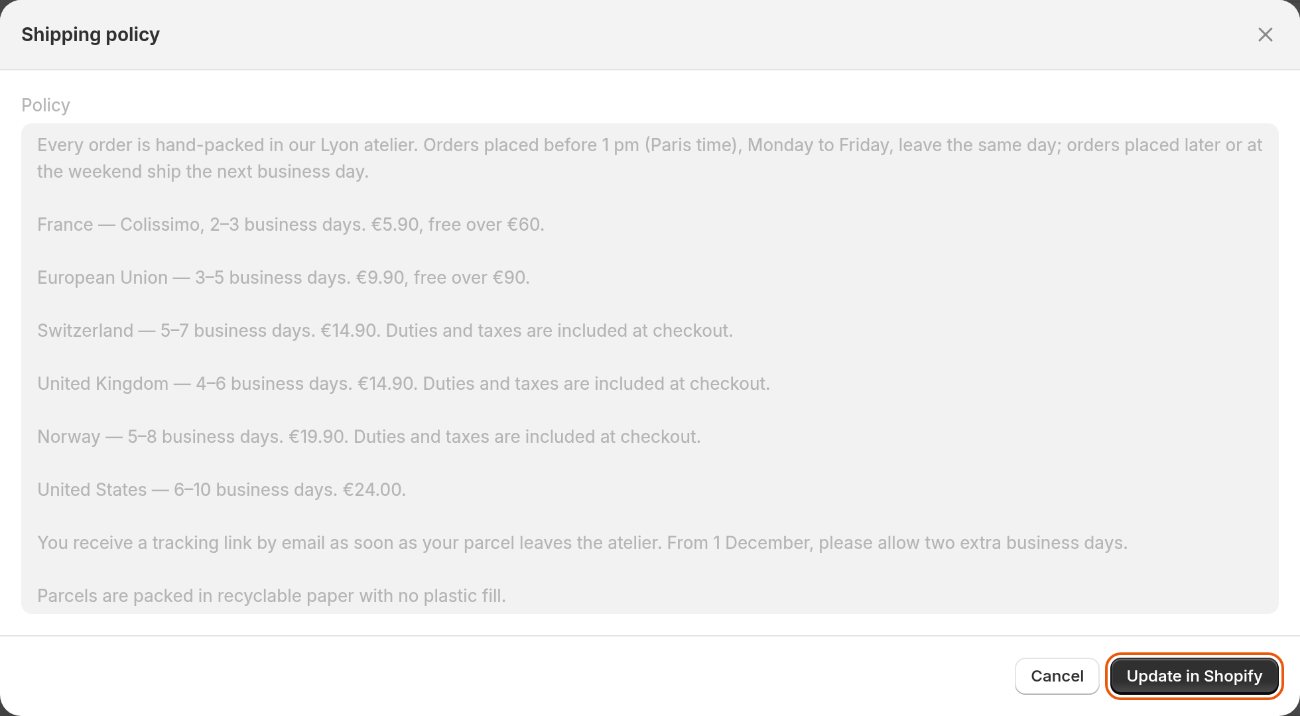
A policy is read-only in Convi. Update in Shopify takes you to it.
What Learn › Knowledge doesn't do
Learn › Knowledge has these limits:
It doesn't change your Shopify content. Nothing you do here edits your pages or policies.
An imported page doesn't update itself when the page changes. To refresh it, edit the entry, or delete it and import the page again.
For an imported page, Convi reads the first 10,000 characters of its text. Import the part you need from a more specific address, or add the rest as an FAQ.
It can't read a page that needs a sign-in.
Related
How does Convi learn about my store? — what Convi reads, and how Learn fits together.
Answer the questions Convi couldn't answer — find out what to add next.
Fix conflicting answers in Convi's knowledge — when two entries disagree.