
When Convi gets an answer wrong, you can fix it from the conversation where you saw it. You change what Convi knows, so it answers correctly next time. This article is for store owners and team members who review conversations.
Plans: every plan and the free trial · Where: Convi admin › Conversations · Who: the store owner, and team members whose role allows it · Time: about 3 minutes
Correct an answer
Correct this answer is under every AI reply in a conversation. To use it:
Go to Conversations and open the conversation.
Under the wrong reply, select Correct this answer.
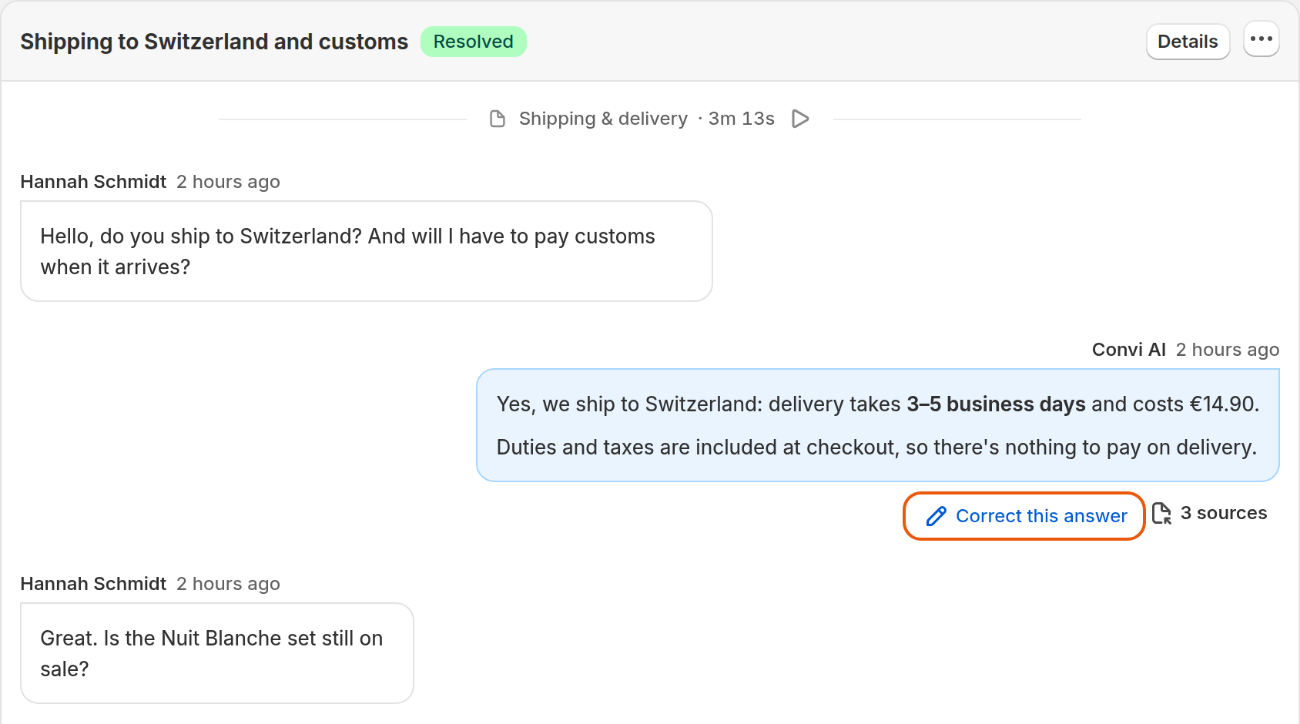
Correct this answer is beside the reply's sources.
A window opens with the knowledge Convi used for this reply. Shopper asked shows the question it answered, when there is one. Choose what to do from the table below.
What you see | What to select | What it does |
An entry you added, such as an FAQ | Edit | Changes that entry |
An entry from Shopify, such as a page or a policy | Edit in Shopify | Opens it in your Shopify admin |
Entries, but none is the right place | None of these — add a new answer | Adds a new FAQ |
No entries | Add an answer | Adds a new FAQ |
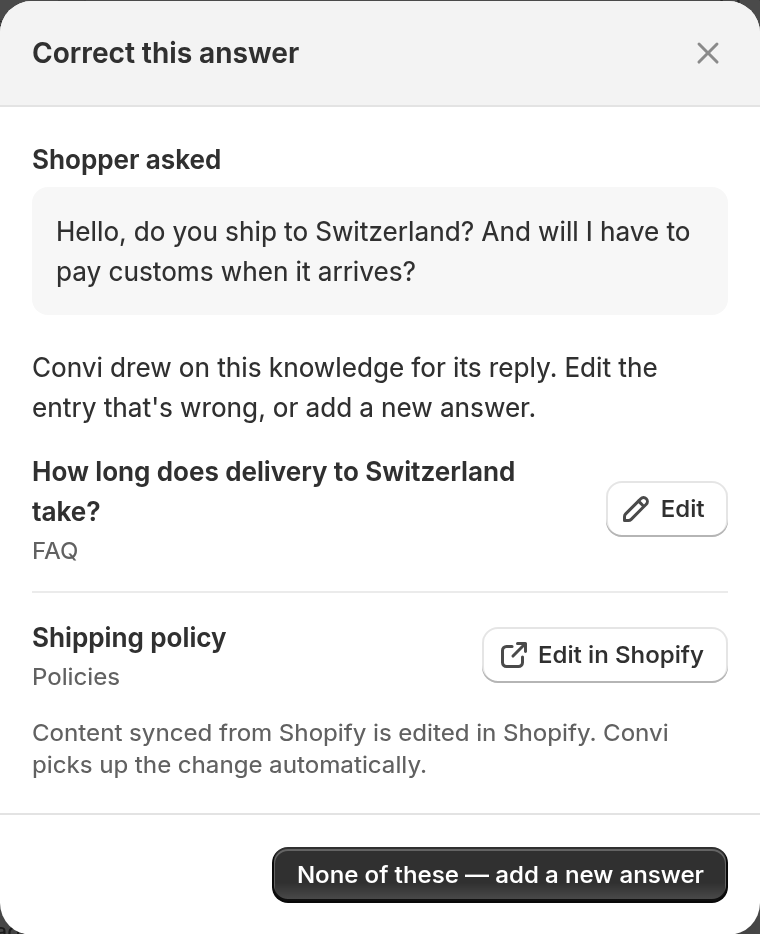
An FAQ you can edit here, and a policy you edit in Shopify.
Edit an entry you added
An entry you added can be changed from the conversation. To change it:
In the Correct this answer window, select Edit beside the entry.
In Edit answer, change the Question or the Answer. To let the AI rewrite the answer, select Draft again, then check its words.
Select Save.
You'll see "Answer updated. Convi uses it from now on."
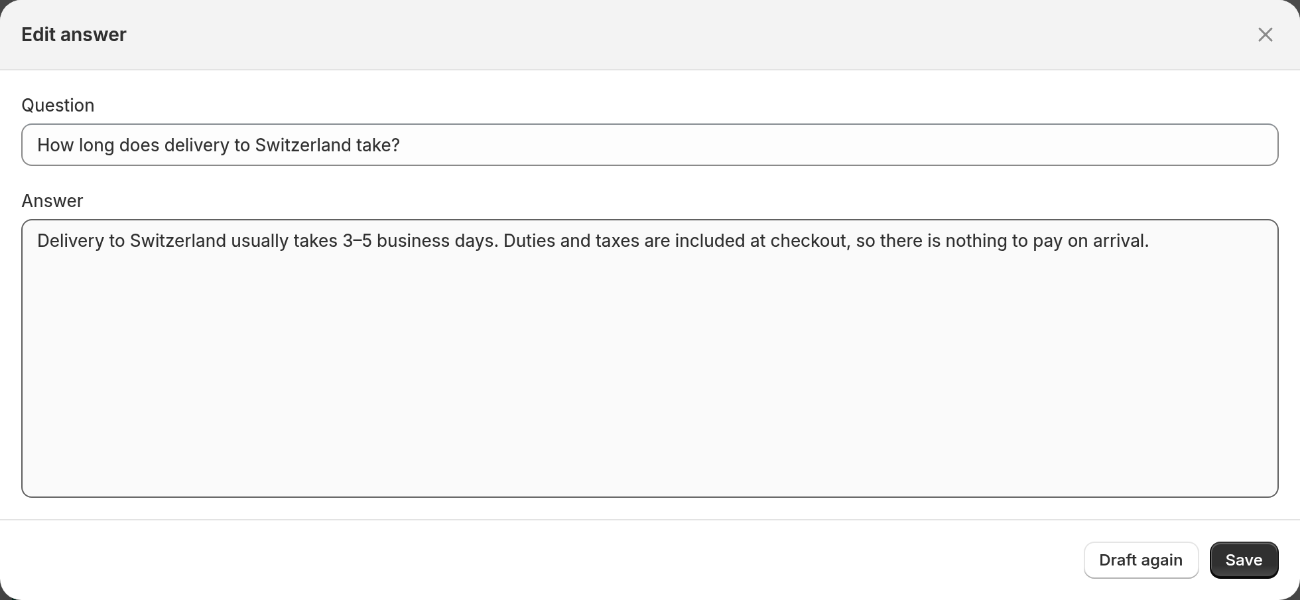
Edit answer changes the entry everywhere Convi uses it, not only for this question.
Change an entry from Shopify
Pages, policies, blogs, metaobjects and your shop's details come from Shopify, so you change them there. To change one:
In the Correct this answer window, select Edit in Shopify beside the entry. It opens in your Shopify admin, in a new tab.
Change the text in Shopify and save it.
Convi picks up the change automatically.
Add a new answer
A new answer is the fix when Convi used the wrong entry, or none. To add one:
In the Correct this answer window, select None of these — add a new answer. If Convi used no knowledge, select Add an answer.
In Add the correct answer, check the Question. It starts as what the shopper asked. If it's empty, write it.
Write the Answer, or select Fix with AI to let the AI draft it, then check its words. Once there is text, the button reads Draft again.
Select Add FAQ.
You'll see "Answer saved to your FAQs." Convi uses it the next time a shopper asks.
Check the correction
You can test a correction before a shopper asks again. To test it:
Go to Learn. The live preview is on the right of every tab.
Ask the shopper's question.
Convi should answer from what you changed.
What correcting doesn't do
Correcting an answer has these limits:
It doesn't change the reply the shopper already got, and nothing is sent to them. To reach them, see Hand over a conversation and take it back.
The window lists the knowledge Convi read for this reply. It doesn't list products or orders. To fix a product's details, change the product in Shopify.
If the reply was wrong because of how Convi said it, a rule is the better fix. See Write rules Convi always follows.
Related
How does Convi learn about my store? — where Convi's knowledge comes from.
Answer the questions Convi couldn't answer — add answers for questions it couldn't answer at all.
Fix conflicting answers in Convi's knowledge — when two entries say different things.