
When shoppers ask something your content doesn't cover, Convi lists the question for you. This article shows you how to answer those questions, so Convi can answer them next time. It is for store owners and team members who look after what Convi knows.
Plans: every plan and the free trial · Where: Convi admin › Learn › Improve · Who: the store owner, and team members whose role allows it · Time: about 10 minutes
What is a knowledge gap?
A knowledge gap is a question shoppers asked that Convi couldn't confidently answer. Most gaps come from real shoppers' conversations. After you install, Convi also checks a few common questions, such as which payment methods you accept, against your content, so a new store can show gaps before any shopper has chatted. Your own test chats in the live preview don't add any. You can reach the list in three ways:
Learn › Improve, under Knowledge gaps.
Home, under Knowledge gaps from real conversations: select View recommendations.
The weekly reminder email, described below.
How well does my content cover shoppers' questions?
The card at the top of Learn › Improve shows how well your content covers shoppers' questions. It says, for example, "In the last 30 days, your content covered 91% of what shoppers asked Convi to look up".
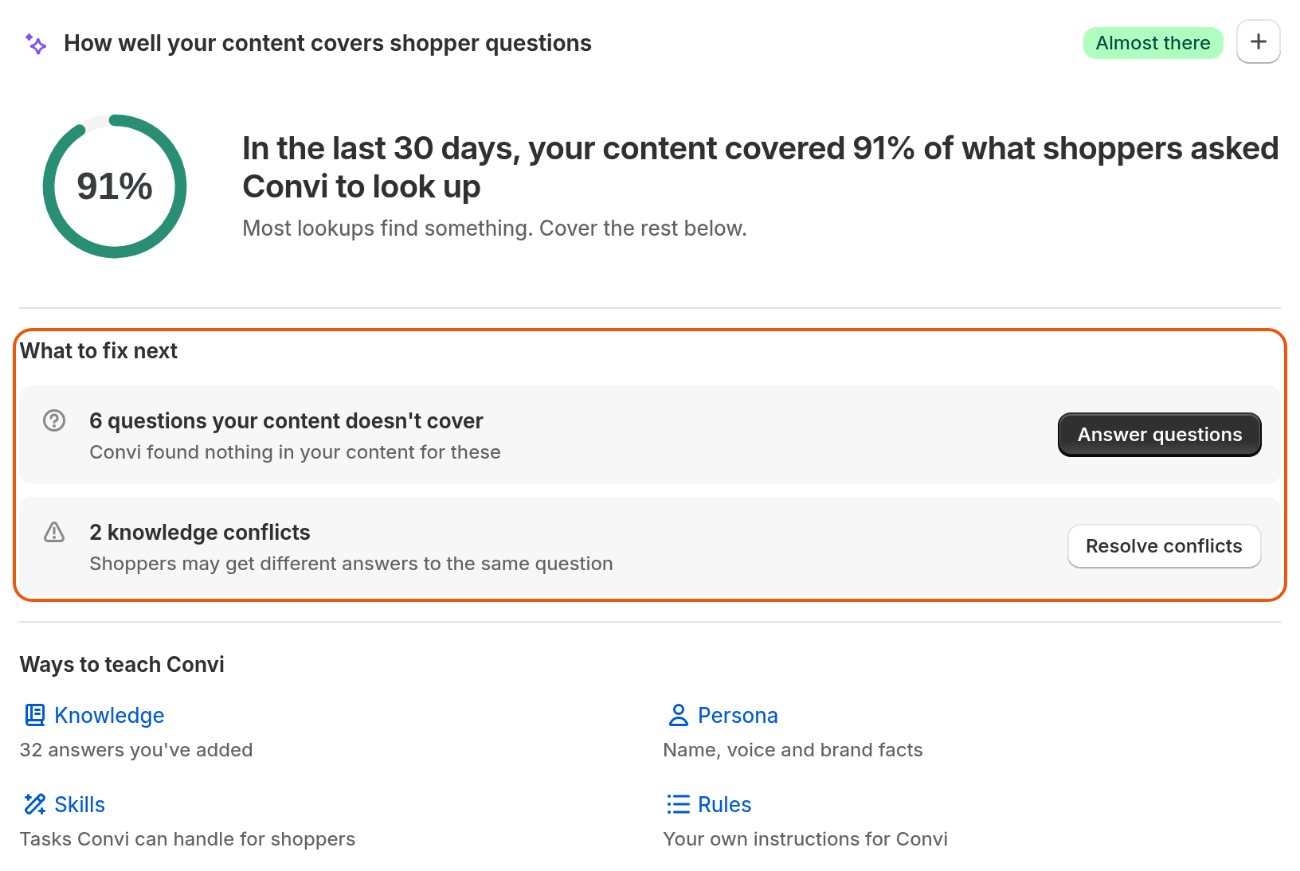
The coverage card, with what to fix next.
The table below explains the badge beside the score.
Badge | Score |
All set | 100%, with no gaps or conflicts open |
Almost there | 70% or more. A score of 100% with gaps or conflicts still open also shows this badge |
Getting there | 50% to 69% |
Needs attention | Below 50% |
What to fix next on the card lists your open gaps and conflicts, each with a button. Ways to teach Convi links to Knowledge, Persona, Rules and Skills. While Convi reads new store content, the card says "Your score updates when syncing finishes".
The score counts the lookups of the last 30 days behind the questions still open. When you answer or dismiss a question, it stops counting, so the score can rise at once.
Answer a question
You answer a gap in a window, by writing the answer or by having Convi draft it. To answer one:
Go to Learn › Improve.
Under What to fix next, select Answer questions (Answer question if only one is waiting). The Knowledge gaps card opens, with the highest impact first.
On a question, select Add an answer. A window opens with the question already filled in under Inquiry.
Write the answer under Answer, or select Fix with AI to have Convi draft one. You'll see "Draft added — review and edit before saving."
Correct the answer. To get a new draft, select Draft again.
Select Add to knowledge.
You'll see "Answer added to Convi's knowledge", and the question leaves the list. The answer is listed in Learn › Knowledge as a Content gap entry.
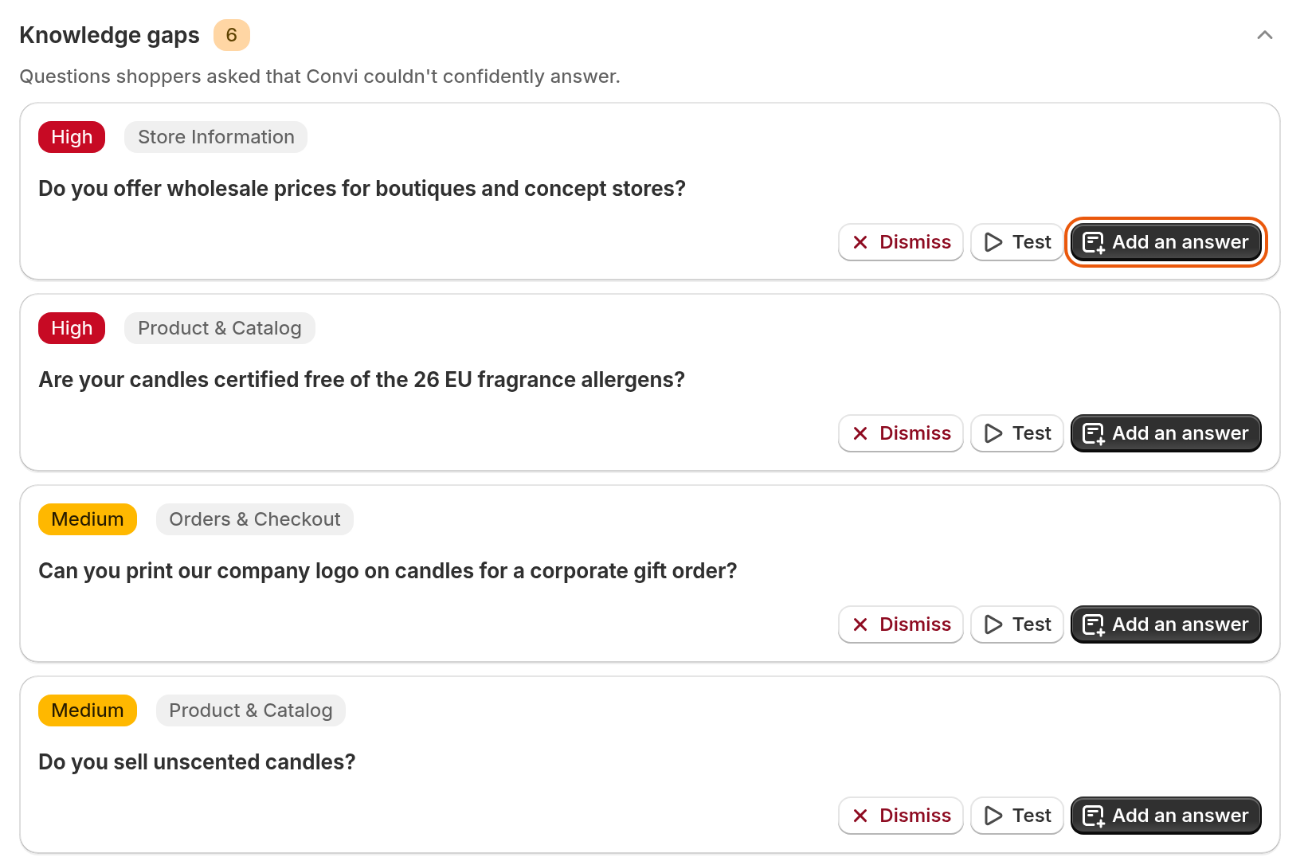
Each question shows its impact and topic, and three buttons.
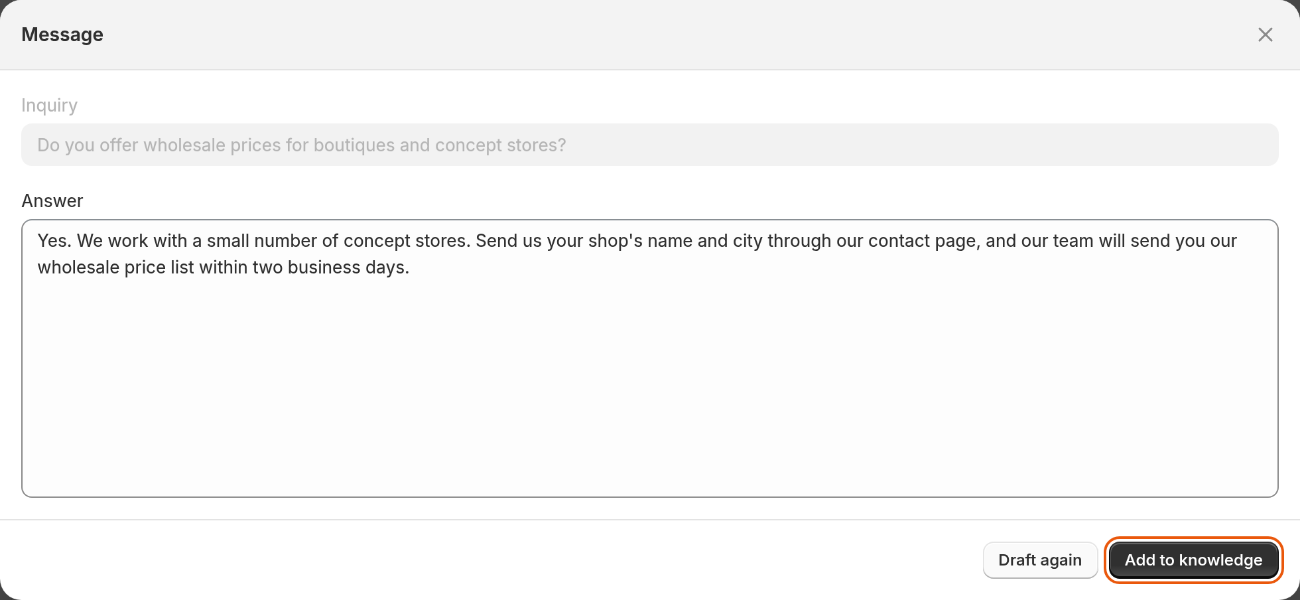
A drafted answer is yours to edit. Check every fact before you save it.
What does the impact on a question mean?
The High, Medium or Low badge says how much a question matters compared with your store's other questions. It weighs how often the question was asked, how many shoppers asked it and how much negative feedback it drew. So High means high for your store, not a fixed number of questions.
Test an answer in the live preview
You can ask Convi any question in the live preview, beside the Learn pages. To test a gap, select Test on it: the live preview asks the question for you. Test chats don't count toward your usage.
Dismiss a question
Dismiss a question that you don't want to answer, such as one that has nothing to do with your store. To dismiss one, select Dismiss on it. You'll see "Knowledge gap dismissed". If shoppers keep asking, the question can come back as a new gap.
Get a weekly reminder of open questions
Convi can email you once a week when questions are waiting. The email is the Unanswered questions reminder. It goes to your Settings › Notifications contact email when more questions are waiting than the number shown on that page, and it lists the most asked ones. Select a question in the email to open its answer window.
To turn the reminder off, go to Settings › Notifications, turn off Unanswered questions reminder, and select Save. You'll see "Notifications settings updated successfully."
What Learn › Improve doesn't do
Improve adds answers to Convi's knowledge, and it doesn't change your store:
It doesn't change your Shopify pages, policies or products.
It doesn't correct an answer Convi already gives from your content. To do that, change the entry in Learn › Knowledge, or in Shopify if it comes from there.
It shows only what shoppers asked. To teach Convi something nobody has asked yet, add an FAQ in Learn › Knowledge.
Related
How does Convi learn about my store? — what Convi reads, and how to teach it more.
Why isn't Convi answering shoppers? — what to check when Convi doesn't answer at all.
What does Convi's Home page show? — where gaps show up on Home.
Find what shoppers ask and where Convi struggles — the Activity and Quality tabs.