
My dashboard is one page for the numbers you check most. You pick the charts, and they count again each time you open the page. This article shows you how to add charts, arrange them and set their dates. It is for store owners and team members who read Convi's reports often.
Plans: every plan and the free trial. Each card needs the plan its data needs · Where: Convi admin › Analyze › My dashboard · Who: the store owner, and team members whose role allows it · Time: about 5 minutes
What is My dashboard?
My dashboard holds up to 50 cards, and your store has one dashboard, shared by everyone who signs in to it. If a colleague changes it, you see their change. Each card saves what to count, not the numbers, so it shows current numbers every time.
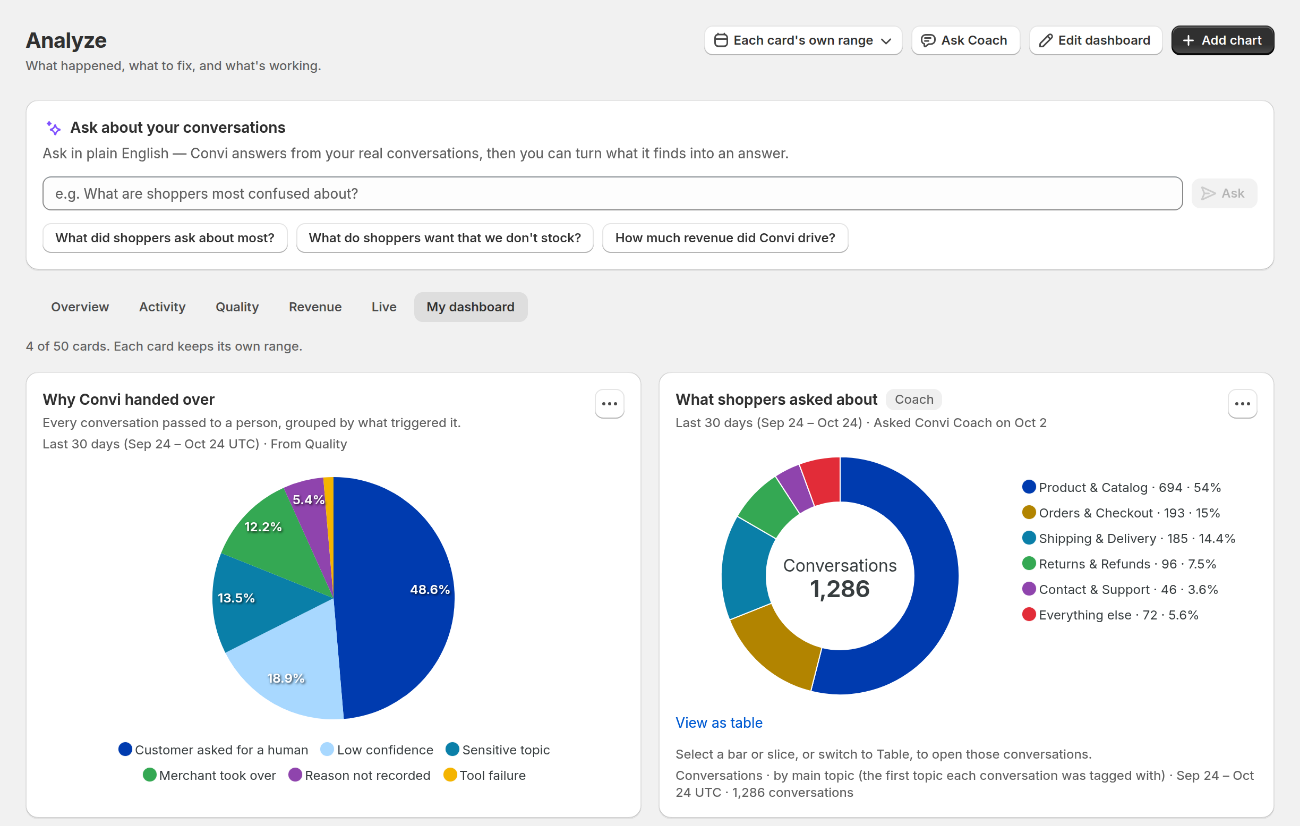
The line above the cards says how many you have, out of 50.
Start from a template
A template adds a set of charts in one step. The three sets show on an empty dashboard, under Start from a template. They are different from the Templates view in Add chart, which lists single charts. To use one:
Go to Analyze › My dashboard.
Find Sales from chat, What shoppers ask or Support health.
Select Use this template. Up to six charts appear on your dashboard.
Charts your plan doesn't include aren't added, and the message names them. You can rearrange or remove the rest later. To undo it right away, select Undo in the message at the bottom of the page.
Add a chart from a report
Most charts in Analyze have a plus button at their top right, and so do the numbers on Home and in Learn. To keep one:
Open the chart, with the dates you want.
Select the plus button on its card. You'll see "Added to My dashboard" and the card's dates, and the button shows a check mark.
The card keeps your dates. A range such as Last 30 days moves with the calendar. A custom range stays fixed.
Add charts with Add chart
Add chart opens a gallery of charts with Suggested and Templates views. Suggested picks charts from your last 30 days. Templates lists charts by category, such as Revenue or Handovers. To add one:
On My dashboard, select Add chart.
Select Suggested or Templates. To find a chart, use Search charts.
Select a chart. You'll see it on your own numbers. Previews in the gallery use sample data.
Choose the Date range, and the Chart type and Size where the chart offers them.
Select Add to dashboard. The card appears on your dashboard, highlighted.
To add several at once, check them in the gallery, then select the button that shows how many you picked, such as "Add 3 charts". Suggested for you on the page offers the same suggestions. Select Add on one, or dismiss it.
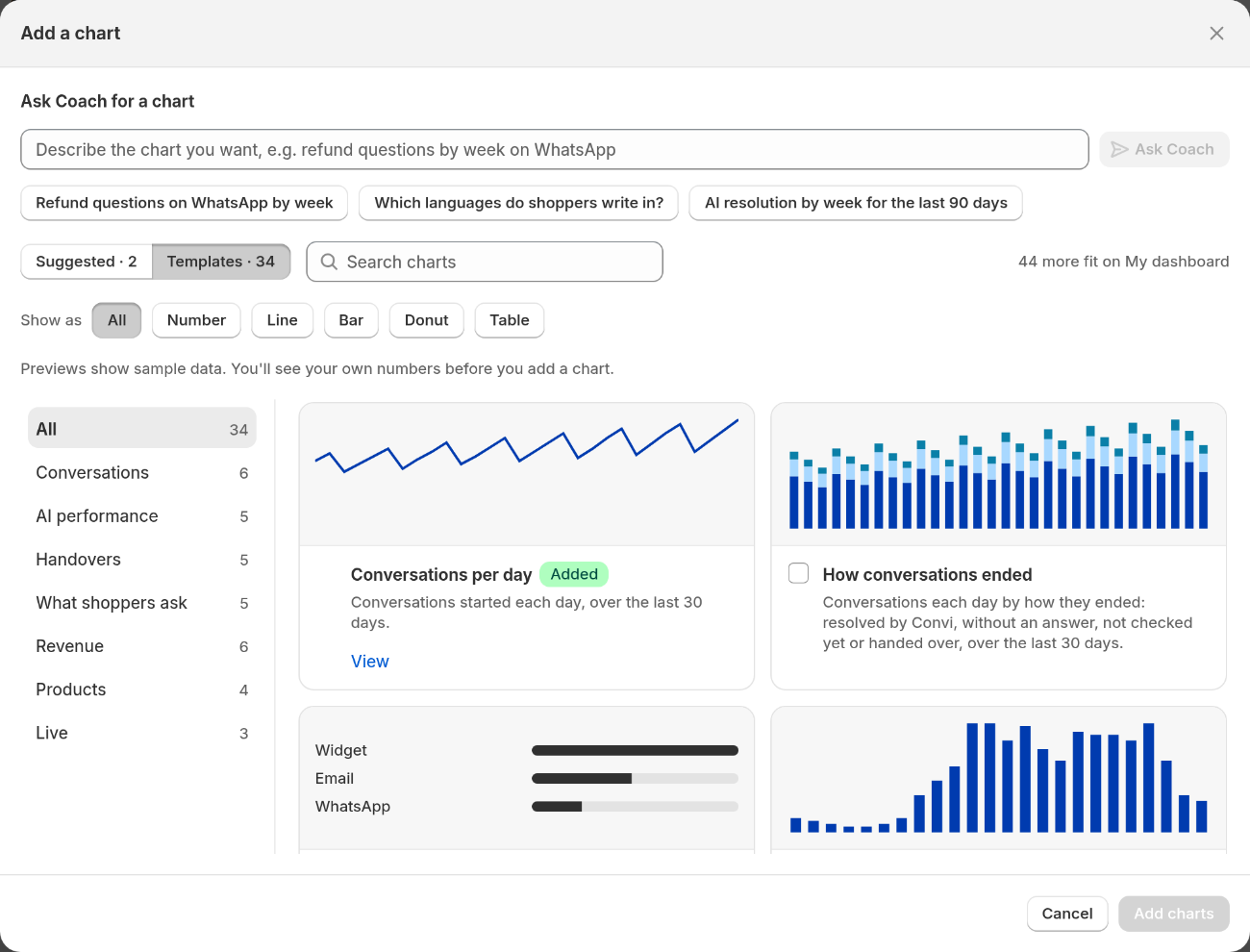
Templates are grouped by category. A check box on each card lets you pick several.
Ask Convi Coach for a chart
Convi Coach can draw a chart you describe, and you can keep it as a card. To ask for one:
On My dashboard, select Add chart.
Under Ask Coach for a chart, write what you want, for example "Which languages do shoppers write in?", and select Ask Coach.
Read the chart and How Coach read your question. To change the chart, write in the Ask again box, then select Ask Coach.
Select Add to dashboard. The card appears on your dashboard, highlighted.
You can also keep a chart from a Coach answer in the panel with Add to My dashboard.
Change the dates of all cards
Each card keeps its own range. To show all cards over the same dates during this visit:
Select the date range button at the top of the page.
Pick a range of up to 365 days.
This lasts for your visit and isn't saved. A Live card keeps showing what is happening now, because it has no dates. To go back, select Each card's own range in the same button, or Use each card's own range on the page.
Arrange your cards
You move and resize cards in edit mode, and nothing changes until you save. To arrange them:
Select Edit dashboard.
Drag a card, or use its ⋯ menu to move it, change its Size or remove it.
Select Save. You'll see "Layout saved". To leave without saving, select Discard. If you changed nothing, select Done.
What can I do with one card?
The ⋯ menu on a card holds its actions. The table below lists them.
Action | What it does | Which cards |
Open in and the place, for example "Open in Overview" | Opens the page the card came from | Cards that show "From" and a place, such as "From Overview" or "From Home" |
Download CSV | Downloads the card's data | Questions Convi couldn't answer, and cards that show "Asked Convi Coach on" or "Added on" a date |
Rename | Changes the card's name | Cards that show "Asked Convi Coach on" or "Added on" a date |
Ask Coach about this | Opens Convi Coach to talk about this card | The same cards |
Chart type | Draws the card another way | The same cards, when the chart can be drawn more than one way |
Remove from My dashboard | Removes the card at once. Undo brings it back | All cards |
What do the messages on a card mean?
A card can show a message instead of a chart:
"Your plan doesn't include this card's data": the card comes back as soon as your plan includes it. Select See plans to compare plans.
"This card can't be shown anymore": something it counted has changed. Remove it, then add it again.
What are My dashboard's limits?
My dashboard has these limits:
It holds 50 cards. When it's full, remove a card to add another.
The date range for all cards can be up to 365 days. So can the range on cards that show "Asked Convi Coach on" or "Added on". A card that shows "From" can keep a longer range, such as All time.
Editing is shared. If someone else saves a change while you edit, Convi asks you to reload, and your changes in that edit are discarded.
Related
What does each Analyze tab show? — the reports your cards come from.
Set up Convi by chatting with Convi Coach — what else Convi Coach can do.
What does Convi's Home page show? — the numbers you can keep from Home.
Ask Convi Coach about your conversations and numbers — what Coach can count, draw and read.
See who is on your store right now — the Live tab, card by card.