
Analyze shows what happened in your shoppers' conversations, what to fix, and what Convi brought in. This article explains each tab and the controls at the top of the page, so you know where to look for an answer. It is for store owners and team members who read Convi's reports.
Plans: every plan and the free trial. A few figures need a higher plan, marked below · Where: Convi admin › Analyze · Who: the store owner, and team members whose role allows it
What does each tab show?
Analyze has six tabs. The table below says what each tab answers.
Tab | The question it answers | What you see |
Overview | How much did shoppers chat, and how did it end? | Total Conversations, AI resolution, Total AI replies, How conversations ended, From chat to order |
Activity | When and where do shoppers chat? | When shoppers chat, and a breakdown by channel, widget, topic, skill, page type, hour, language and start page |
Quality | What should I fix? | Questions Convi couldn't answer, What Convi did for shoppers, Message feedback, Handovers to your team, Why Convi handed over, Handovers by topic |
Revenue | What did chat bring in? | Assisted revenue, Assisted orders, AOV lift, Convi against the whole store, Attributed revenue per day, Products in chat, Order ledger |
Live | What is happening now? | Right now, Devices, Top pages right now, Live conversations, Today so far |
My dashboard | Where are the numbers I check most? | The charts you chose to keep |
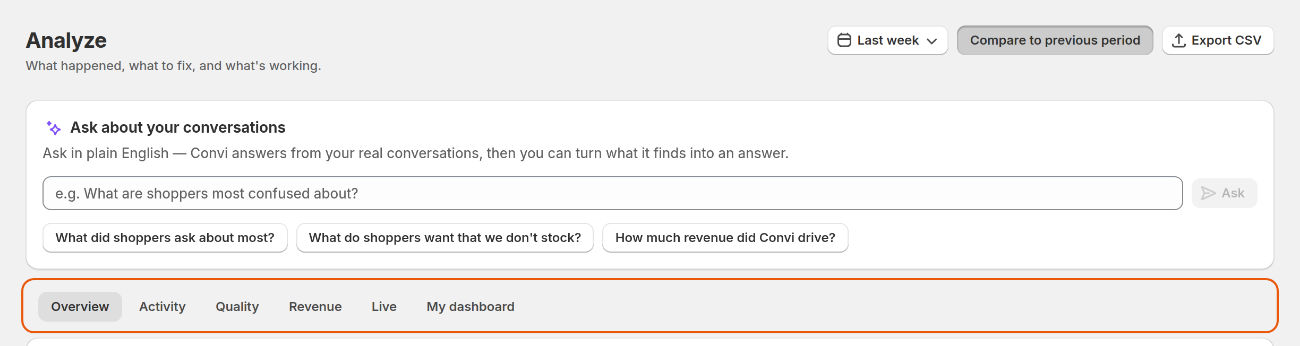
The top of the page. The controls at the right change with the tab you're on.
How do I change the dates?
The date range sets the period for the Overview, Activity, Quality and Revenue tabs, and it stays the same when you change tabs. To change it:
Select the date range button at the top right. It starts on Last week.
Select Last week, Last 30 days, Last 90 days or All time. For other dates, pick them under Custom range, then select Apply.
The numbers change at once. Last week runs from 7 days ago until today. Each day in these reports runs from midnight to midnight UTC, not in your store's time zone, so a chat near midnight can count on a different day from the one on your clock. Three things work differently: When shoppers chat and the Hour of day view on Activity use your store's time zone, and Live has no date range.
What does Compare to previous period do?
Compare to previous period compares your range with the same number of days just before it. It's on until you turn it off. Select the button to switch it. The table below says what it changes on each tab that has it.
Tab | What the button changes |
Overview | Adds the change beside the three numbers at the top, and a dashed line for the earlier period. On From chat to order, adds the change on the large figure and, where there is enough data, on the steps |
Activity | Adds Change in chats and the changes in the rates |
Revenue | Changes only Convi's share of revenue and Convi's share of orders, which then show the change since the earlier period |
Quality | Nothing: the button is greyed out. Some cards on this tab always compare |
The button is also greyed out when the range is All time, because no earlier period exists.
What does Export CSV give me?
Export CSV downloads the tab you're on, for the dates you picked, as one CSV file. Live and My dashboard don't have this button. The table below lists what each file holds.
Tab | What the file holds |
Overview | How conversations ended by day, and the steps of From chat to order for the channel you picked |
Activity | The breakdown you're viewing, for example by topic. It doesn't include When shoppers chat |
Quality | The actions from What Convi did for shoppers, and your team's reply figures. For the unanswered questions, use Export questions on their card |
Revenue | Orders and revenue by attribution method, and the products from Recommended → bought in Products in chat. For the orders themselves, use Download CSV on the Order ledger |
With Compare to previous period on, the Overview and Activity files also hold the earlier period. If a report is too large, Convi says so. Choose a shorter date range and export again.
Which conversations does Analyze count?
Analyze counts conversations with your shoppers. It leaves these out:
your test chats in the live preview, in Learn;
your chats with Convi Coach;
questions your staff ask on Shopify POS. The one exception is Questions Convi couldn't answer on Quality, which includes them.
What needs a certain plan?
Most of Analyze works on every plan and in the free trial. The table below lists what needs more.
What | What it needs |
The figures on Revenue | An active plan or the free trial |
The Added to cart step in From chat to order | Shopper journeys: Pro and higher, not in the free trial |
The current page and the cart value in Live conversations | Shopper journeys: Pro and higher, not in the free trial |
Can I ask a question instead of reading the charts?
Yes. The Ask about your conversations box sits at the top of every tab. Type a question, and Convi Coach answers from your real conversations. To keep a chart, select the plus button on its card to add it to My dashboard.
Related
What counts as a conversation? — why your plan's count and AI resolution can differ.
Answer the questions Convi couldn't answer — turn what Quality shows into answers.
Set up Convi by chatting with Convi Coach — what else Convi Coach can do for you.
Read the Overview tab: outcomes and the chat-to-order funnel — what AI resolution means and how conversations ended.
See who is on your store right now — the Live tab, card by card.
Find what shoppers ask and where Convi struggles — the Activity and Quality tabs.
How does Convi count sales from chat? — the 14-day rule and each Revenue figure.
Build your own dashboard in Analyze — templates, charts and layout.
Ask Convi Coach about your conversations and numbers — what Coach can count, draw and read.