
Convi Coach is an assistant inside the Convi admin. You tell it what you want in plain words, and it checks your setup, explains what shoppers are saying, and prepares changes that you approve with one click. This article is for store owners and team members who want to set up Convi without going through every page.
Plans: every plan and the free trial · Where: Convi admin, any page, at the bottom right · Who: the store owner, and team members whose role allows it · Time: about 5 minutes
Convi Coach is Convi's own assistant, not Shopify's Sidekick, which has its own bar in the Shopify admin.
Open Convi Coach
Convi Coach opens beside any page of the Convi admin. To open it:
Select Ask Convi Coach at the bottom right of the page.
Select a suggestion, or type your own question and send it.
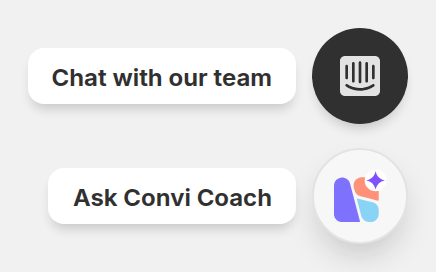
Ask Convi Coach is the lower button. Hover over it to see Chat with our team above it.
The suggestions follow the page you're on, for example Suggested for Learn on the Learn pages. To see them all, select Browse everything I can do.
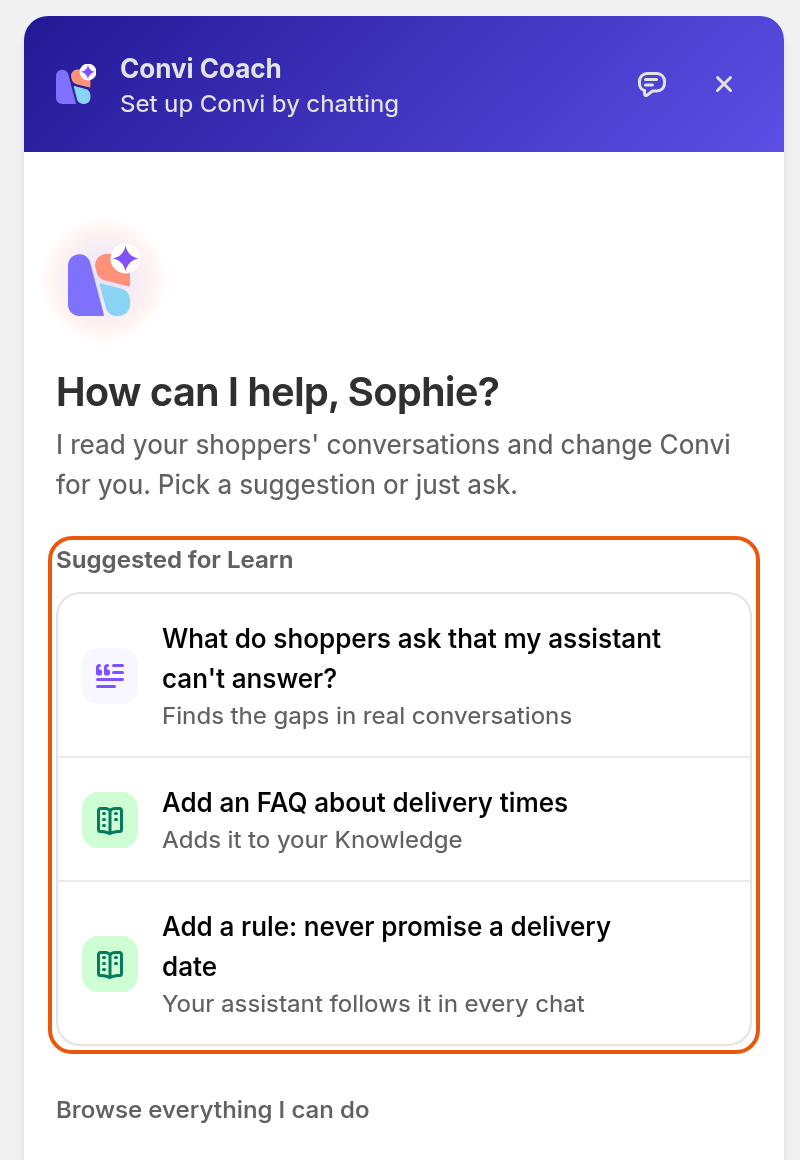
The start screen shows suggestions for the page you're on.
What can Convi Coach do?
Convi Coach can read your setup and your shoppers' conversations, and it can prepare changes to the settings below. The table lists what you can ask for, and where to review a change afterwards.
Ask it to | What it changes | Review it in |
Add, edit or delete an FAQ | Your FAQs | Learn › Knowledge |
Add, edit, turn off or delete a rule | Your rules | Learn › Rules |
Change your assistant's name, tone or answer length, or add an instruction | Your persona | Learn › Persona |
Write a new welcome message | The first line shoppers read in the chat | Widgets › Content |
Change the brand color, corner radius or shadow of your widgets, or match them to your store | The theme all your widgets share | Widgets › Appearance |
Change your widgets' custom CSS | The custom CSS of all your widgets | Widgets › Advanced |
It can also answer questions that change nothing, such as "What did shoppers ask about most this week?" or "Why are shoppers asking for a person?". It counts conversations, draws charts, and reads conversations to quote them.
Change a setting with Convi Coach
Convi Coach changes nothing until you approve it. Each change comes as a card that shows what would change. To make a change:
Ask for it, for example "Add a rule: never promise a delivery date".
Read the card. Your settings are still as they were.
Select Apply, or Discard to drop the change. After Apply, the card shows Applied, and the change is saved.
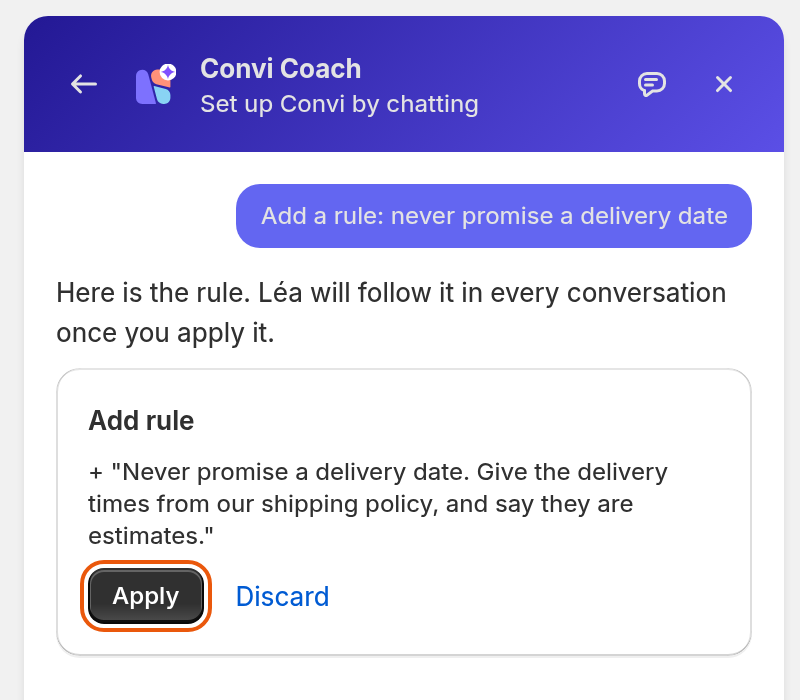
The change waits for you. Nothing is saved until you select Apply.
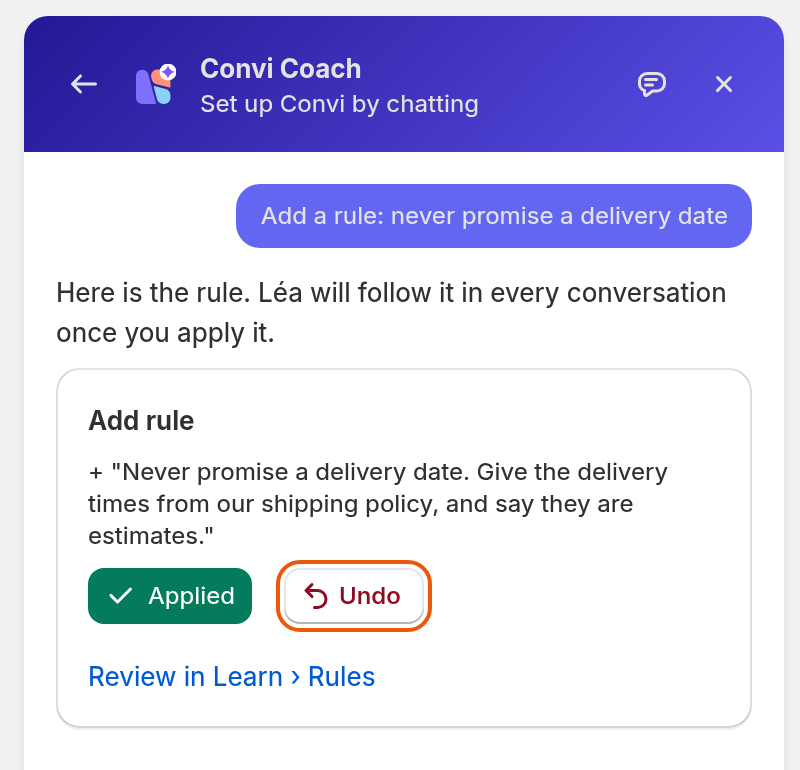
Once applied, the card offers Undo and a link to the page the change is on.
To take a change back while this conversation is open, select Undo on its card. The card then shows Reverted. To see the change in its place, select the link on the card, for example Review in Learn › Rules.
Audit your setup
Convi Coach can check your setup and tell you what to fix first. To run the check, select Audit my setup. It's a suggestion on Home, and it's under Teach your assistant in Browse everything I can do. The audit changes nothing. It shows the five most urgent findings at most.
The table below lists what the audit looks for, most urgent first.
It checks | Fix it |
Convi is switched off in your theme | In your Shopify theme: see Go live with the setup steps on Home |
Shoppers ask questions your assistant can't answer | With Convi Coach, or in Learn › Improve |
Your knowledge contradicts itself | In Learn › Improve: you decide which answer is right |
You have no FAQs | With Convi Coach, or in Learn › Knowledge |
You have no active rules | With Convi Coach, or in Learn › Rules |
Your assistant has no custom instruction | With Convi Coach, or in Learn › Persona |
The chat still opens with the default welcome line | With Convi Coach, or in Widgets |
Your widgets still use Convi's default brand color | With Convi Coach, or in Widgets |
Talk to the Convi team from Convi Coach
Convi Coach can pass you to the Convi team when you ask for a person, when you report something broken, or when you ask about Convi's billing. It then shows Talk to the Convi team. Select it, and a chat opens with Convi Coach's summary already typed in. Nothing is sent until you send it. See Contact the Convi team.
What Convi Coach doesn't do
Convi Coach works on Convi's settings, and some things stay with you:
It doesn't act on your store: it can't cancel an order, refund a shopper or edit a product.
It can't turn Convi on in your theme, and it can't settle a knowledge conflict, which needs your decision.
It keeps your chat only while the Convi admin stays open: Continue your last chat on the start screen takes you back to it. If you reload the admin, the chat starts again, and its Undo buttons go with it. The changes you applied stay: to take one back, change it on its own page.
It limits how fast you can ask. If you ask too much in a short time, it says "You've asked a lot of questions in a short time; try again in a minute."
If the connection drops, it shows Reconnecting… and sends your last message once you're back online.
Related
Set your assistant's name, tone and instructions — the same settings, on the Persona page.
How does Convi learn about my store? — what Convi reads, and how to teach it more.
Go live with the setup steps on Home — the steps that make Convi live for shoppers.
Ask Convi Coach about your conversations and numbers — what Coach can count, draw and read.