
You can reach the Convi team from any page of the Convi admin, or by email. This article shows each way, and what to include in your message so the team can help you quickly. It is for anyone who uses the Convi admin.
Plans: every plan and the free trial · Where: Convi admin, any page · Who: the store owner, and team members whose role allows it · Time: about 2 minutes
Chat with the Convi team in the admin
The quickest way to reach the team is the chat in the Convi admin. It knows which store you write from, so you don't need to say. To start a chat:
On any page of the Convi admin, point to the round Ask Convi Coach button at the bottom right.
A dark button, Chat with our team, appears above it. Select it.
Write your message and send it.
The team replies in the same chat. When a reply is waiting, a red number shows on these buttons.
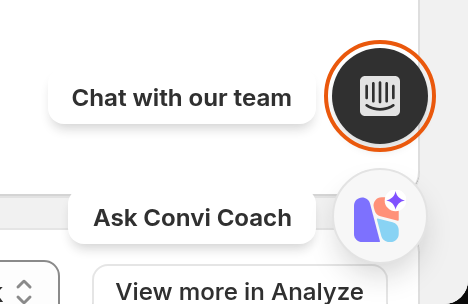
Point to Ask Convi Coach at the bottom right, and Chat with our team appears above it.
On a touch screen, Chat with our team doesn't appear. Select Ask Convi Coach instead, then the chat icon at the top right of its panel, beside the X. If no chat opens, for example because a browser extension blocks it, email [email protected].
Other buttons that write to the team for you
Some buttons in the admin open the same chat with a message already written. You can add to it before you send it. The table below lists them.
Where | Button | The message is about |
Learn › Skills, at the bottom | Request new skills | A skill you'd like Convi to have |
Settings › Plan & billing | Talk to us about Enterprise, Talk to us about Startup | Whether the plan fits your store |
A page of the admin that didn't load | Chat with our team | The page, and its error ID |
Email the Convi team
If you can't use the chat, email [email protected]. Write from the email address of your Shopify store if you can, and include your store's address, for example your-store.myshopify.com.
What should I include in my message?
The team answers faster when it can see what you see. Include:
your store's address, for example your-store.myshopify.com, if you write by email;
what you did, what you expected, and what happened instead;
where it happened: the page of the Convi admin, or the page of your store;
for a conversation, its session ID: open it in Conversations, select Details (on a wide screen, the details are already open on the right), and under Technical, select the copy button beside Session ID;
for a page of the admin that didn't load, its error ID, which the page shows with Copy;
a screenshot, if something looks wrong.
The session ID is enough for the team to find a conversation, so you don't need to copy the shopper's name, email or order details.
How fast does the team answer?
The Enterprise plan includes priority support with an agreed response time (SLA) and a dedicated success manager. No other plan, and not the free trial, has a set response time. If Convi has stopped answering on your store, say so in the first line of your message. Before you write, Why isn't Convi answering shoppers? may already have the answer.
Book a demo session
You can book a free session with the Convi team to explore Convi or set it up together. To book one:
Go to Home.
In the card Have any questions while working with Convi?, select Book a demo session. A booking page opens in a new tab.
Pick a time.
If you hid the card, ask for a session in the chat instead.
Suggest a feature or vote for one
Settings › Feature requests holds the ideas merchants sent the Convi team. Other merchants can vote for them, and the team reviews every one. To suggest a feature:
Go to Settings › Feature requests.
Select Submit a request.
Enter a Title, from 4 to 120 characters.
Pick a Category.
Describe your idea in Description, from 20 to 2,000 characters.
Select Submit.
Your request shows Pending review until the team has reviewed it. Your store can send up to 5 requests a day; past that, the form says "You've reached the daily submission limit. Try again tomorrow." Find it under My submissions. To vote for someone else's idea, select the arrow and number on its left. The tabs In progress and Done show what the team is building and what has shipped.
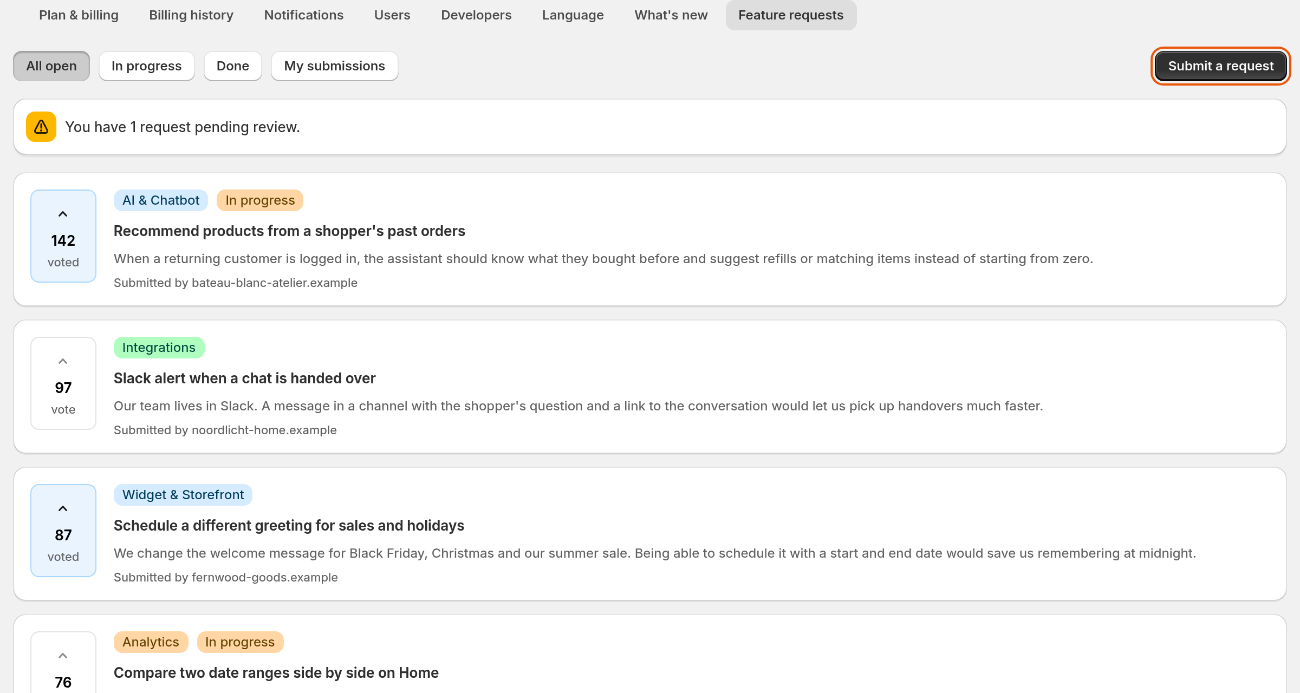
Feature requests: vote with the arrow on the left, or submit your own idea.
See what's new in Convi
The bell at the top right of every page shows Convi's latest changes, with a number when some are unread. Select an update to read it, Mark all as read to clear the number, or View all updates to open Settings › What's new.
Related
Why isn't Convi answering shoppers? — what to check first when Convi doesn't answer.
Convi's widgets don't appear on my store — what to check when shoppers can't see Convi.
Convi's plans and prices — what each plan includes, such as Enterprise's priority support.