
The Activity and Quality tabs show when shoppers chat, what they ask about, and where Convi needs your help. This article explains how to read them and how to reach the conversations behind each number. It is for store owners and team members who want to improve Convi's answers.
Plans: every plan and the free trial · Where: Convi admin › Analyze › Activity and Analyze › Quality · Who: the store owner, and team members whose role allows it
When do shoppers chat?
When shoppers chat on the Activity tab shows the conversations in your date range by day and hour, in your store's time zone. Darker cells are busier, from Quiet to Peak. The line above the chart names your busiest hour and your time zone. In the By day view, it names your busiest day.
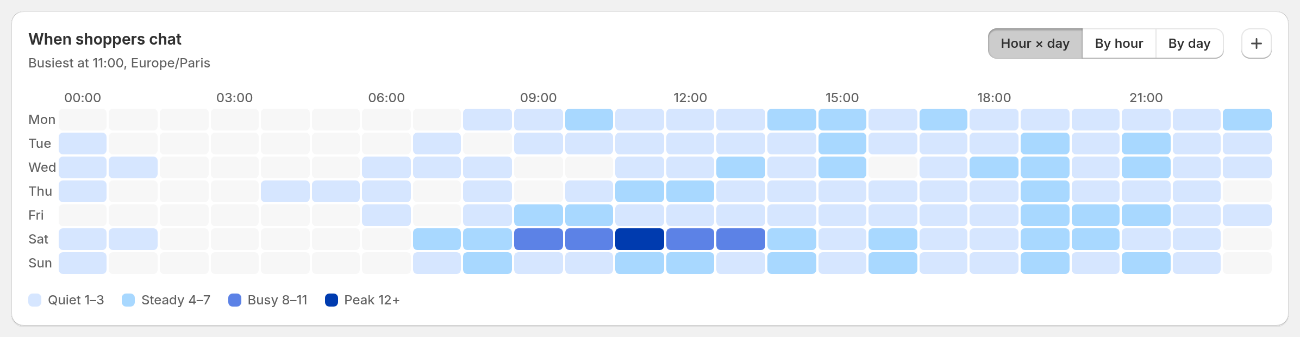
The grid shows your busy times. The buttons at the top right change the view.
Use it to plan who covers handovers. To see the busiest hours or days alone, select By hour or By day.
Where do conversations come from?
The table below the grid breaks your conversations down the way you choose. To change it, select a button at the top of the card: Channel, Widget, Topic, Skill, Page type, Hour of day, Language or Started on.
Each row shows these columns:
Column | What it means |
Conversations | How many conversations this row has |
Share | The row's share of all conversations. A conversation can have several topics, so topic shares can add up to more than 100% |
AI-resolved | The share Convi resolved. It shows once a row has 20 or more conversations |
Handed over | The share Convi passed to your team, or your team took over. It shows once a row has 20 or more conversations |
Orders and Revenue | Online orders credited to these conversations, and their value |
Change in chats | The change against the same number of days just before your range. It shows when Compare to previous period is on and the earlier period had 30 or more |
Two views show more than conversations:
Channel also lists channels you haven't connected, with a button to connect them.
Widget also lists widgets that are off, with a Turn on button. The You might also like row also shows its impressions, clicks and adds, because that section doesn't open a conversation.
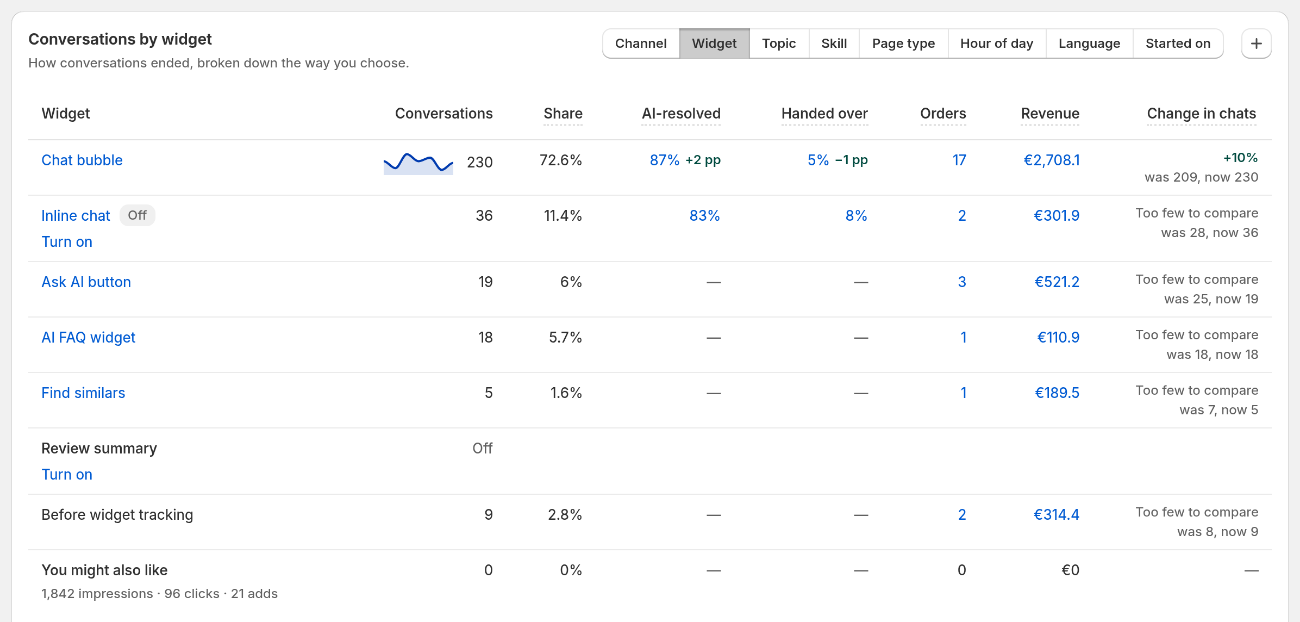
The Widget view. Widgets that are off are listed, so you can turn them on.
How do I open the conversations behind a number?
You can open the conversations behind most numbers on these tabs. To open them:
In a breakdown row, select the row's name or one of its rates. Conversations opens with those conversations, for the same dates.
To widen the list, remove the filter from the row of filters above it.
Rows in the Hour of day view can't be opened as a list yet.
What did Convi fail to answer?
Questions Convi couldn't answer on the Quality tab groups the conversations that ended without an answer by what shoppers asked. Use this card first: each question you answer helps from the next conversation.
Each row shows the question, its topic, and how many conversations asked it. Your content says No answer when nothing Convi knows covers the question, or Partly answered when Convi found related content, not the answer.
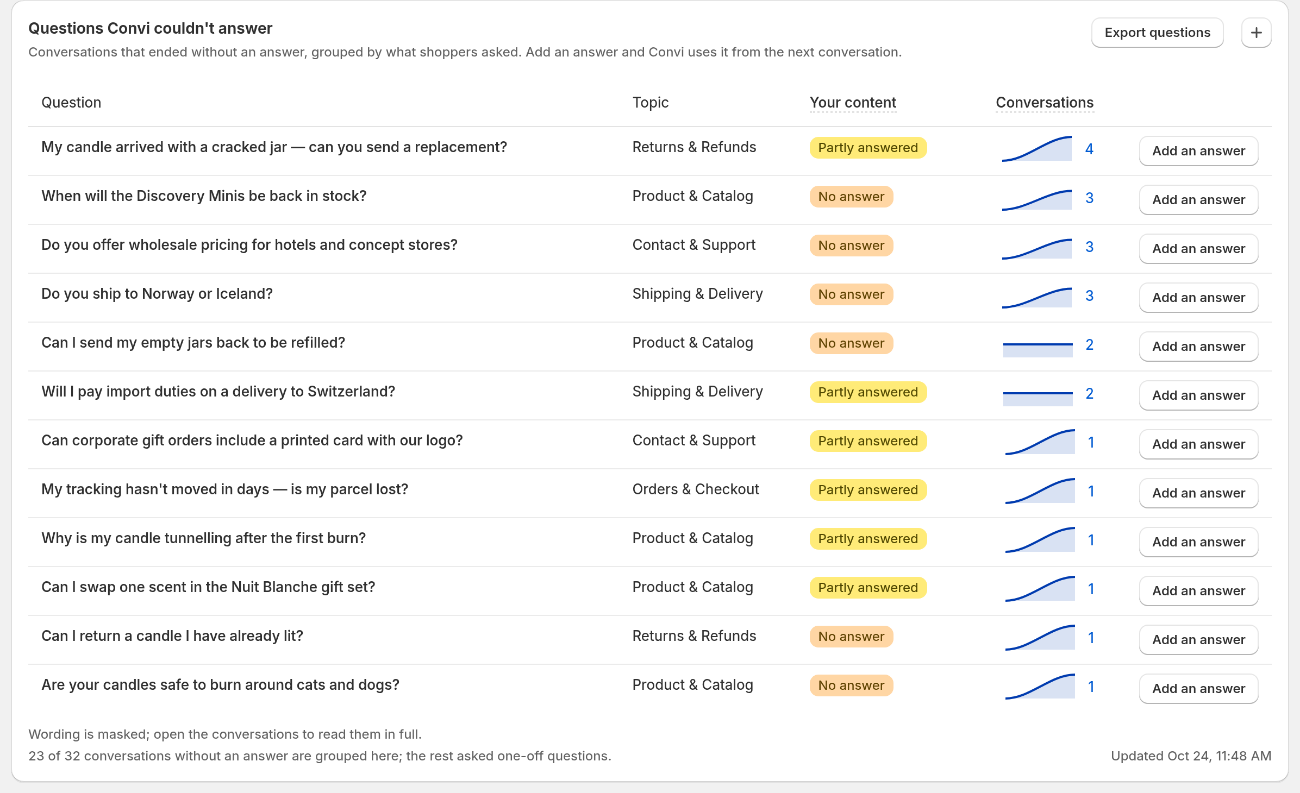
Questions are grouped, and their wording is masked. Open the conversations to read them in full.
To act on the list:
Add an answer adds what Convi should say. It works as described in Answer the questions Convi couldn't answer.
Select the number of conversations to read the chats.
Export questions downloads the list as a CSV file.
Questions are grouped once 10 or more conversations in your range end without an answer. If your range has fewer, select a longer one. One-off questions aren't grouped, so the card tells you how many conversations it lists out of the total.
What else does the Quality tab show?
The Quality tab has five more cards, listed below in the order you see them.
Card | What it shows | What to look for |
What Convi did for shoppers | Each action Convi took, such as tracking an order, how often it completed, and why it couldn't | A low Completed rate. Most failures come from what the shopper entered, such as an email that doesn't match an order |
Message feedback | Thumbs up and thumbs down that shoppers gave Convi's replies | A rise in thumbs down |
Handovers to your team | Median time to first reply, and the share Replied within 1 hour | A slow reply time. Chats you took over yourself aren't counted here |
Why Convi handed over | Handovers by reason, such as Customer asked for a human | One reason that stands out |
Handovers by topic | Handovers by the conversation's topic | A topic that needs better content |
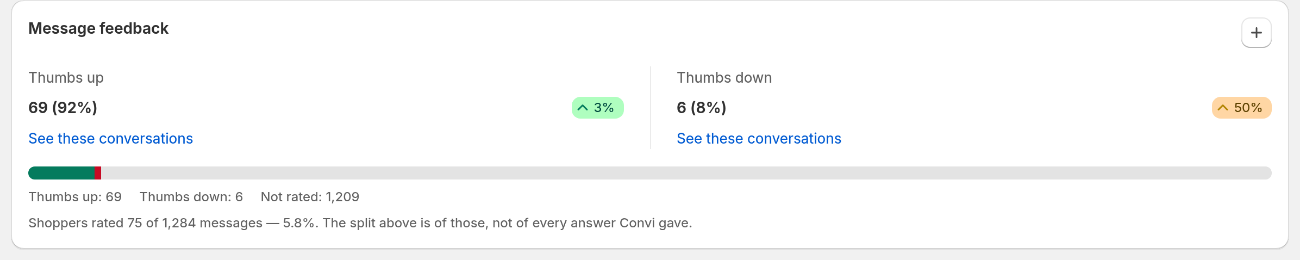
Message feedback covers only the replies shoppers rated. The line under the bar says how many that is.
Three of these cards open their conversations: select a count in What Convi did for shoppers, See these conversations in Message feedback, or a slice in Handovers by topic.
What don't these tabs show?
These tabs have a few limits:
They count shoppers' conversations only. Staff questions on Shopify POS are the one exception: they appear in Questions Convi couldn't answer.
Activity counts conversations. The AI Search Bar isn't counted, because its searches don't open a conversation.
On Quality, Compare to previous period is greyed out. What Convi did for shoppers, Message feedback and Handovers to your team still compare with the same number of days before your range.
Related
What does each Analyze tab show? — the date range, the comparison and the export.
Answer the questions Convi couldn't answer — add the answers these tabs point to.
Find and filter conversations in the inbox — work with the conversations a number opens.
Read the Overview tab: outcomes and the chat-to-order funnel — what AI resolution means and how conversations ended.
See how shoppers rate Convi's answers — the thumbs on each answer and what to do about a thumbs down.
How does Convi tag conversation topics? — the 11 topics and how a conversation gets one.