
The shopper journey and the replay show what a shopper did on your store while a conversation with Convi was open. Use them to see where a shopper got stuck, and what your answer changed. This article is for store owners and team members who review conversations.
Plans: Pro, Premium and Enterprise; not in the free trial · Where: Convi admin › Conversations › Details › Shopper journey · Who: the store owner, and team members whose role allows it · Time: about 5 minutes
What are the shopper journey and the replay?
The shopper journey is a list of what the shopper did during the conversation: the pages they opened, what they added to the cart, the checkout steps they reached and any order. The replay plays back the pages as the shopper saw them, with their chat.
There's nothing to set up, and there's no switch. On these plans, Convi records conversations in your store's chat by itself, if Shopify allows it. Conversations from other channels, such as email or Shopify POS, have no journey and no replay.
Recording starts when the shopper sends their first message, so you don't see what they did before it. Recording then continues on every page of your store, in any tab, even with the chat closed. It stops at the first of these:
the conversation is resolved: by your team, when it reaches its length limit, or, in a conversation with Convi, after 10 minutes without a message;
a conversation with your team has had no shopper message for 60 minutes;
for the replay only, it reaches 60 minutes, or its size limit. The journey goes on.
If the shopper writes again in a conversation with your team after those 60 minutes, recording starts again. A resolved conversation can't take more messages in the chat. If the shopper starts a new chat, recording moves to the new conversation, with its own journey and replay. The replay says why it stopped.
See a shopper's journey
The journey is in Details. To see it:
Go to Conversations and open a conversation.
In Details, find Shopper journey.
You'll see how far the shopper got: Browsed, Opened recommendation, Added to cart, Reached checkout or Ordered. Below that are Time on store, Pages and Added to cart.
The same steps appear between the messages of the conversation. To choose which ones you see, use Conversation events in the menu (…) at the top of the conversation.
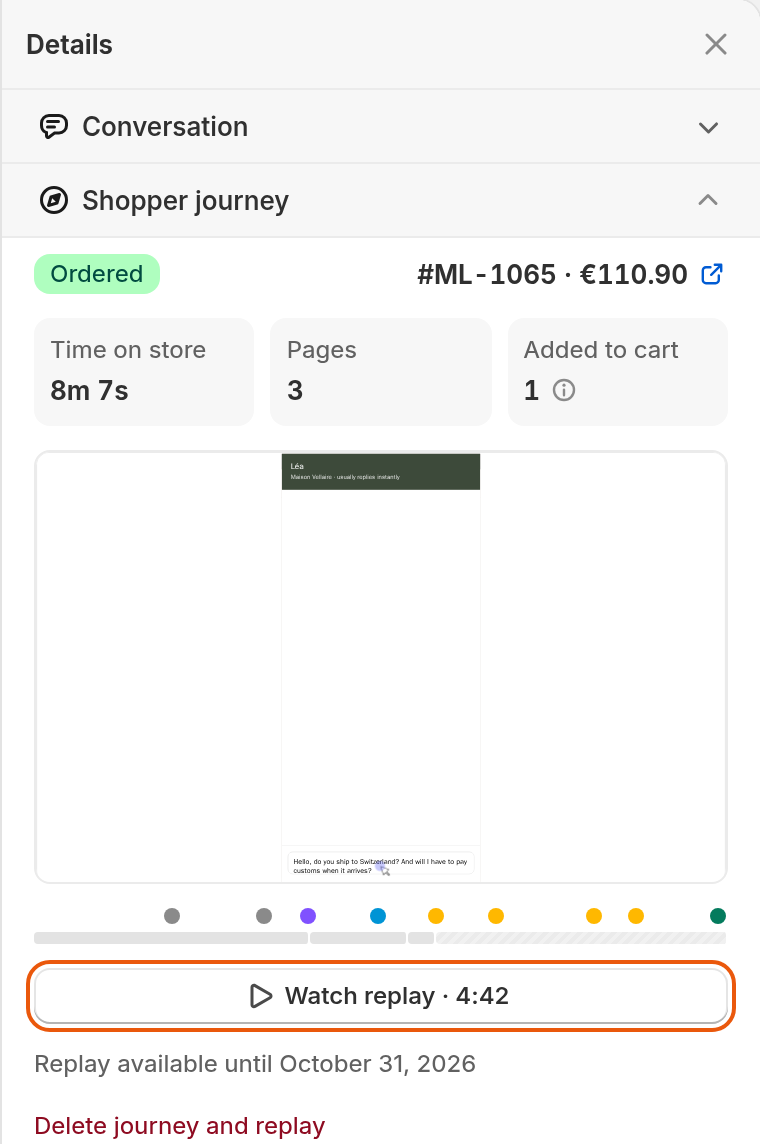
This shopper ordered. The button shows how long the recording runs. The clock on the replay page also counts checkout, so it can show more.
Watch a replay
A replay opens on its own page. To watch one:
In Details › Shopper journey, select Watch replay.
Select the play button.
To jump, select a message or a step under Activity, a point on the timeline, or the arrows for the previous and next moment.
To go faster, choose 2× or 4×. Skip inactivity is ticked at the start, and jumps over quiet moments.
To go back, select Back to conversation.
Above the replay you'll see figures such as Time on store, Pages, Entered on, Added to cart, Order and Location. Entered on is the first page recorded, and Time on store counts from there. Activity can show All, Chat, Cart or Checkout.
While the conversation can still record, a banner says "Live — this replay grows while the shopper browses."
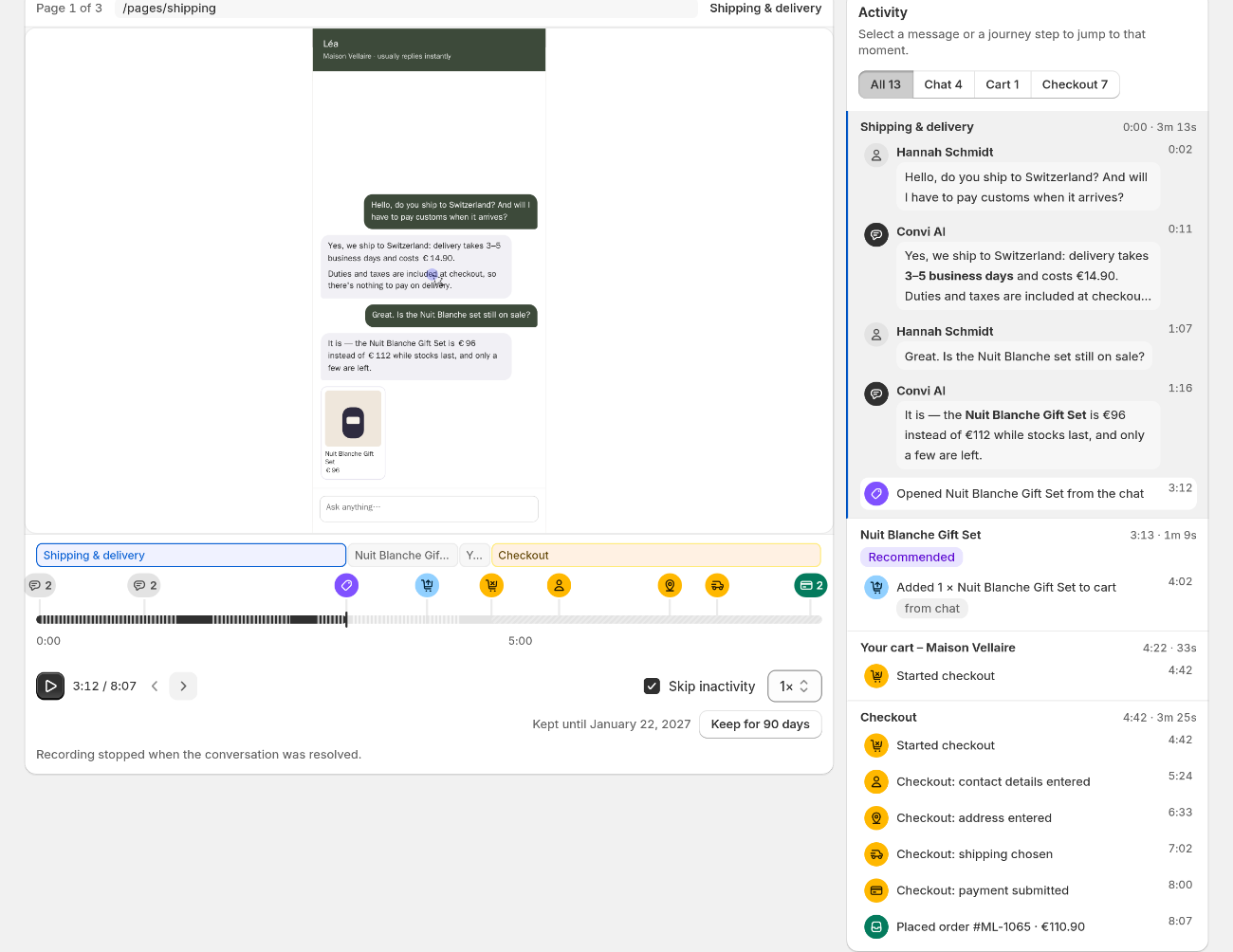
The replay page. Activity lists the messages and steps of the visit.
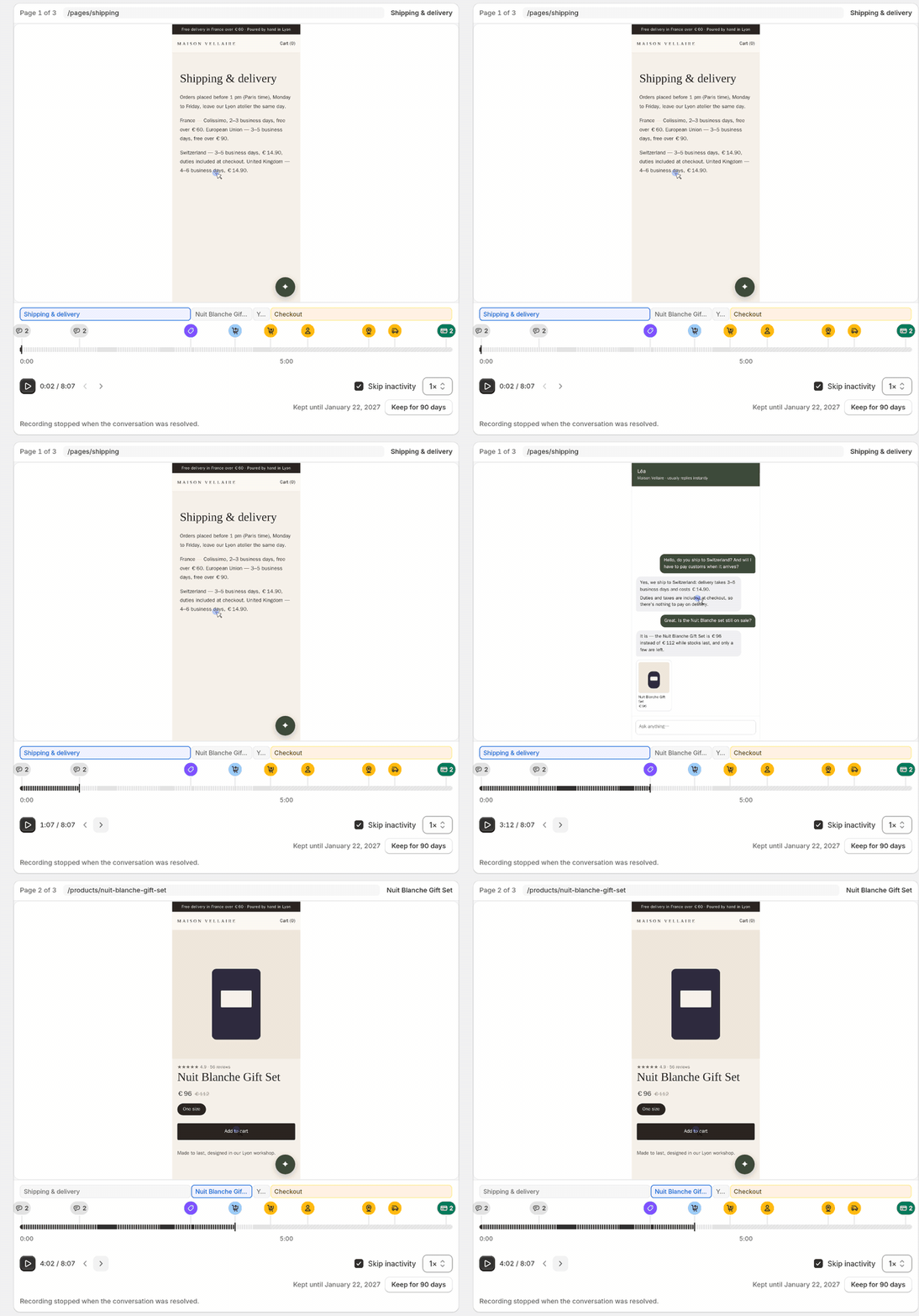
The arrows jump from one moment of the visit to the next.
Find the replays worth watching
Filter and sort in Conversations helps you pick which visits to watch. Open it and use these:
Has replay shows only conversations with a replay.
Shopper journey shows how far shoppers got. For example, Added to cart, no order.
Worth watching, under Sort by, puts first the conversations that were handed over and not given back to the AI, got a thumbs down, or ended with a cart and no order.
How long is a replay kept?
Convi keeps a replay for 7 days after recording stops, or for 90 days if it matters. These are the standard periods. The Convi team can set others for a store, and the Keep button shows your kept period.
A replay gets the 90 days in these cases:
Someone on your team opens it, or selects Keep for 90 days. The 90 days count from that moment, and the replay shows Kept until and the date. Each opening or selection moves that date.
When the 7 days end, Convi keeps the replay if the conversation was handed over and not given back to the AI, if it has a thumbs down, or if the shopper added to the cart, reached checkout or ordered. The 90 days then count from the end of the 7 days.
When a replay is deleted, Shopper journey shows "Replay: Deleted". The journey stays until you delete it or the shopper asks.
What does Convi record, and what doesn't it?
Convi records a journey and a replay only when Shopify allows analytics for this shopper. Shopify decides from your store's privacy settings, the shopper's region and any choice the shopper made. Where your settings require consent, Convi records neither until the shopper agrees. Where they don't, analytics is allowed unless the shopper opts out, so the shopper may never be asked.
If Shopify says no or doesn't answer, Convi records no journey and no replay. An order credited to the conversation can still appear. If the shopper allows analytics later, recording starts then. If a shopper withdraws consent, recording stops and what hasn't been sent is dropped.
The table below shows what a replay shows and leaves out.
Part of the visit | In the journey and the replay |
Your store's own pages | Shown as the shopper saw them |
Convi's widgets, including the chat | Shown, with what the shopper typed there, such as their name and email |
What the shopper types in your store's own fields | Hidden. Each character shows as * |
The name and email of a signed-in shopper | Hidden on your store's pages, outside Convi's widgets |
Checkout | Only the steps, in the journey. "Checkout isn't visible in replays." |
Account, order status, password and gift card pages, and pages from other apps | Not recorded. The journey shows "Visited a private page (not recorded)" |
Videos, audio, embedded frames and canvases | Not shown |
Very large pages | Not recorded. The replay shows "This page was too large to record." |
Delete a journey and its replay
You can delete a shopper's journey and replay from a conversation. Deleting is permanent. The chat messages stay. To delete them:
In Details › Shopper journey, select Delete journey and replay. If there's no replay, the link reads Delete journey.
Select Delete.
You'll see "Journey and replay deleted", or "Journey deleted" if there was no replay. Shopper journey then reads "Journey removed by your team" with the date.
When a shopper asks for their data to be deleted, Convi removes their journeys and replays too. These show "Removed at the shopper's request."
Why is there no journey or replay?
A conversation can have no journey or replay for several reasons. The table below lists what you'll see.
What you see | What it means |
No Shopper journey in Details | The conversation isn't from your store's chat, or your plan or role doesn't include journeys |
"No journey — your plan didn't include shopper journeys when this conversation started." | The store wasn't on Pro or higher at that time |
"No journey — the shopper didn't allow analytics cookies, or their browser blocked recording." | Convi wasn't allowed to record, or couldn't |
"No storefront activity yet." | The conversation is still open, and nothing has arrived yet |
"Replay: Too short" | The replay ran for under 5 seconds |
"Replay: Deleted" | The replay's period ended |
No Watch replay button, and no line about the replay | The shopper's browser sent no recording |
If your store moves to a lower plan, Shopper journey no longer shows in Details, and Convi stops recording.
Related
Find and filter conversations in the inbox — every filter and sort in Conversations.
Convi's plans and prices — what Pro and higher include.
Hand over a conversation and take it back — step in when a replay shows a shopper needs help.