
The Overview tab shows how many conversations your store had, how they ended, and how many led to an order. This article explains what each number means and how to use it to find your next fix. It is for store owners and team members who check Convi's results.
Plans: every plan and the free trial. One funnel step needs a higher plan, marked below · Where: Convi admin › Analyze › Overview · Who: the store owner, and team members whose role allows it
What do the three numbers at the top mean?
Three numbers sit at the top of Overview, for the dates you picked. Select one, and the chart below it shows that number day by day. When Compare to previous period is on, a dashed line shows the same number of days just before your range. The table below explains each number.
Number | What it counts |
Total Conversations | Every chat that shoppers started through Convi |
AI resolution | The conversations Convi resolved, and their share of all conversations |
Total AI replies | Every message Convi sent. These aren't billed |
What does AI resolution mean?
AI resolution counts a conversation when Convi answered the shopper's question itself, without handing it to your team. Convi checks this about an hour after the chat goes quiet, so the newest conversations aren't counted yet. The share is out of every shopper conversation in the period.
This number is usually lower than the count on your plan. Your plan counts every conversation Convi closed without a handover, answered or not. What counts as a conversation? explains that count.
How did my conversations end?
How conversations ended sorts every conversation by its result, on the day it started. Each conversation has one result. The table below lists them.
Result | What it means | What you can do |
Resolved by Convi | Convi answered the question itself, without a handover | Nothing. This is the result you want |
Without an answer | Convi closed the chat, but its check found the question unanswered | Add the answer. See Answer the questions Convi couldn't answer |
Not checked yet | The check hasn't run yet, or there was nothing to answer | Wait about an hour, or read the conversation to see whether the shopper asked a question |
Handed over | Convi passed the conversation to your team, or your team took it over | See Why Convi handed over on the Quality tab |
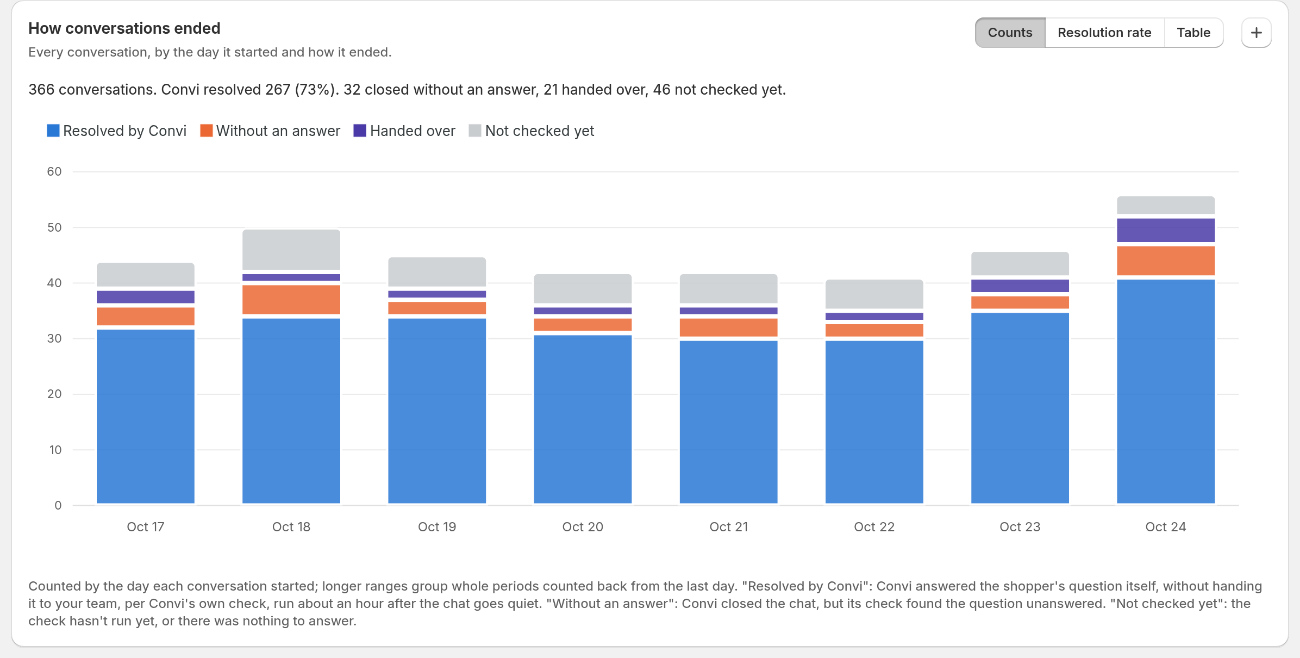
In this range, each bar is one day. The buttons at the top right change the view.
The buttons on the card give you three views:
Counts stacks the four results for each period. Short ranges show days. Longer ranges group days into whole periods, counted back from the last day.
Resolution rate shows the share Convi resolved. A period with fewer than 5 conversations isn't drawn. The newest period can read low until the check has run.
Table lists the same numbers.
How many conversations led to an order?
From chat to order follows conversations step by step, from the first message to an order. The large figure at the top is the share of conversations that ended in an order. The steps below it show where shoppers dropped out. The table below explains each step.
Step | What it counts |
Chatted | Conversations in the period |
Shown a product | Conversations in which Convi showed a product |
Added to cart | Conversations in which a product went into the cart, or that led to an order. Pro and higher, not in the free trial |
Ordered | Conversations with an order credited to them |
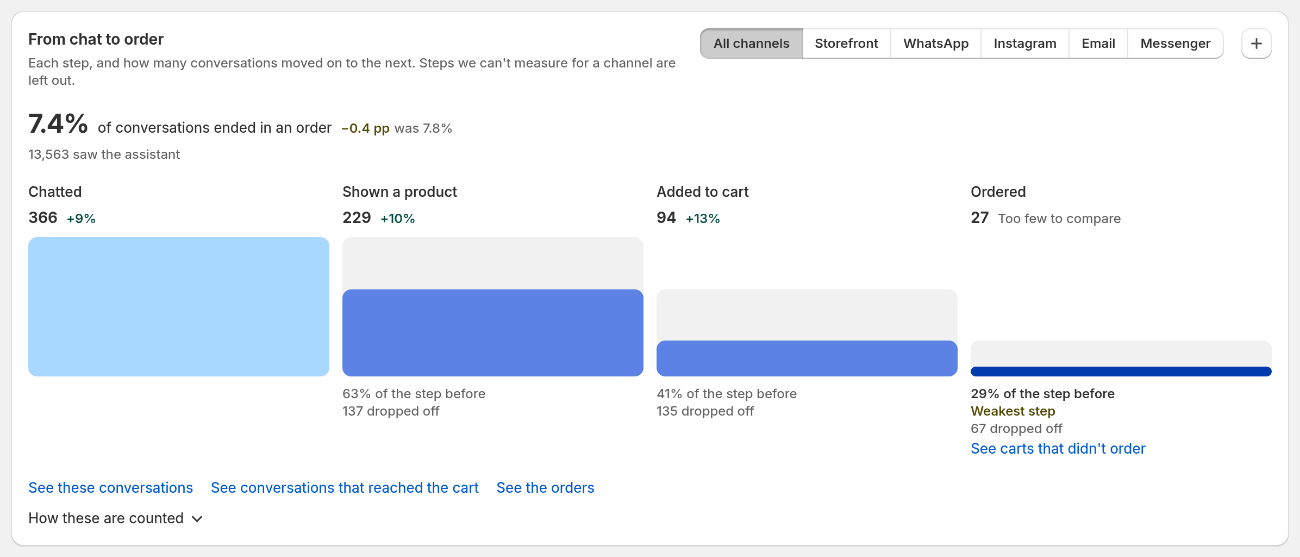
The Weakest step label marks where you lose the largest share.
The funnel counts conversations that started in your dates, so a conversation can reach Ordered after your dates end. Ordered also includes orders placed in store. Assisted orders on the Revenue tab counts online orders by the day they were placed, so the two numbers can differ.
The line under the large figure says how many saw the assistant. It counts each shopper once a day when the chat widget loads, not every visit to your store.
To focus on one channel, select it at the top right of the card. With Storefront selected, the line also says how many of those shoppers started a chat. Messaging channels show no such line and no Added to cart step, because they start outside your store.
How do I act on the funnel?
The links on the card open what is behind the funnel:
See these conversations opens them in Conversations, with your dates and channel.
See conversations that reached the cart opens those that reached the cart.
See carts that didn't order is on the last step. It opens the conversations that reached the cart with no order after it.
See the orders opens Analyze › Revenue with your dates, for all channels.
The two cart links show only with the Added to cart step.
To see the rules behind the numbers, select How these are counted.
Why doesn't a step add up?
The funnel counts each step on its own, and not every step is tracked for every conversation. So a step can show More than the step before, or Fewer than the step after. These steps show no rate and no drop-off. In regions that require cookie consent, steps after the chat are counted only for shoppers who accepted.
A rate shows once the step before it has 30 or more. Below that, the step says Too few to show a rate. The large figure at the top follows the same rule.
What doesn't Overview show?
Overview counts conversations, not visitors to your store, and it doesn't show why a conversation ended as it did. To read that, select See these conversations, or ask Convi Coach in the box at the top of the page. For the value of the orders, see the Revenue tab.
Related
What does each Analyze tab show? — the date range, the comparison and the export.
What counts as a conversation? — why your plan's count differs from AI resolution.
Answer the questions Convi couldn't answer — turn Without an answer into answers.
Find what shoppers ask and where Convi struggles — the Activity and Quality tabs.
How does Convi count sales from chat? — the 14-day rule and each Revenue figure.