
Convi counts a sale from chat when an order comes within 14 days after a chat starts and contains a product that shopper saw or asked about in chat. This rule decides which orders appear in Assisted revenue, Assisted orders and the Order ledger on Analyze › Revenue. This article is for store owners who want to know what those numbers mean before they rely on them.
Plans: every plan and the free trial. A store with no active plan or trial doesn't get revenue figures · Where: Convi admin › Analyze › Revenue · Who: the store owner, and team members whose role allows it
Note: These figures show orders that Convi influenced. They don't prove the chat caused the sale, because the shopper might have bought anyway.
What makes Convi credit an order to a chat?
Convi credits an order to a chat when all four of these are true:
The shopper wrote in the chat. A nudge or a greeting that nobody answered doesn't count.
The chat started in the 14 days before the order. The 14 days count from the start of the chat, not from its last message. The Revenue tab calls this the attribution window.
The order contains a product from chat. The shopper saw the product in that chat, got a nudge about it, or asked Convi about it. A product Convi showed the same shopper in another chat in those 14 days also counts.
Convi can link the order to the shopper. Convi uses the chat ID in the cart, its own pixel (a small script that reports store events), or the shopper's signed-in Shopify account.
If several chats qualify, one chat gets the order. An order is never counted twice.
What doesn't Convi count?
These orders aren't credited to a chat:
An order with no product from this shopper's chats, even if they bought right after chatting. A shopper who only asked about delivery times and saw no products in chat, for example, adds nothing.
An order placed more than 14 days after the chat started.
An order Convi can't link to the shopper, for example when they chat on their phone and buy later on a computer without signing in.
An order after a chat with Convi Coach, or after a staff question on Shopify POS.
What does an order add to the figures?
An order adds its full total, in your store's currency, on the day it was placed. The chat can be from an earlier day. Convi adds the order when it is placed and doesn't change it afterwards. So an order that is cancelled or refunded later stays in Assisted revenue, Assisted orders, Attributed revenue per day, Products in chat and the Order ledger.
What does each figure on the Revenue tab mean?
The Revenue tab shows the credited orders for the dates you pick. The table below explains each figure.
Figure | What it means |
Assisted revenue | The total value of online orders credited to chats |
Assisted orders | The number of those online orders |
AOV lift | Average order value (AOV): how much bigger an assisted order is than the average online order in your whole store in the same period. +8% means 8% larger. A negative figure means assisted orders were smaller. Cancelled and test orders are left out of this figure |
In-store revenue influenced | The value of credited Shopify POS orders, kept apart from assisted revenue. This figure appears once your store has such an order |
Convi against the whole store | Assisted online orders and revenue beside your whole online store's, and Convi's share of each. Cancelled and test orders are left out, so its revenue can be lower than Assisted revenue, and its order count lower than Assisted orders |
Attributed revenue per day | Assisted online orders by the day they were placed |
Products in chat | Recommended → bought: the products Convi showed, how many were added to cart the same day, and how many were bought. Asked about: the products shoppers asked about, then how many bought them. Chats before product tracking started aren't counted, and the card says so when that applies |

The figures at the top of the tab. In-store revenue influenced appears once a Shopify POS order is credited.
Products in chat counts each product's own value, not the order total, so its revenue differs from Assisted revenue. An order with several of these products counts on each product's row.
How do I check a credited order?
The Order ledger lists every credited order for your dates, newest first. To check one:
Go to Analyze › Revenue, and scroll to Order ledger.
Find the order. A Shopify POS order shows the In-store badge.
Select the row to open the conversation, or select the order number to open the order in Shopify. A row marked Conversation unavailable can't open a conversation.
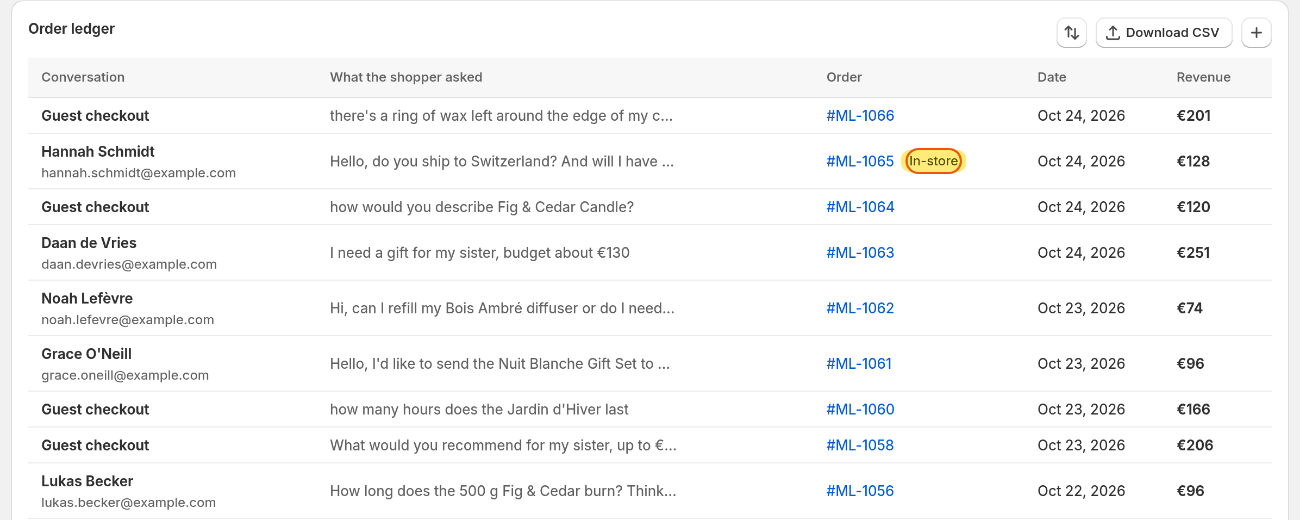
Each row links an order to its conversation. The In-store badge marks a Shopify POS order.
A row with Guest checkout has no name or email for the shopper. To keep the list, select Download CSV above it. The file lists each order with its channel, conversation, shopper, value and attribution method.
Why is my Revenue tab empty?
The Revenue tab shows a message when it has nothing to show. The messages are:
"Convi isn't live on your storefront yet": shoppers can't chat yet. Finish the steps on Home. See Go live with the setup steps on Home.
"No assisted orders yet": Convi is live, but no order has been credited to a chat.
"No assisted orders in this period": the tab still shows, with zeros. Select a longer date range.
Do I need to install anything to track sales?
No. Convi adds its pixel to your store when you install the app, and it reads new orders from Shopify. If you remove the pixel in your Shopify admin, Convi can link fewer orders.
Related
What does each Analyze tab show? — the date range, the comparison and the other tabs.
Add Ask Convi to Shopify POS — staff questions on Shopify POS, which never earn a credit.
Convi's plans and prices — what each plan includes.
Read the Overview tab: outcomes and the chat-to-order funnel — what AI resolution means and how conversations ended.