
Conversations is Convi's inbox: every chat between Convi and your shoppers, on every channel. This article shows how to find the conversations you need with the tabs, the search and the filters. It is for store owners and team members who read or answer shoppers' conversations.
Plans: every plan and the free trial; a few filters need the Pro plan or higher, and aren't in the free trial · Where: Convi admin › Conversations · Who: the store owner, and team members whose role allows it · Time: about 5 minutes
What's on the Conversations page?
Conversations shows the list of conversations on the left. When you select one, it opens on the right, with its messages and what the shopper did, such as products they opened or added to the cart.
Each row in the list shows:
the conversation's title, which Convi writes from what the shopper asked;
its topic, and the shopper's email if Convi has it (a conversation from Shopify POS is also marked POS);
how long ago the last message was sent.
The list shows 50 conversations at a time, grouped as Needs help, Open and Resolved. Use the arrows at the bottom to see the next 50.
What do Needs help, Open and Resolved mean?
The list groups conversations under Needs help, Open and Resolved. The Status filter has two choices: Open and Resolved. The table below explains the three groups.
List group | What it means |
Needs help | The conversation was handed over to your team, by Convi or by you, and it isn't resolved yet. A person needs to answer. |
Open | Convi is still answering, or the shopper may still write. |
Resolved | The conversation is over. Your team selected Resolve, the conversation reached its length limit, or nobody wrote for a while: 10 minutes in a conversation with Convi, 24 hours in one handed over to your team. |
To learn how a conversation reaches Needs help and how to answer it, see Hand over a conversation and take it back.
Show one group of conversations with the tabs
Four tabs above the list show a part of your conversations. To use them:
In the Convi admin, go to Conversations.
Under the search box, select a tab: All, Open, Needs help or Resolved.
The list changes at once. Needs help shows every conversation that is with your team, open or resolved. A conversation you give back to Convi with Give back to AI leaves this tab. To see only the open ones, also tick Open under Status in Filter and sort.
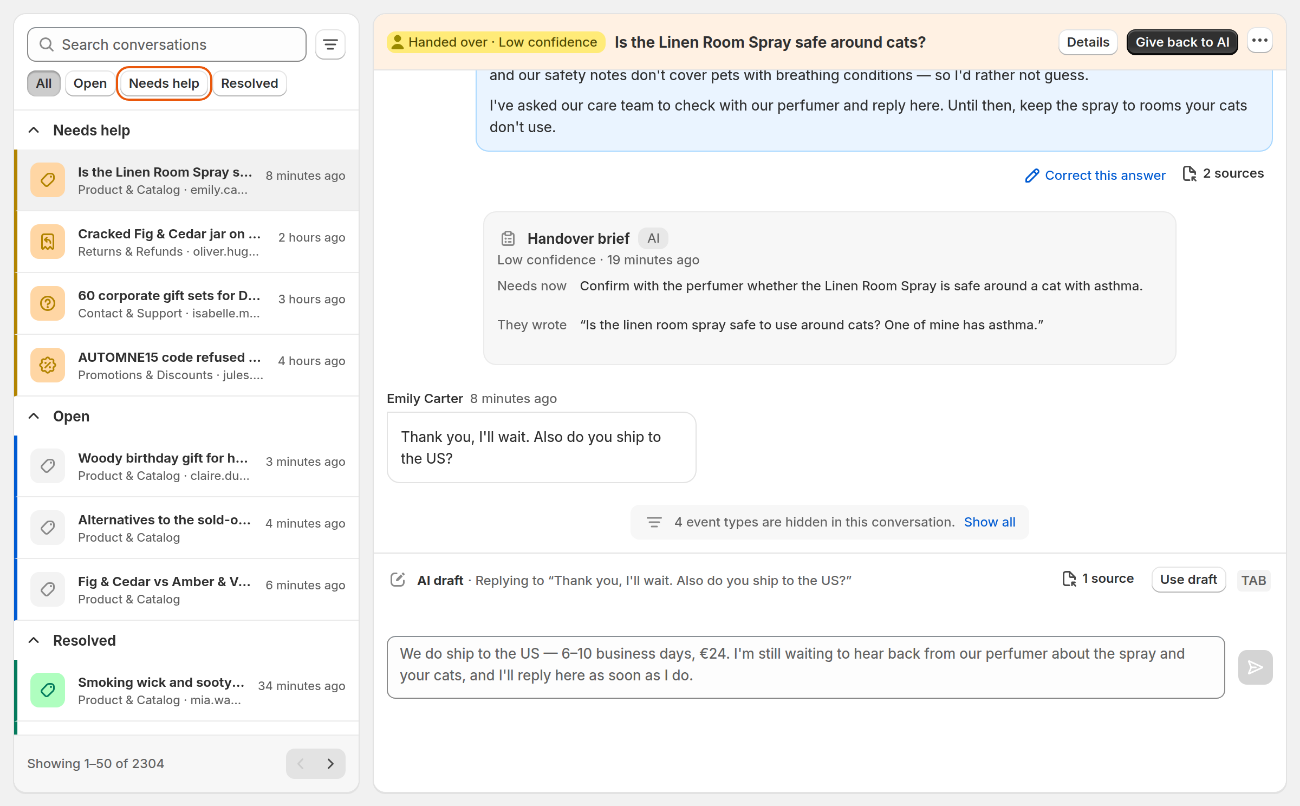
Select Needs help to see the conversations that are with your team. The AI draft at the bottom shows only in stores that have AI draft replies.
Search for a conversation
The search box finds conversations by the words in their title. To search:
Go to Conversations.
Type in Search conversations, for example "gift" or "refund".
The list updates as you type. The search doesn't look inside the messages or at the shopper's email. Select the X in the box to clear it.
Filter and sort the list
Filter and sort, the button beside the search box, narrows the list down and changes its order. To use it:
Go to Conversations.
Select Filter and sort (the icon right of the search box).
Choose the order under Sort by, and tick the filters you need.
Select Done.
To remove every filter, open Filter and sort again and select Clear all. The table below lists what you can filter by.
Filter | Choices |
Sort by | Last activity (newer first is the default) or Date started, newer or older first; Attributed revenue, high to low or low to high; on Pro and higher (not the free trial), Worth watching |
Status | Open, Resolved |
Channel | Widget, Email, WhatsApp, Instagram, Messenger, Voice, Shopify POS |
Responder | AI, or Handover to human |
Created at | Today, Last week, Last 30 days, Last 90 days, All time |
Message feedback | Thumbs up or Thumbs down from the shopper |
Started by | Shopper, or Proactive AI (Convi wrote first) |
Topic, Language | The topics and languages found in your conversations |
Skill | Conversations in which Convi used one of your skills, for example Order tracking |
Widget, Started on | Where the chat started, for example Chat bubble or Checkout |
Started from | Pages of your store: choose Any page, or add rules such as "contains /products/" |
Only attributed | Only conversations Convi is credited with an order for |
Shopper journey, Has replay (Pro and higher, not the free trial) | What the shopper did, such as Added to cart, no order, or only conversations with a replay of the visit |
Topic and Language show only once your conversations have some.
Open a conversation and act on it
Select a row to open the conversation on the right. Its header holds what you can do:
Hand over passes the conversation to your team. When it is with your team, the button reads Give back to AI.
Resolve marks it resolved. On a narrow screen, it is in the menu (…).
Details shows who the shopper is (their name, email, country and device), the conversation's summary and topics, and its session ID. On a wide screen, the details are open on the right.
When you go back to the list, your tab, search and filters stay as they were.
Related
Hand over a conversation and take it back — answer shoppers yourself and give the conversation back to Convi.
What does Convi's Home page show? — the conversations that need you, also on Home.
What counts as a conversation? — which conversations count toward your plan.