
With Ask Convi, your store staff can ask Convi about products, stock and policies from the Shopify POS home screen. They get a short answer while the customer waits. This article shows you how to add the tile and what staff can ask. It is for store owners and for the staff who use it.
Plans: Pro and higher, and the free trial · Where: Convi admin › Channels › Shopify POS, your Shopify admin, and the Shopify POS app · Who: the store owner adds the tile, and store staff use it · Time: about 5 minutes for each location
Add the Ask Convi tile
Shopify doesn't place the tile for you: you add it to the POS smart grid. You can see these steps in Convi too. In the Convi admin, go to Channels, and on the Shopify POS card select How to add the tile. To add it:
In your Shopify admin, open Point of Sale.
Choose the location, then open its POS smart grid editor.
Select an empty tile and choose Add tile → App.
Pick Convi, then Ask Convi.
Save. Ask Convi now appears on the POS home screen.
The smart grid is set for each location. Repeat these steps for every location whose staff should use Convi.
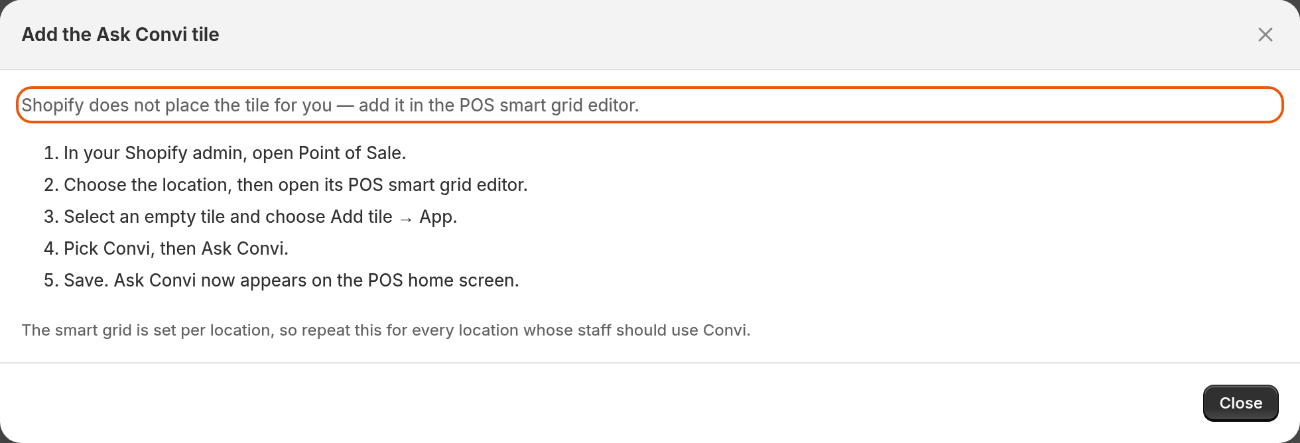
The Add the Ask Convi tile window lists the same steps.
The Shopify POS card keeps the badge Ready to add after you add the tile, because Convi can't see your smart grid. To check that it worked, open Shopify POS at that location and look for Ask Convi on the home screen.
Ask a question in Shopify POS
Staff open Ask Convi from the home screen and type a question. To ask:
On the POS home screen, tap Ask Convi.
Under Your question, type the question, for example "What is the difference between these two jackets?"
Tap Ask.
The answer appears under the question, with the newest answer at the top. Staff can keep asking in the same conversation. To start again, they tap New conversation.
What can staff ask?
Staff can ask anything a customer wants to know about your products and your store. Convi answers from your catalog and your store's knowledge, and it can search the web if that skill is on. Answers are short and plain, at most about 80 words, in the language of the question.
When a question is about products, the answer can list up to 6 of them, with pictures and prices when those details are available. In stock or Out of stock beside a product shows whether it can be bought online. It doesn't show what's on the shelf in this shop.
To find out what's on the shelf, staff can ask about a physical shop. Convi answers for the shop they are in first, and then gives other shops with their addresses. It says in stock, low stock or out of stock, and never gives a number of units. Until Convi has your Shopify locations, it says that it can't see what's on the shelf.
A question can be up to 2,000 characters long.
What Ask Convi doesn't do
Ask Convi is for questions only. It doesn't do these things:
It doesn't change a cart, take a payment or apply a discount.
It doesn't look up orders or customers.
It doesn't hand over to a person. Your team can read the conversation, but can't reply to it.
What do the messages in Ask Convi mean?
Ask Convi shows a banner when it can't answer. The table below lists each one.
Banner | What it means | What to do |
Not available on your plan | The store's Convi plan doesn't include Ask Convi, or its free trial has ended | Upgrade in the Convi app |
Convi can't answer here | The store's Convi app needs attention | Open the Convi app in your Shopify admin, and check the store's setup |
Monthly conversation limit reached | The store has used all its AI conversations | See your plan and usage in Settings › Plan & billing |
Couldn't reach Convi | Convi couldn't return an answer, for example because of a connection problem, a timeout or a service error | Check the device's connection, and ask again. The question stays in the box |
This conversation ended | Convi can't continue this conversation | Ask your question again to start a new one |
Where do staff questions appear?
Staff questions appear in Conversations with a POS label, and you can filter by Channel: Shopify POS. They count toward your plan like other conversations. They stay out of your shopper analytics, because no shopper is involved.
Related
Convi's plans and prices — the plans that include Ask Convi.
Find and filter conversations in the inbox — read what your staff asked.
How does Convi learn about my store? — improve what Ask Convi knows.