
Rules are plain-English instructions that Convi follows in every conversation. This article shows you how to add, change and test them, so Convi handles situations the way your store does. It is for store owners and team members who look after how Convi behaves.
Plans: every plan and the free trial · Where: Convi admin › Learn › Rules · Who: the store owner, and team members whose role allows it · Time: about 5 minutes
What is a rule?
A rule tells Convi how to behave, for example "Never promise a delivery date". Convi reads every active rule in every conversation. The admin can't tie a rule to a page, a product or a shopper. To apply a rule only in certain situations, describe them in its text, for example "If a shopper asks for a discount code, …".
The table below shows where to put what you want to teach Convi.
You want Convi to | Use |
Behave a certain way, such as what to do or never do | A rule, in Learn › Rules |
Know a fact and answer a question, such as your delivery times | An FAQ, in Learn › Knowledge |
Sound a certain way, such as its name and tone | Learn › Persona |
Take an action for shoppers, such as tracking an order | A skill, in Learn › Skills |
Add a rule
You write a rule in a short window. To add one:
Go to Learn › Rules.
Select Add rule.
Under Topic, give the rule a short name, for example "Delivery dates". The name is only for you: Convi reads the rule itself.
Under Rule, write what Convi should do, in plain English.
Select Add rule in the window.
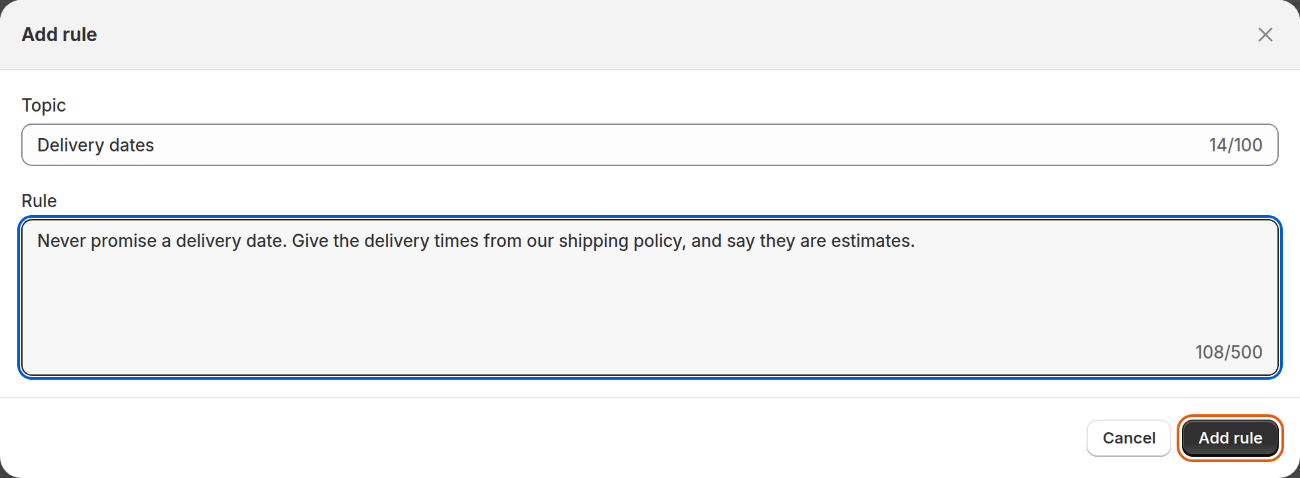
A Topic can be 100 characters long, and a Rule 500.
You'll see "Rule added", and the rule is on the list, marked Active.
Start from a template
A store with no rules sees four templates under Try a template to get started. To use one:
On Learn › Rules, select a template, for example Offer discount code. The Add rule window opens with its text.
Replace what's in square brackets with your own details, for example
[DISCOUNT_CODE].Select Add rule.
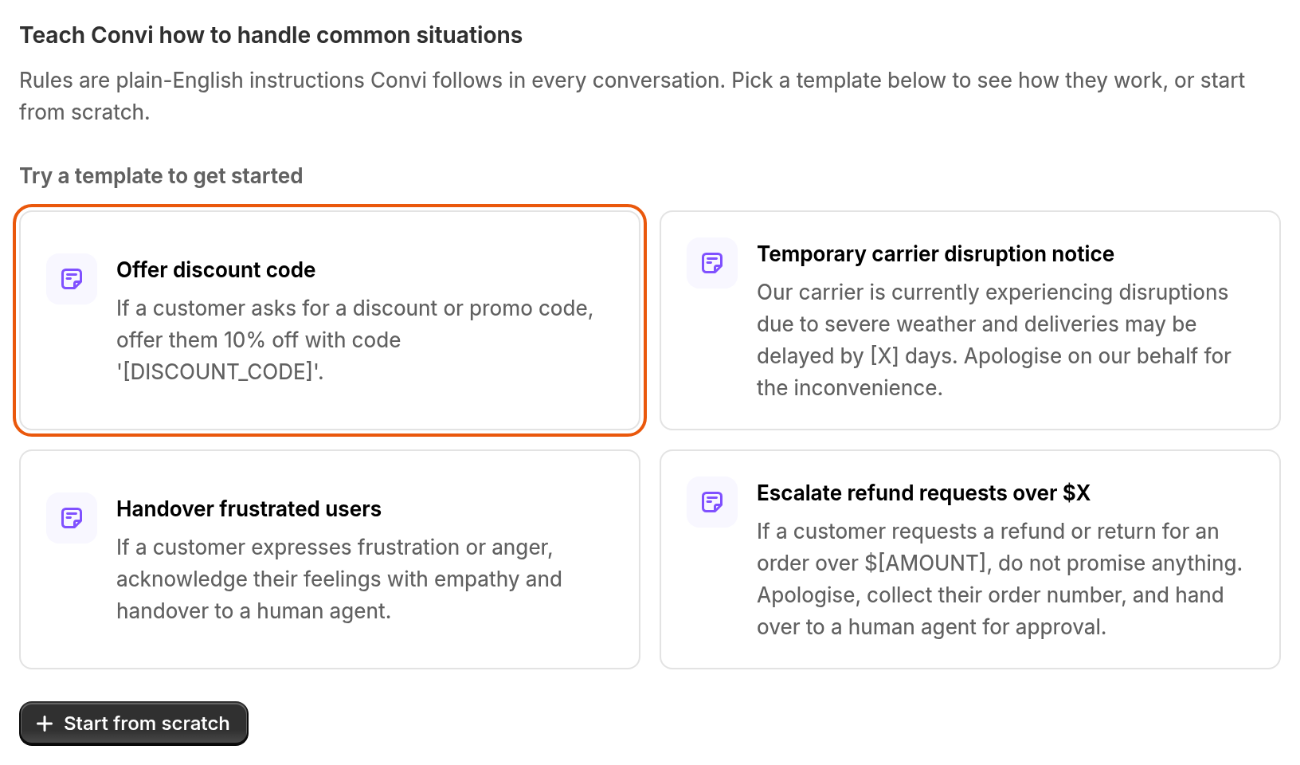
The templates show only until you have a rule. Start from scratch opens an empty window.
Warning: Convi uses a rule's text as it stands, so shoppers can see what you wrote. A rule doesn't create a discount code: create the code in Shopify first, and don't leave the square brackets in the text.
Change, pause or delete a rule
Each rule on the list has its own controls, at the top right of its row.
Change it: select the pencil icon, edit the rule, and select Save. You'll see "Rule updated".
Pause it: turn off the rule's switch. You'll see "Rule deactivated", and Convi no longer follows it. Turn the switch back on when you need it, for example for a seasonal rule.
Delete it: select the trash icon, then Delete. You'll see "Rule deleted". A deleted rule can't be brought back.
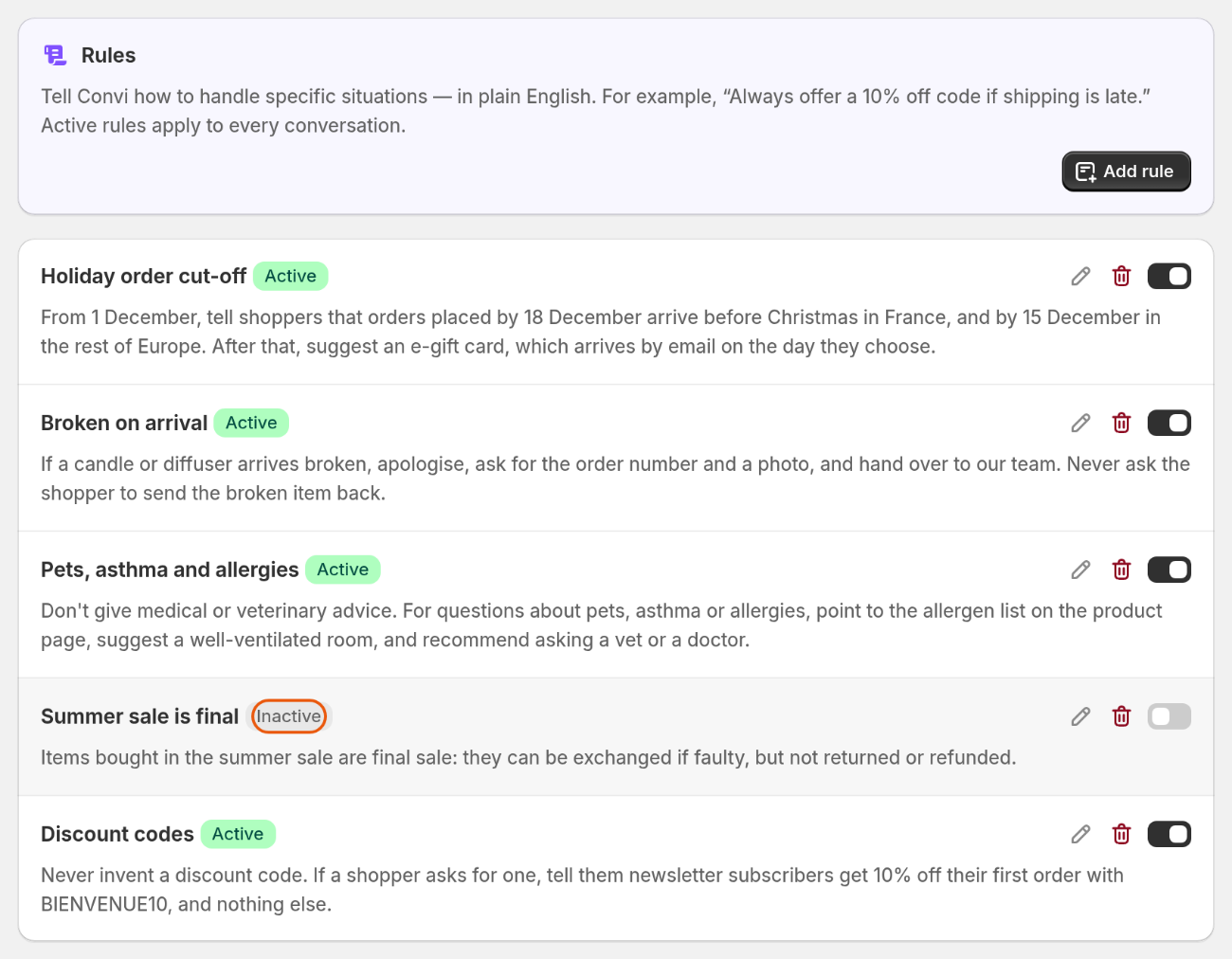
A paused rule stays on the list, marked Inactive.
Check that a rule works
You can test a rule in the live preview, beside the Learn pages. A new rule is active as soon as you add it, so Convi can use it with shoppers while you test. To test one:
In the live preview, ask a question the rule covers, for example "Will my order arrive by Friday?".
Read the answer. Convi should follow the rule.
Test chats don't count toward your usage.
What rules can't do
Rules guide Convi, and these limits remain:
A rule can't override Convi's safety rules, what it's allowed to talk about, or the confirmations a skill asks for.
A rule doesn't give Convi new abilities. To let it act, turn on a skill in Learn › Skills.
A rule doesn't teach facts for looking up. Put those in an FAQ.
Each rule has one level of importance: you can't rank one above another.
Related
Set your assistant's name, tone and instructions — shape how Convi sounds.
Choose what Convi can do with skills — let Convi act for shoppers.
How does Convi learn about my store? — what Convi knows, and how to teach it more.