
You can connect your own AI assistant to Convi, and ask it to find what shoppers couldn't get answered, write the fixes and explain your numbers. This article is for store owners who already use Claude or ChatGPT, or Claude Code or Codex.
Plans: every plan and the free trial · Where: Convi admin › Integrations › Claude & ChatGPT · Who: the store owner only · Time: about 5 minutes
Before you start: you need your own account with the assistant. What it can do also depends on your plan with them, as the sections below say.
What can Claude or ChatGPT do with Convi?
A connected assistant can work on your knowledge and read your numbers, and nothing else. The table below lists what it can read and change. It's the same list you approve when you connect.
It can read | It can change |
Your knowledge entries, the questions and answers Convi uses | Add new FAQs to your knowledge |
Questions shoppers asked that Convi couldn't answer | Edit the question or answer of entries Convi owns |
Knowledge entries that contradict each other | Answer an unanswered question and save it as knowledge |
Conversation analytics, such as volume and resolution rate | Dismiss an unanswered question |
Dismiss a knowledge conflict or mark it as fixed |
Warning: What your assistant adds or changes goes into Convi's knowledge at once, and Convi starts using it with shoppers. There is no Apply step and no Undo in Convi, so read what your assistant proposes before you tell it to go ahead.
Connect Claude
You connect Claude from the Claude tab. To connect it:
In the Convi admin, go to Integrations. Under AI assistants, find Claude & ChatGPT and select Set up (Manage if an assistant is already connected).
On the Claude tab, select Add to Claude. Claude opens in a new tab.
In Claude, choose Connect.
On Convi's Connect your Convi account page, enter your store under Store domain, for example
mystore.myshopify.com, and select Continue. A custom domain doesn't work here.Your Convi admin opens a Connection request. Read the lists, then select Approve.
You're sent back to Claude, and Convi lists it under Connected assistants.
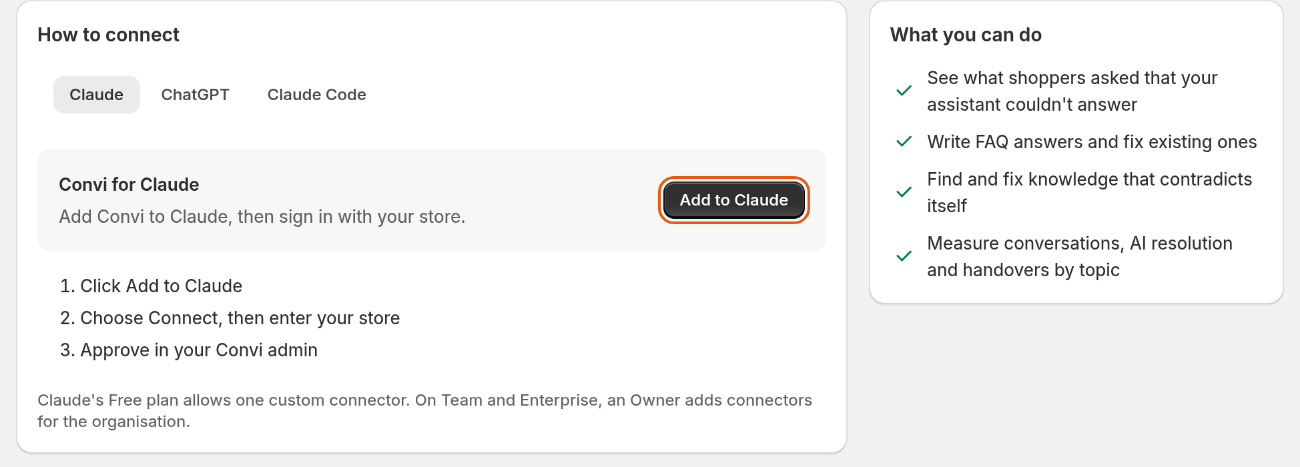
The Claude tab of How to connect. What you can do lists the same abilities in short.
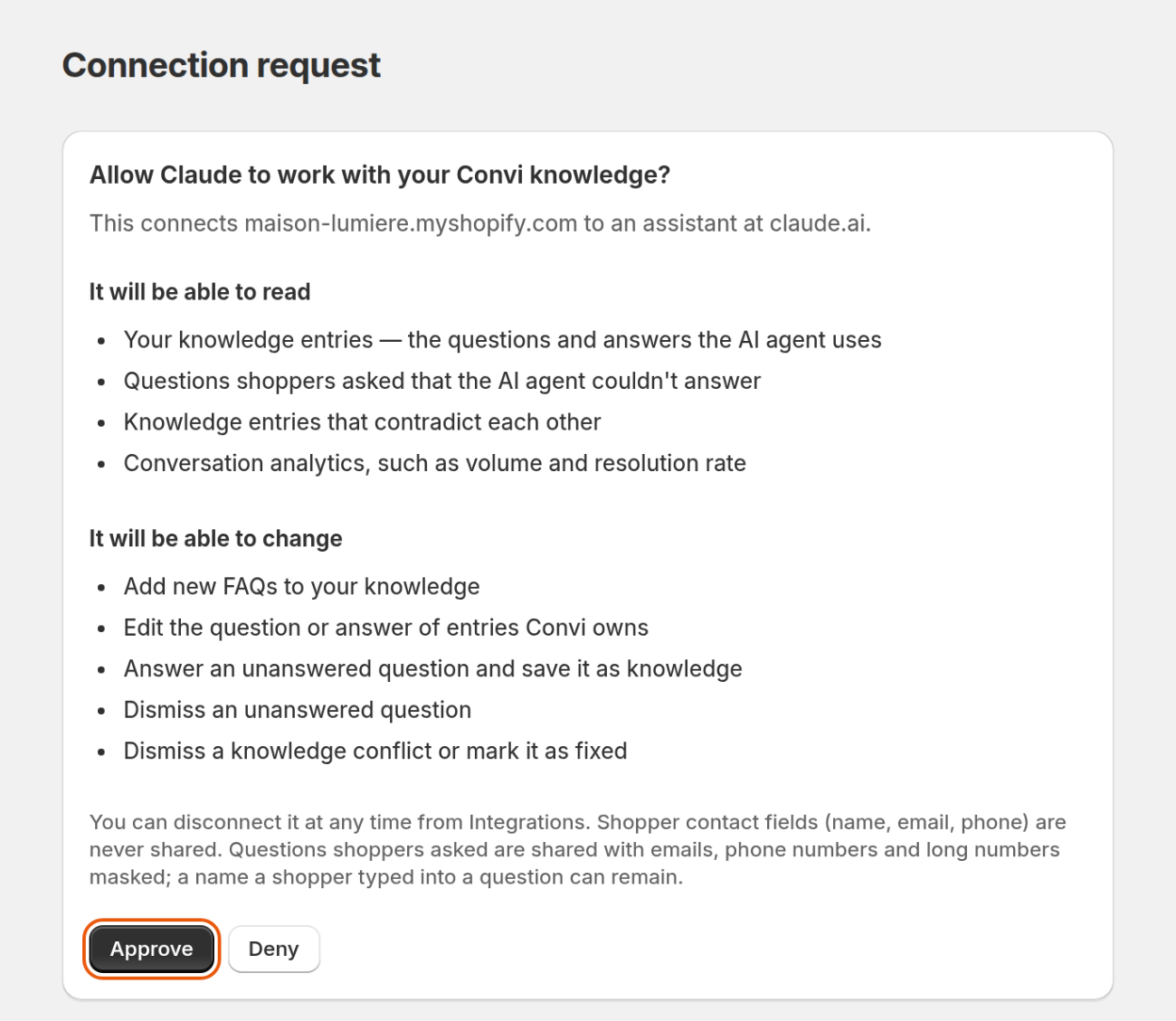
Nothing is shared with the assistant until you select Approve.
Claude's Free plan allows one custom connector. On Claude's Team and Enterprise plans, an Owner adds connectors for the organization.
A connection request lasts 10 minutes. If it runs out, Convi says "This connection request expired. Start again from Claude or ChatGPT."
Connect ChatGPT
You connect ChatGPT with Convi's server address, from the ChatGPT tab. To connect it:
On Claude & ChatGPT, select the ChatGPT tab.
Copy the Server URL.
In ChatGPT, open Plugins.
Choose +.
Choose Add custom MCP server.
Paste the server URL.
On Convi's Connect your Convi account page, enter your Store domain and select Continue.
Your Convi admin opens a Connection request. Select Approve.
Convi then lists ChatGPT under Connected assistants.
Who can add Convi depends on how you use ChatGPT. The tab asks How do you use ChatGPT?, and the table below gives each answer.
How you use ChatGPT | What to do |
On my own (Pro or Plus) | Follow the steps above. OpenAI lists custom servers for Business, Enterprise and Edu, so on Pro or Plus they may be read-only or not available. |
In a workspace, as a member | Only your workspace admin or owner can add Convi (or, on Enterprise/Edu, a member they've given permission). Select Copy message and send it to them. |
In an Enterprise or Edu workspace, with permission to add servers | Create the connection from Plugins, test it in your own chats, then ask an admin or owner to publish it. |
In a workspace, as its admin or owner | Create the connection from Plugins, test it in your own chats, then publish it in Workspace settings. On Enterprise/Edu, choose who can use it. |
Changing your knowledge from ChatGPT needs a Business, Enterprise or Edu workspace.
Connect Claude Code or Codex
Claude Code and Codex connect from the command line, with the commands on the Claude Code tab. To connect them:
On Claude & ChatGPT, select the Claude Code tab.
Copy the command under Add Convi to Claude Code or Add Convi to Codex, and run it.
In Claude Code, run
/mcpand choose Authenticate. In Codex, run the command under Then sign in.On Convi's Connect your Convi account page, enter your Store domain and select Continue.
Your Convi admin opens a Connection request. Select Approve.
Convi then lists the assistant under Connected assistants.
Try a prompt
Try these prompts on the same page gives you three ready-made requests: Fix what shoppers couldn't get answered, Clean up knowledge that contradicts itself and Explain last month. To use one:
Select Copy prompt on its card.
Paste it into your assistant, and send it.
Your assistant then works through the request with you.
See what your assistant did, or disconnect it
Connected assistants lists each assistant, when it was connected and when it was last used. Assistant activity shows what your assistants did in Convi in the last 30 days, for example "Claude added an FAQ". If you have several, pick one under Assistant.
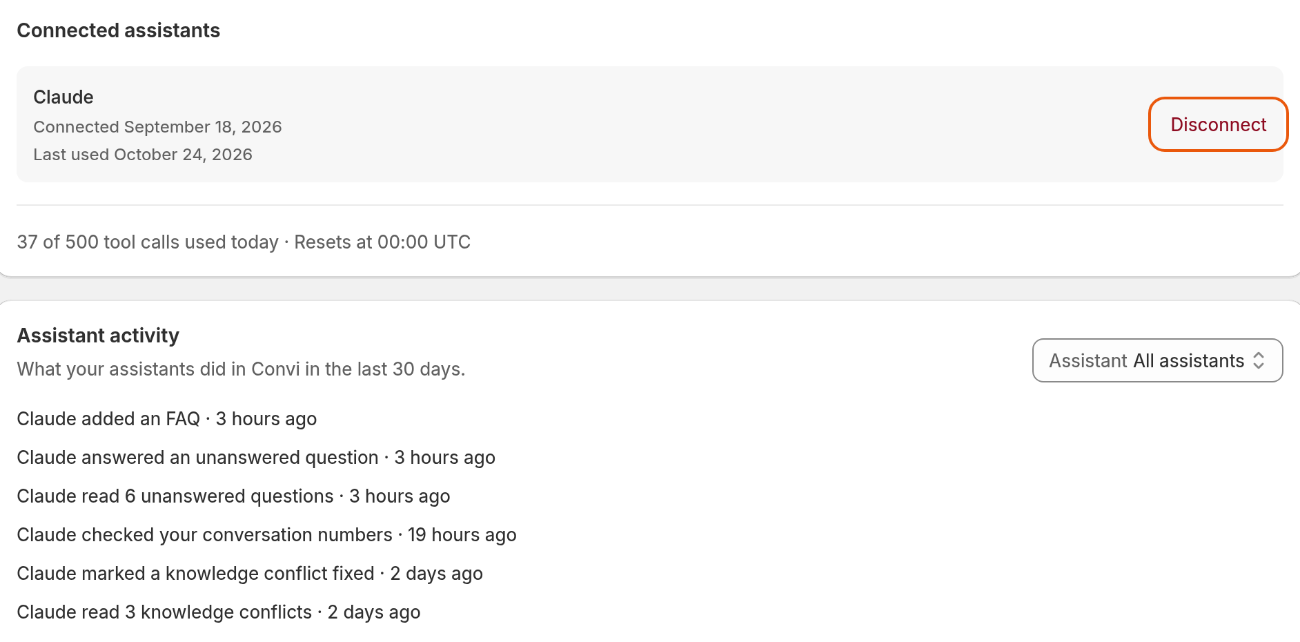
Connected assistants shows today's usage and Disconnect. Assistant activity lists each action.
To disconnect an assistant:
Under Connected assistants, select Disconnect.
In the window, select Disconnect again.
You'll see "Assistant disconnected". The assistant loses access to your Convi knowledge immediately, and you can connect it again at any time.
What does my assistant see of my shoppers?
Your assistant never gets shoppers' contact fields: name, email and phone are never shared. It does read the questions shoppers asked, with emails, phone numbers and long numbers masked. A name a shopper typed into a question can remain.
What Claude and ChatGPT can't do in Convi
A connected assistant has limits, whichever assistant you use:
It can use 500 tool calls a day across your store, on every plan. The count resets at 00:00 UTC, and Connected assistants shows it, for example "37 of 500 tool calls used today · Resets at 00:00 UTC".
It can't change what Convi reads from Shopify, such as pages, policies and blog posts. Change those in Shopify.
It can't change your rules, persona, widgets or skills, and it can't touch orders.
Only the store owner can connect an assistant. A team member sees "Only the store owner can connect an assistant. Ask them to open this page."
Related
How does Convi learn about my store? — what's in the knowledge your assistant works on.
What does Convi's Home page show? — the numbers and open questions on Home.
Why isn't Convi answering shoppers? — what to check when Convi doesn't answer.