
AI Mode replaces the chat bubble with one bar at the bottom of your store. Shoppers can search your products and ask your assistant in the same place, without leaving the page. This article shows you how to turn it on and what shoppers see. It is for store owners who want shopping and chat together.
Plans: every plan and the free trial · Where: Convi admin › Widgets › Bubble widget chatbot › Appearance, and your storefront · Who: the store owner, and team members whose role allows it · Time: about 5 minutes
Before you start: the Bubble widget chatbot must be on, on the Widgets page.
Turn on AI Mode
Chatbox mode sets how shoppers chat with your store, and one mode is live at a time. New stores start on Classic, the chat bubble in the corner. To change to AI Mode:
In the Convi admin, go to Widgets.
On the Bubble widget chatbot card, select Manage.
In Appearance, under Chatbox mode, select AI Mode.
Check Preview, which shows AI Mode with your own products.
Select Save. You'll see "New settings have been saved."
The bar replaces the bubble on your store. To go back, select Classic and save.
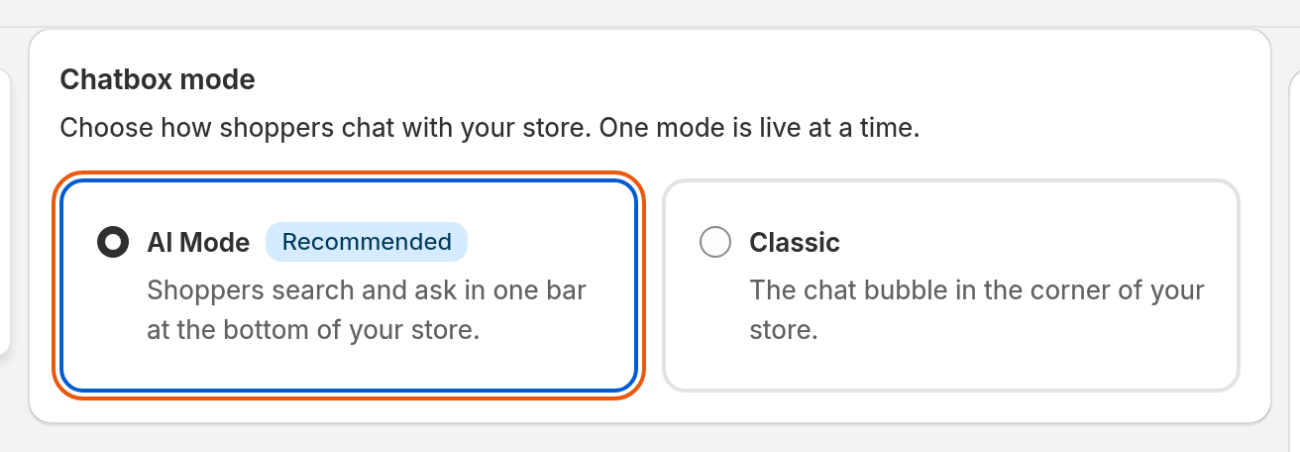
Chatbox mode: select AI Mode. Classic keeps the chat bubble.
What do shoppers see in AI Mode?
In AI Mode, shoppers start from the bar and move into a shopping panel. The flow works like this:
The bar sits at the bottom center of your store's pages. It says "Search or ask", with your assistant's name.
When a shopper selects the bar, the panel opens with your welcome and suggested questions. It also shows Best sellers, New arrivals and Collections, when your store has products for them.
As the shopper types, products appear, with filters above them. A row above the results offers to ask your assistant about the same words.
When the shopper sends the text, it becomes a question, and the assistant answers in the panel as it does in the chat.
In the results, the shopper can select up to 4 products, and then choose Compare or Recommend similar. Compare needs at least 2.
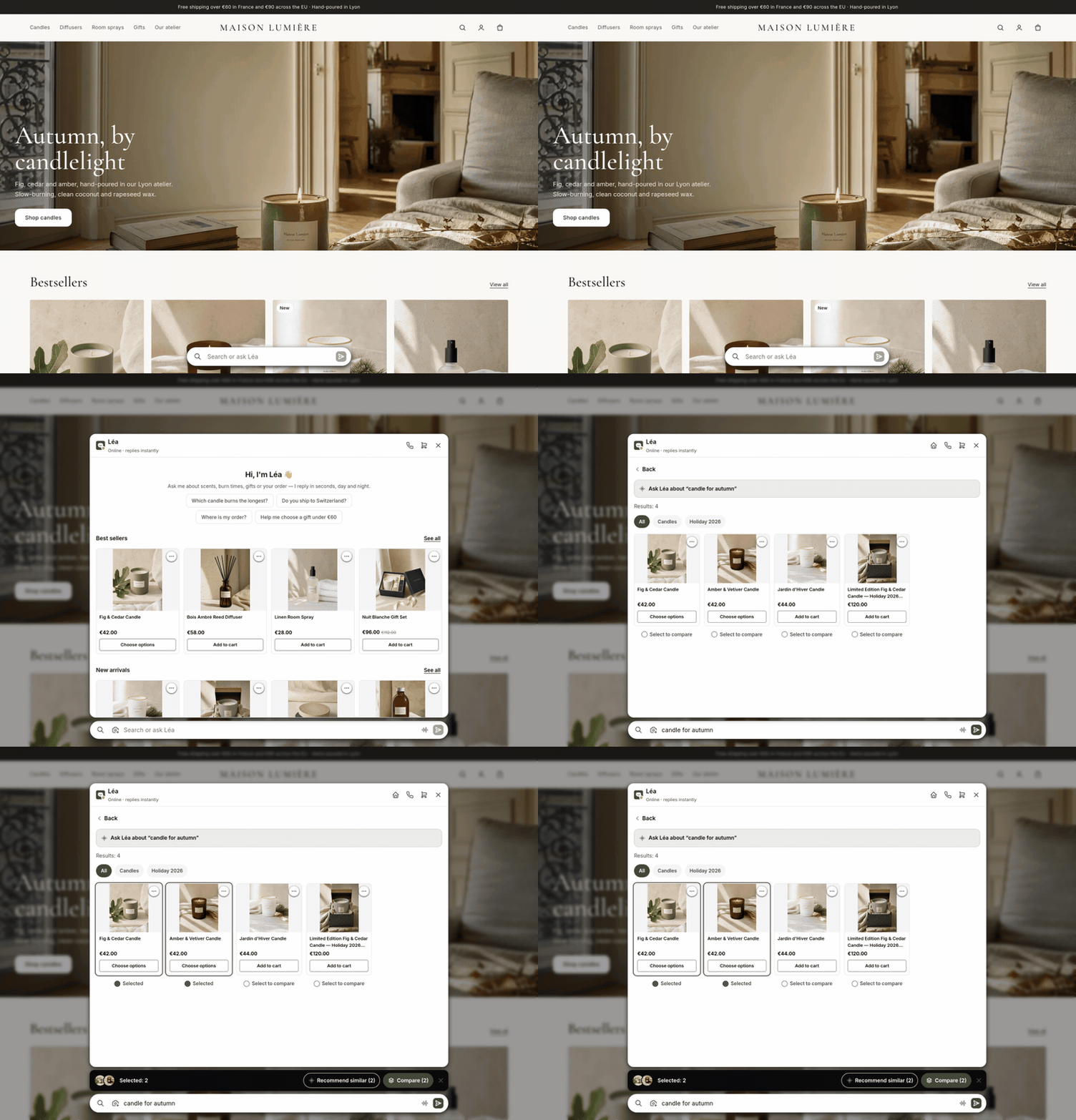
The bar opens into the panel. A search shows products, and two selected products can be compared.
The panel also has a cart: the cart button in its header opens the shopper's cart, with the quantities, the subtotal and a checkout button. On the home screen, History opens their earlier chats, and Continue your conversation returns to an open one.
Proactive nudges, if they are on, rise from the closed bar instead of from the bubble.
What changes in the settings?
AI Mode uses the settings you already have. Some options are for the bubble only, so they disappear. The table below shows what changes.
Setting | In AI Mode |
Placement section | Hidden: the bar's place is fixed |
Bubble logo, Chat bubble type | Hidden: there is no bubble |
Appearance theme, Shop logo, Assistant avatar | The same |
Chat welcome, Home subtitle, AI disclosure, Assistant status, suggested questions | The same |
Placeholder | Not used: the bar's text is Convi's own |
Microphone (speech-to-text), Talk to us (voice), Image attachments | The same: the buttons appear in the bar and the panel |
Skills, knowledge, persona | The same |
Your Classic settings stay saved, so they return if you go back.
You can't move the bar. Check that it doesn't cover a cookie banner or a sticky Add to cart button, on a phone too.
What doesn't AI Mode change?
AI Mode replaces only the floating bubble. These stay as they are:
Inline chat stays the same on the pages where you added it.
Conversations: a shopper's questions appear and count like any other chat. Searching in the bar doesn't start a conversation. Sending a message does. So does selecting a suggested question, the row that asks your assistant, Compare or Recommend similar, because each one sends a message. See What counts as a conversation?
The AI Search Bar is a separate widget, placed in your theme. You can use both.
Related
Customize how the Bubble widget chatbot looks — the theme, logos and avatar that AI Mode uses.
Add suggested questions to the chat — the questions in the panel.
Convi's widgets don't appear on my store — what to check if the bar doesn't show.