
AI Review Summary shows a short summary of a product's customer reviews on its product page. Shoppers see what customers like and dislike, the rating when your reviews app has one, and an Ask about reviews button that opens the chat. This article shows you how to turn it on, where it shows, and what it needs. It is for store owners who collect product reviews and want shoppers to read them at a glance.
Plans: every plan and the free trial · Where: Convi admin › Widgets › AI Review Summary, and your product pages · Who: the store owner, and team members whose role allows it · Time: about 3 minutes
Before you start: Convi's app embed must be on. See Add Convi to your theme: the app embed and app blocks. Your reviews must come from an app Convi reads: Judge.me, Loox, Air Reviews, Vstar, Appio, Avis Garantis or Shopify's Product Reviews app. The app must save its reviews to your Shopify product data.
Turn on AI Review Summary
Convi writes each summary for you from the reviews. To turn it on:
In the Convi admin, go to Widgets.
Turn on the AI Review Summary switch. The change is saved at once.
Open a product with at least 3 different written reviews on your live store. Convi writes its summary the first time the page is viewed, so it can take a few minutes to appear. Reload the page to see it below Add to cart.
Manage on the card stays greyed out while the switch is off.
Which products get a summary?
A product gets a summary when your reviews app has saved at least 3 different written reviews for it in Shopify. Reviews with the same title and text count once. Convi reads the reviews in your product data, up to the 50 most recent, and writes the summary from them. A product with fewer than 3 different written reviews shows no summary.
Convi writes the summary in the shopper's language, from your store's languages. Until a summary in that language is ready, shoppers see the one in your main language, if it exists. If neither exists yet, nothing shows until the summary is ready and the page is viewed again. When a product's reviews change, Convi writes its summary again the next time the page is viewed, and shows the earlier summary until the new one is ready.
What does the summary show?
The summary sits on the product page, below Add to cart unless you place it elsewhere. The table below lists its parts.
Part | What it shows |
Title | "What customers say", or your own title |
Rating | The average rating and the number of ratings, when your reviews app has them |
Summary | Two or three sentences on what customers often say |
Strengths and weaknesses | Up to 3 points that several reviews praise, marked ✓, and up to 3 they criticize, marked − |
Notes | "AI-generated from customer reviews". If the product has more ratings than the written reviews Convi read, also "Based on the N most recent reviews", where N is the number Convi read, up to 50 |
Ask about reviews | Opens the chat with the question "What do customers say about" and the product's name |
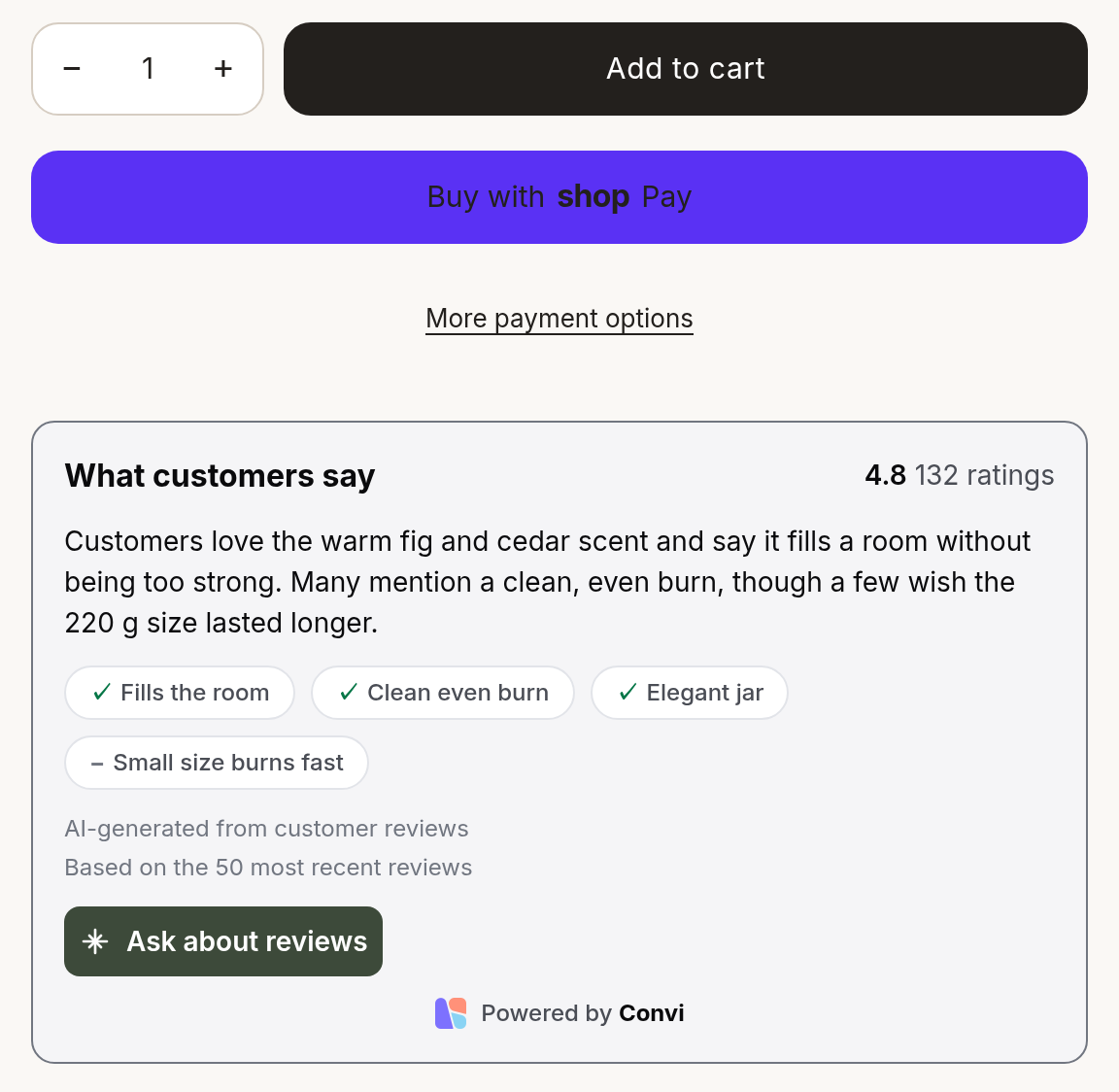
The summary on a product page, written from the product's 50 most recent reviews.
Reading the summary doesn't start a conversation. A conversation starts when the shopper selects Ask about reviews. Keep the Bubble widget chatbot on: with the bubble off, the summary still shows and the button still opens the chat, so the conversation counts, but the shopper has no chat bubble to come back to. The card on Widgets then shows a warning icon.
Show the summary somewhere else on the page
Convi places the summary automatically, right below Add to cart. To put it somewhere else:
On the AI Review Summary card, select Manage. Settings opens.
Under Placement, select Open theme editor. The theme editor opens on a product page, in a new tab.
Add the Convi Review Summary block where you want the summary, and select Save. The summary shows there on your product pages.
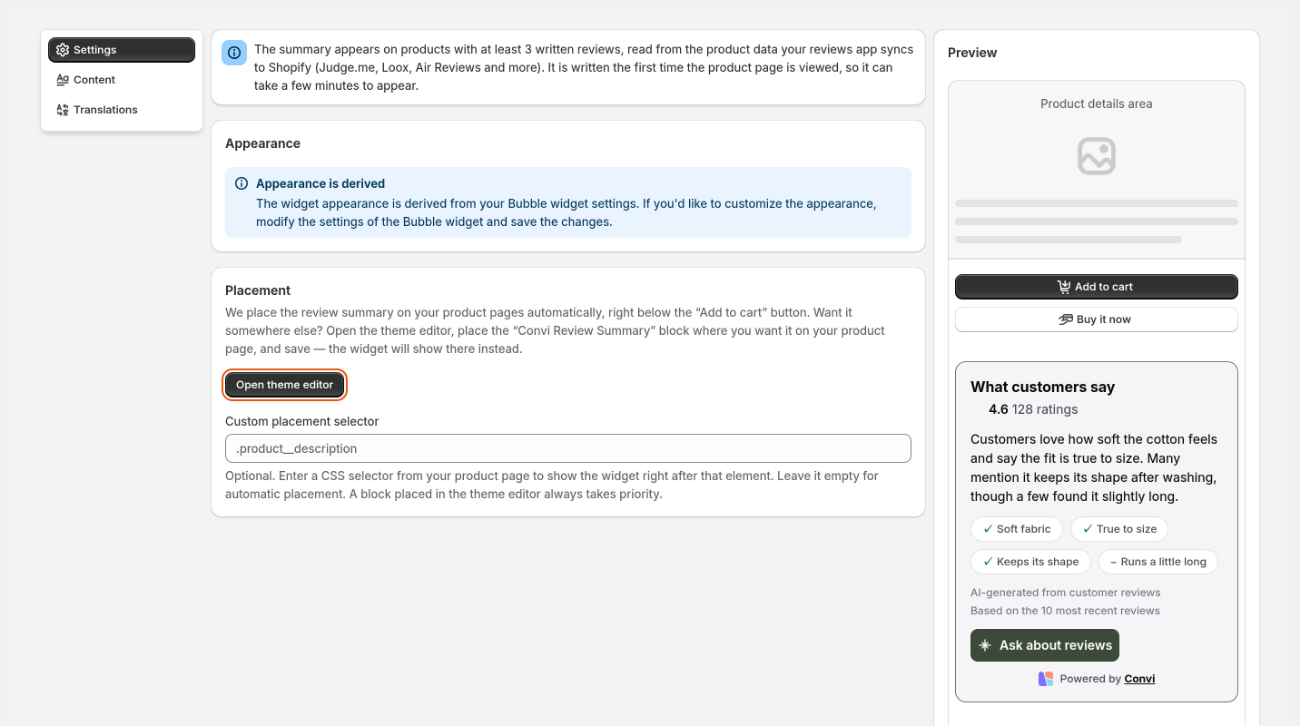
Under Placement, select Open theme editor to choose another spot for the summary.
A block placed in the theme editor always wins. Custom placement selector is optional: it takes a CSS selector from your product page, and the summary shows right after that element. Leave it empty for automatic placement, and select Save after you change it.
Change the title and translate it
The title above the summary is yours to change. To change it:
On the AI Review Summary card, select Manage, then select Content.
Edit Widget title.
Select Save. You'll see "Review summary widget settings saved."
To translate the title, select Translations, then Edit beside a language, and select Save. The other texts, such as Ask about reviews, are Convi's own and show in the shopper's language. The colors and style come from the Bubble widget chatbot: change them under Appearance in that widget.
What AI Review Summary doesn't do
AI Review Summary has some limits:
You can't write or edit a summary. Convi writes it from the reviews.
It reads reviews only from the apps listed at the top of this article, and only the reviews they save to your Shopify product data. If no summary shows on a product with reviews, check with your reviews app that it saves them to Shopify.
It reads up to the 50 most recent reviews of a product, not all of them.
It shows only on product pages.
It hides when Convi is paused, for example when a plan's spending limit is used up.
Related
Show AI questions on product pages with the AI FAQ Widget — another widget that sits below Add to cart.
Convi's widgets don't appear on my store — what to check when the summary doesn't show.
Customize how the Bubble widget chatbot looks — the colors and style this widget takes from the chat.