
The Bubble widget chatbot is Convi's chat on your store. This article shows you how to change how it looks, where it sits and what it says, so it fits your brand. It is for store owners who want to customize the chat.
Plans: every plan and the free trial; some options need a higher plan, as marked · Where: Convi admin › Widgets › Bubble widget chatbot · Who: the store owner, and team members whose role allows it · Time: about 10 minutes
Open the Bubble widget's settings
All the chat's settings are in one window in Widgets. To open it:
In the Convi admin, go to Widgets.
On the Bubble widget chatbot card, select Manage.
The Bubble widget window opens. On the left are its sections: Appearance, Placement, Content, Translations and Advanced. On the right, Preview shows the chat with your changes as you make them. Your store changes only when you select Save (see "Save your changes" below).
Choose Classic or AI Mode
Chatbox mode, at the top of Appearance, sets how shoppers chat with your store. One mode is live at a time:
Classic: the chat bubble in the corner of your store. New stores start with it.
AI Mode (marked Recommended): shoppers search and ask in one bar at the bottom of your store.
In AI Mode, the Placement section and the bubble's own options (Bubble logo, Chat bubble type) are hidden, because there is no bubble.
Change the chat's colors and style
The Appearance section sets the theme. It is shared by all of Convi's widgets, so a change here also changes the AI FAQ Widget, the AI Search Bar and the others. To change the theme:
In the Bubble widget window, select Appearance.
Choose Smart (marked Recommended), which matches your store's look automatically, or Manual.
With Manual, choose Light or Dark, and set the Primary color: type its code, for example 3d4a3a, or pick it with the color square.
Choose a Corner radius (None, Subtle, Balanced or Rounded) and a Shadow depth (None, Subtle, Balanced or Prominent).
The preview changes at once.
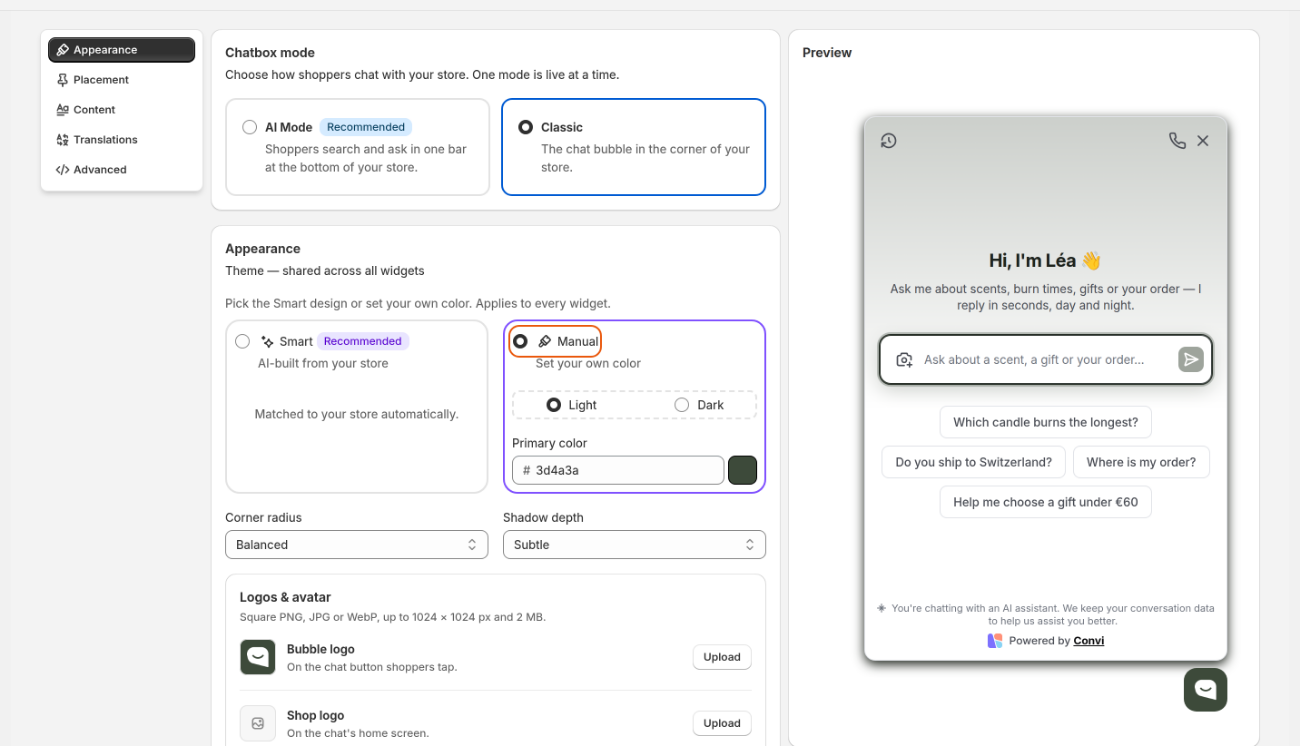
Appearance: the chatbox mode, then the theme all widgets share. The preview is on the right.
Add your logos and the assistant's avatar
Under Logos & avatar in Appearance, you can show your brand in the chat. Each image must be a square PNG, JPG or WebP, up to 1024 × 1024 px and 2 MB. The table below lists the images.
Image | Where shoppers see it |
Bubble logo (Classic only) | On the chat button shoppers tap |
Shop logo | On the chat's home screen |
Assistant avatar | Next to every answer and at the top of a chat. Choose Shop logo, Default icon or Custom image. |
To add a logo, select Upload beside it, and pick the file. For your own avatar, choose Custom image first: Upload appears, and you can save once the image is added. If you choose Shop logo for the avatar before you've uploaded one, shoppers see the default icon until you do.
Choose the bubble's style
In Classic, Chat bubble type in Appearance sets what shoppers tap to open the chat:
Modern bubble: a round button.
Type bar or Prompt bar: a bar with a short text. Write it in Bubble text, up to 24 characters, for example "Ask AI…".
Show notification count, in both modes and on at the start, puts a number on the chat button when the shopper has unread messages.
Show or hide the AI notice and the Convi branding
Two switches in Appearance control what the chat says about itself:
Tell shoppers they're chatting with AI (on at the start): a short line at the bottom of the chat. Change its words under Content, in AI disclosure.
Show "powered by" trademark (on at the start): the "Powered by Convi" line under the chat. You can turn it off on the Starter and higher plans, and during the free trial.
Warning: Some markets require you to tell shoppers they are talking to an AI. When you turn Tell shoppers they're chatting with AI off, Convi asks you to confirm with I understand — turn it off. You are responsible for following the rules where you sell.
Let shoppers speak or send photos
Three switches at the end of Appearance let shoppers do more than type. They are off at the start. The table below lists them.
Switch | What shoppers can do | Plans |
Microphone (speech-to-text) | Dictate a message instead of typing it | Every plan |
Talk to us (voice) | Talk to the assistant and hear it answer, for up to 5 minutes a voice chat. Shoppers are recorded while they speak, so Convi asks you to confirm with I understand — turn voice on. Shoppers see a notice before the microphone opens; you can edit it under Content, and you are responsible for it where you sell. | Pro and higher |
Image attachments | Attach a photo to a message, for help with an order or to find a product | Pro and higher |
The free trial includes all three. On a plan that doesn't include a switch, the switch is greyed out and shows Upgrade plan: select it to see the plans that include it. This closes the Bubble widget window without saving, so save your changes first.
Move the chat bubble
In Classic, the Placement section sets where the bubble sits on your store. To move it:
In the Bubble widget window, select Placement.
Under Launcher size and position, choose the Bubble size: Small, Medium or Large.
Choose the Position: Left or Right.
Set the Side spacing and the Bottom spacing, in pixels from the edge of the screen, from 0 to 200. Use them to keep the bubble off another button, such as a cart or a cookie banner.
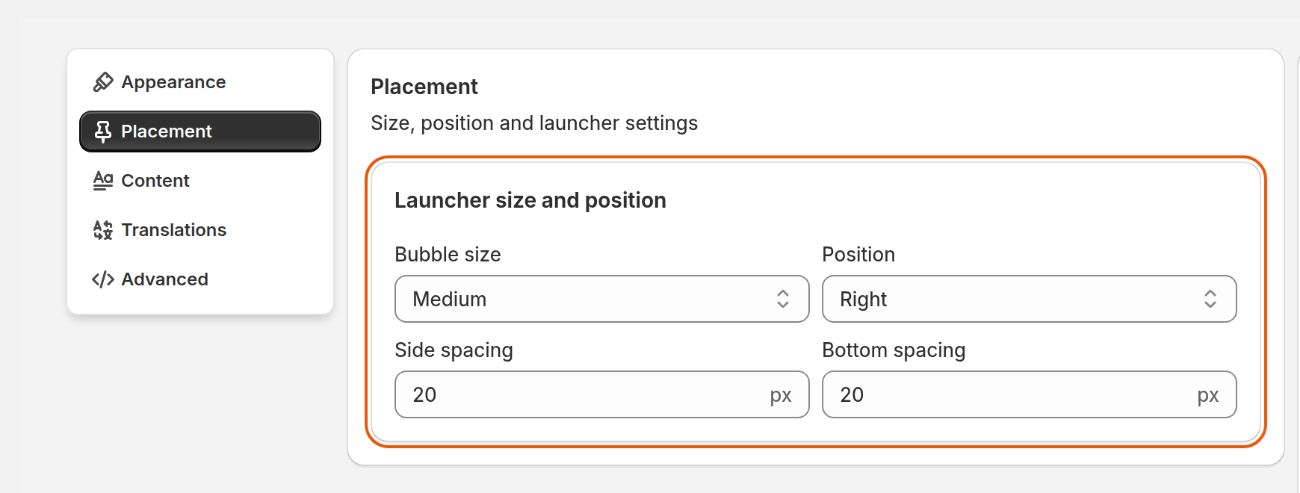
Placement: the bubble's size, its side of the screen, and its distance from the edges.
New stores start with a Medium bubble on the Right, 20 pixels from each edge.
Change the chat's texts
The Content section holds the words shoppers see, in your store's default language. To change them:
In the Bubble widget window, select Content.
Under Messages, edit any text: Chat welcome, Home subtitle, AI disclosure, Assistant status, Placeholder and Start chat button.
Under Predefined inquiries, edit the questions shoppers can tap to start a chat. Select Add for a new one, or the X on one to remove it.
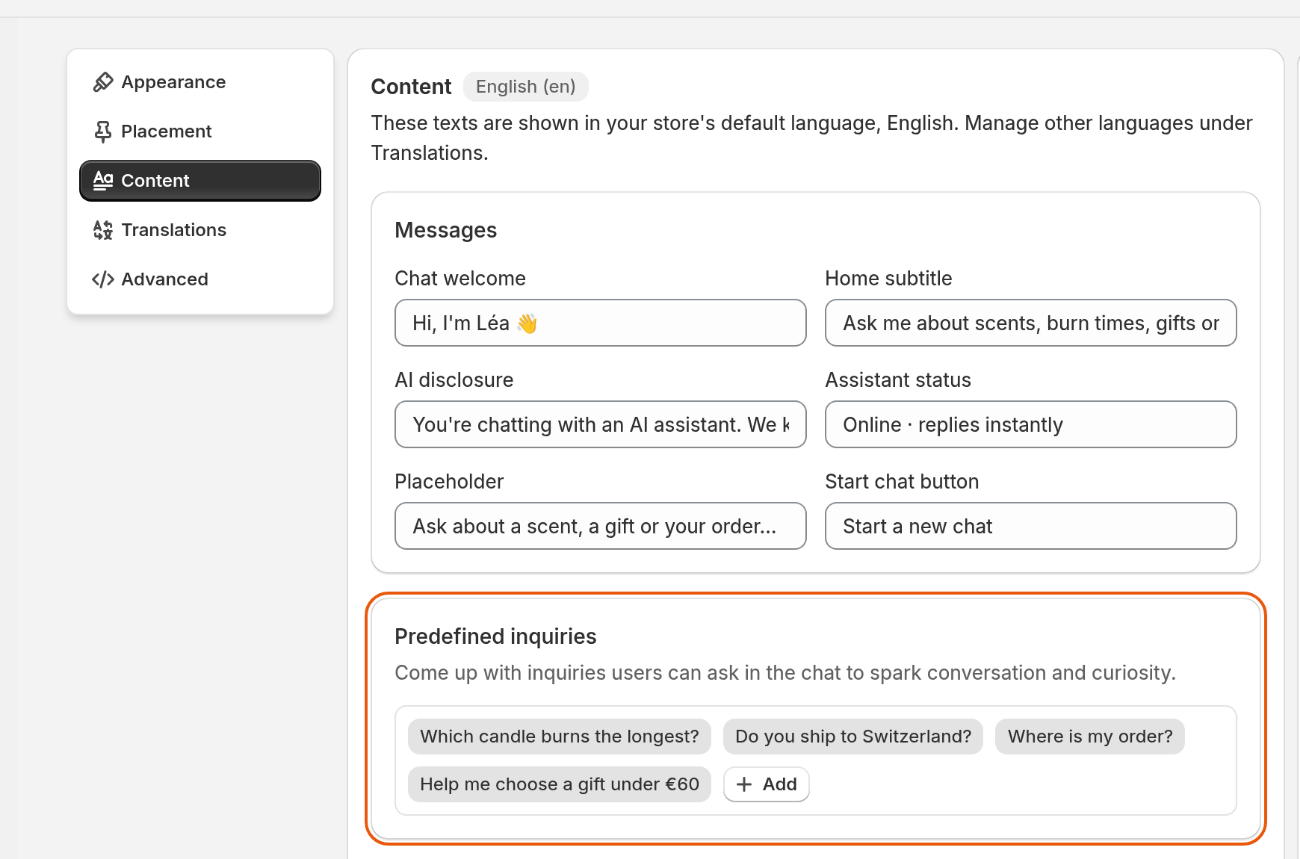
Content: the chat's messages, then the questions shoppers can tap to start.
Further down, Content also holds the messages shoppers see when they send a photo, for example "Uploading…" and the errors, and the texts of voice chats, such as the notice shoppers get before the microphone opens.
Translate the chat's texts
The Translations section holds the chat's texts in your store's other languages. Shoppers see the default language wherever a translation is missing. To translate:
In the Bubble widget window, select Translations.
Select Edit beside a language, and change its texts.
The languages are your store's languages in Shopify. If your store has only one, Translations says "No additional languages": add languages in your Shopify admin first.
Add your own CSS
The Advanced section takes your own CSS, in Custom CSS, for changes the other settings can't make. Your CSS applies to all of Convi's widgets, and only to Convi's own elements. It wins over everything else, Appearance included. Use it with care: a mistake can affect your widgets and your store directly. Leave it empty unless you need it.
Save your changes
Changes reach your store only when you select Save in the Bubble widget window. You'll see "New settings have been saved." To undo your changes before you save, select Discard. If you close the window without saving, your changes are lost.
What these settings don't change
Some settings are outside the Bubble widget window:
The assistant's name, tone and answer length are in Learn › Persona. See Set your assistant's name, tone and instructions.
The other widgets, such as the AI FAQ Widget and the Ask AI Button, have their own settings under Manage on their cards in Widgets. They share the Appearance theme.
If the chat doesn't show on your store at all, see Convi's widgets don't appear on my store.
Related
Set your assistant's name, tone and instructions — how Convi sounds in the chat.
Convi's widgets don't appear on my store — what to check when shoppers can't see the chat.
Convi's plans and prices — which plan includes voice, photos and removing the Convi branding.