
Suggested questions give shoppers an easy first step: they tap one and the chat starts. This article shows you how to add and remove them, and how to choose good ones. It is for store owners who want more shoppers to start a chat. In the admin, these questions are called Predefined inquiries.
Plans: every plan and the free trial · Where: Convi admin › Widgets › Bubble widget chatbot › Content › Predefined inquiries · Who: the store owner, and team members whose role allows it · Time: about 5 minutes
How do suggested questions work?
Suggested questions appear on the chat's home screen. When a shopper taps one, its text is sent as their first message, and Convi answers it. Because the text is the shopper's own message, write each question the way a shopper would ask it.
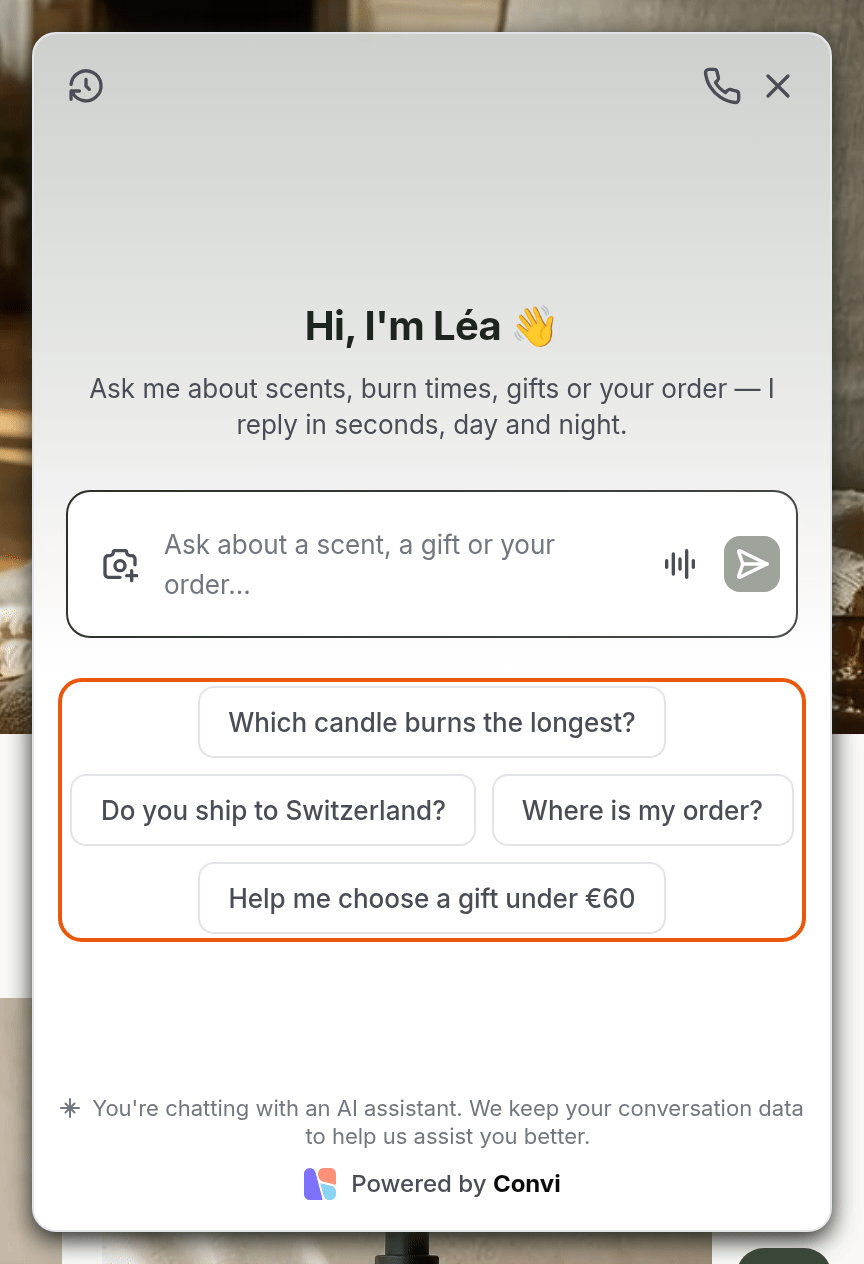
Four suggested questions on the chat's home screen.
When you install Convi, it picks up to three questions from what your store has, such as "Help me find a product" or "Where's my order?". You can review them in setup, and change them here at any time.
Add or remove a suggested question
All suggested questions are in one list. To change it:
In the Convi admin, go to Widgets.
On the Bubble widget chatbot card, select Manage.
Select Content, and go to Predefined inquiries.
To add a question, select Add, type it, and press Enter.
To remove a question, point at it and select the X that appears.
Select Save. You'll see "New settings have been saved."
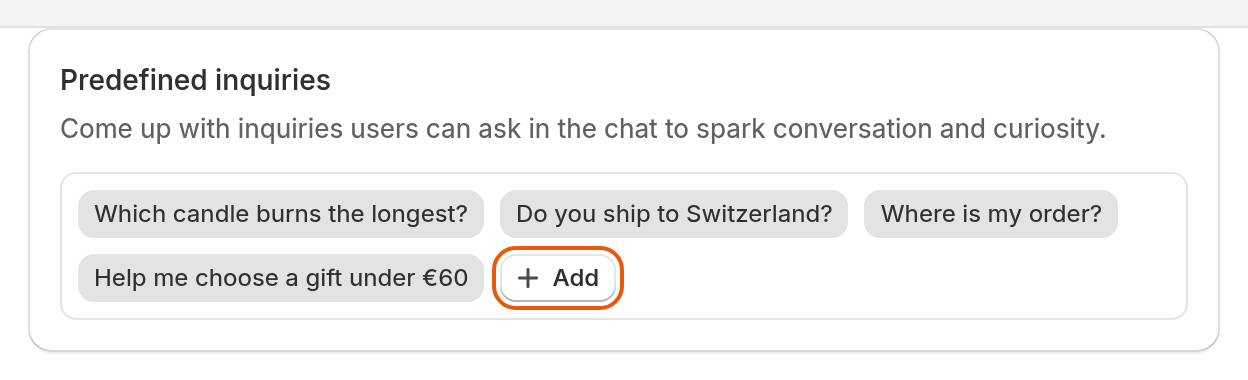
Predefined inquiries: each question is a tag. Select Add for a new one.
You can't choose the order of the questions. After you save, your store shows them in its own order, usually with the shortest first. To see the order shoppers get, open the chat on your store.
Which questions work best?
Good suggested questions are short and are ones Convi can answer well. To choose them:
Start from what shoppers really ask. In Conversations, use Filter and sort to look through the Topic of past chats.
Keep each question short, so it fits on one line.
Test each one in the live preview in Learn, and check the answer before you save it. Chats in the live preview don't count toward your plan.
For example, a question like "Which candle burns the longest?" tells shoppers what the assistant can do, and "Ask anything" doesn't.
Show suggested questions in other languages
Your other languages use the same list of questions, so each language has the same number of questions. A new question reaches each language as a copy in your default language, and shoppers see that copy until you translate it. If a shopper taps it, Convi answers in your default language, because the question is their message. To translate a question:
Add the question under Content, and select Save.
Select Translations, then Edit beside the language.
Under Predefined inquiries, type the translation in the box beside the question.
Select Save. You'll see "New settings have been saved."
When you remove a question under Content, it goes from every language.
Check your translations after your first save in the Bubble widget window, even if you only changed a color. That save can replace a question Convi picked with your default-language text, in every other language. On an English store, this affects "Where's my order?" and "What's on sale?". In any other default language, it can affect all the questions Convi picked. To fix this, translate the question again under Translations, and select Save. This happens once for each question, so save once before you translate them.
For more about languages, see Translate Convi's widgets into your store's languages.
Where else do suggested questions appear?
The same questions appear in AI Mode, under the welcome in the panel. Inline chat has its own questions, unless it uses Use the same messages and predefined inquiries as the Bubble widget.
What happened to the pre-chat survey?
The pre-chat survey is gone: Convi no longer asks for a name and email before the chat starts. To collect shoppers' emails, use the Lead capture skill, on Starter and higher. See Collect shoppers' emails with Lead capture.
Related
Change the texts shoppers see in the chat — the welcome and the other texts on the same screen.
Translate Convi's widgets into your store's languages — questions and texts in your store's other languages.
Find and filter conversations in the inbox — how to see what shoppers really ask.