
You can change the words of the Bubble widget chatbot so it sounds like your brand. This article shows you where each text appears and how to edit it. It is for store owners who want to change what the chat says before a shopper asks anything.
Plans: every plan and the free trial · Where: Convi admin › Widgets › Bubble widget chatbot › Content · Who: the store owner, and team members whose role allows it · Time: about 5 minutes
Edit the chat's texts
The Content section holds the chat's texts in your store's default language. To edit them:
In the Convi admin, go to Widgets.
On the Bubble widget chatbot card, select Manage.
Select Content.
Under Messages, select a text and change it. Preview moves to the screen where that text appears.
Select Save. You'll see "New settings have been saved."
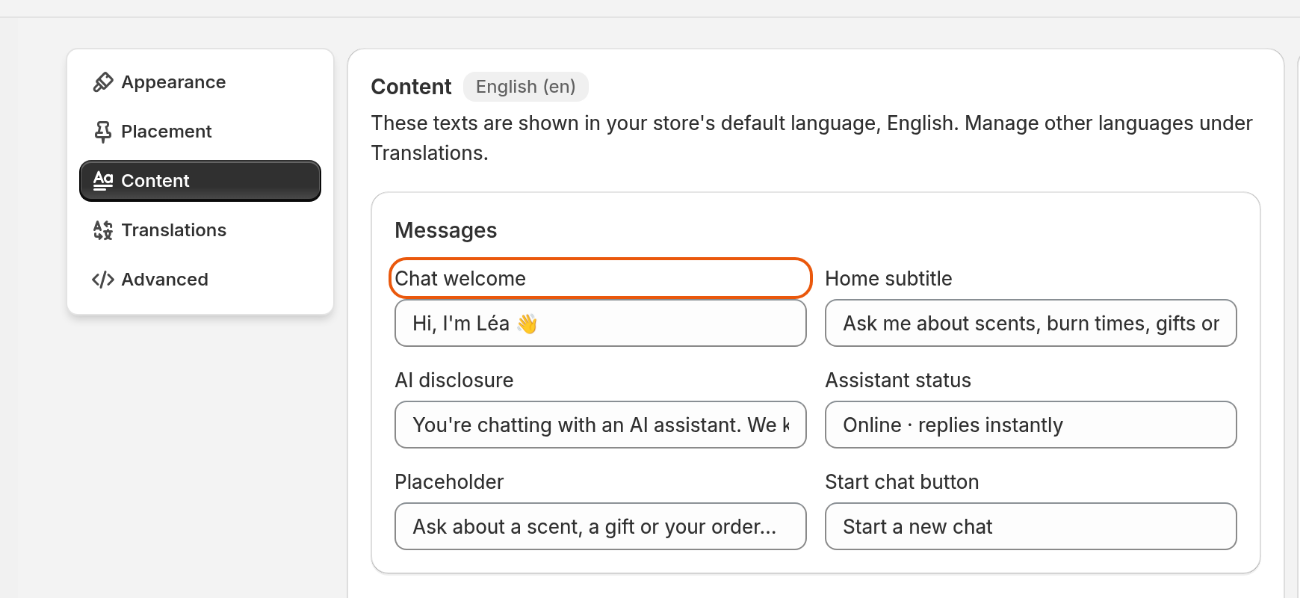
Content: the chat's messages, in your store's default language.
To undo your changes before you save, select Discard.
Where does each text appear?
The Messages group has six texts. New stores start with Convi's wording, in the store's default language. The table below shows each text, where shoppers see it and how it starts in English.
Text | Where shoppers see it | It starts as |
Chat welcome | The large title on the chat's home screen | Chat with us |
Home subtitle | Under the title on the home screen | Ask me to find a product, track an order, or anything about the store. |
AI disclosure | A short line at the bottom of the chat. It shows only while Tell shoppers they're chatting with AI is on, in Appearance. | You're chatting with an AI assistant. We keep your conversation data to help us assist you better. |
Assistant status | Under the assistant's name at the top of a chat. It is hidden after your team takes over or the chat is resolved. | Online · replies instantly |
Placeholder | Inside the message box, before the shopper types | Ask Anything |
Start chat button | The button that starts a new chat, on the shopper's chat history | Start a new chat |
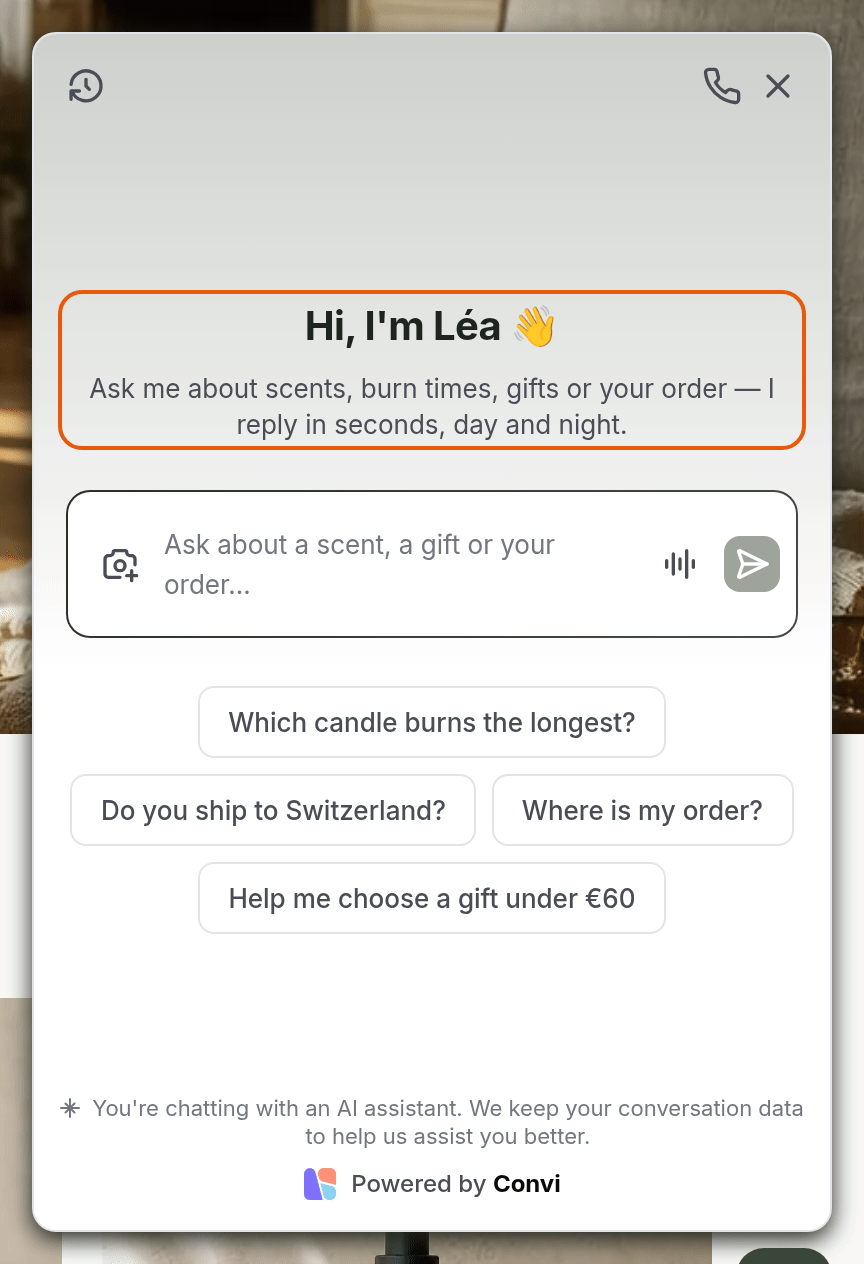
The home screen: the Chat welcome, the Home subtitle, the message box, then the AI notice at the bottom.
The assistant's name isn't a text here: set it in Learn › Persona.
Warning: Keep the AI disclosure accurate. To hide the line, use that switch: if you leave this text empty, shoppers see Convi's default English line. Some markets require you to tell shoppers they are talking to an AI, and you are responsible for following the rules where you sell.
What other texts can you change?
Below Messages, the Content section has more groups. The table below lists them.
Group | What it holds |
Predefined inquiries | The questions shoppers can tap to start a chat |
Image attachment | The messages shoppers see when they send a photo, such as "Uploading…" and the errors |
Voice · entry and consent | The button that starts a voice chat, and the notice shown before the microphone opens |
Voice · what the shopper is shown | The status lines during a voice chat |
Voice · controls | The names of the voice chat's buttons |
Voice · when it doesn't work | The messages shoppers see when a voice chat has a problem |
For the questions, see Add suggested questions to the chat.
Which texts does AI Mode use?
In AI Mode, the chat's home screen uses the same Chat welcome, Home subtitle, AI disclosure and suggested questions, and the panel's header uses Assistant status. Placeholder is the exception: the bar at the bottom of your store always says "Search or ask" and the assistant's name, in the shopper's language. You can't change this text.
Change these texts in other languages
Content holds only your default language. Changing a text under Messages doesn't change its translations, so update them under Translations. Saving this window can also replace the translation of some suggested questions with your default-language text, so check those too. See Translate Convi's widgets into your store's languages.
What these settings don't change
Some of what shoppers read is set elsewhere:
Other widgets: each one has its own Content section, under Manage on its card in Widgets. They don't share the chat's texts, except Inline chat if it uses Use the same messages and predefined inquiries as the Bubble widget.
Convi's own words, such as buttons and product card labels: you can't edit them.
The assistant's answers: they come from what Convi knows and from your persona, not from these texts. See Set your assistant's name, tone and instructions.
Related
Customize how the Bubble widget chatbot looks — the chat's mode, colors and position.
Add suggested questions to the chat — the questions shoppers tap to start a chat.
Translate Convi's widgets into your store's languages — these texts in your store's other languages.