
Convi tags conversation topics by reading each message its AI answers and choosing the one topic that fits best. A conversation collects a topic for each subject the shopper raises. This article explains the topics, and how to use them to find conversations and see what shoppers ask about. It is for store owners and team members who read conversations.
Plans: every plan and the free trial · Where: Convi admin › Conversations and Analyze · Who: the store owner, and team members whose role allows it · Time: about 3 minutes
Which topics can a conversation have?
A conversation's topics come from one fixed list of 11. You can't add, rename or remove a topic. The table below lists them.
Topic | What it covers |
Shipping & Delivery | Delivery times, tracking, shipping costs and options |
Returns & Refunds | Returns, refunds, and items that arrived damaged, wrong or missing |
Orders & Checkout | Checkout, placing or changing an order, and order status |
Product & Catalog | Finding products, product details, and price or budget questions |
Promotions & Discounts | Discount codes, sales, coupons and loyalty offers |
Payments & Billing | Account, payment method and billing problems |
Subscriptions & Memberships | Managing a subscription or membership |
Contact & Support | Asking for a person, or giving an email so someone can follow up |
Feedback & Complaints | Praise or complaints about the experience |
Store Information | Opening hours, locations, ways to contact you, and questions about the store |
Other | Anything else |
How does tagging work?
Tagging happens for each message Convi's AI answers, a moment after its reply. It works like this:
Convi's AI reads the shopper's message and picks one topic.
If the conversation doesn't have that topic yet, Convi adds it.
The next message goes through the same steps, so one conversation can have several topics.
Other only holds the place until a real topic arrives. Convi then removes it. A conversation's first topic, the earliest one tagged, is its main topic. Analyze › My dashboard can count conversations by it.
You can't change a conversation's topics yourself. Conversations that shoppers start by email don't get topics.
See a conversation's topics
A conversation's topics are in Details. To see them:
Go to Conversations and open a conversation.
In Details, look under Conversation at Topics.
Details lists the newest topic first. The list in Conversations also shows a topic on each row. To see the moment Convi added a topic, turn on Title & topic in Conversation events. You'll see "AI tagged topic" in the conversation.
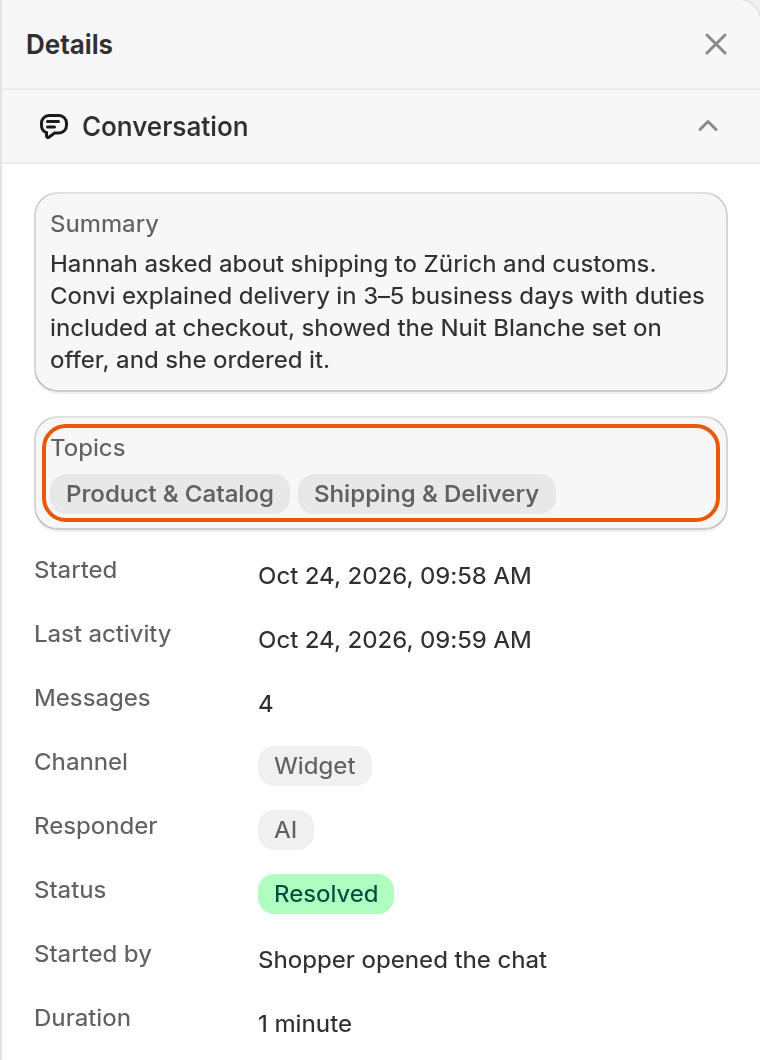
This conversation has two topics, because the shopper raised two subjects.
Filter conversations by topic
The Topic filter finds the conversations about a subject. To use it:
Go to Conversations.
Select Filter and sort (the icon right of the search box).
Under Topic, tick one or more topics.
Select Done.
The list shows every conversation with at least one of the topics you ticked. Topic shows only once your conversations have some.
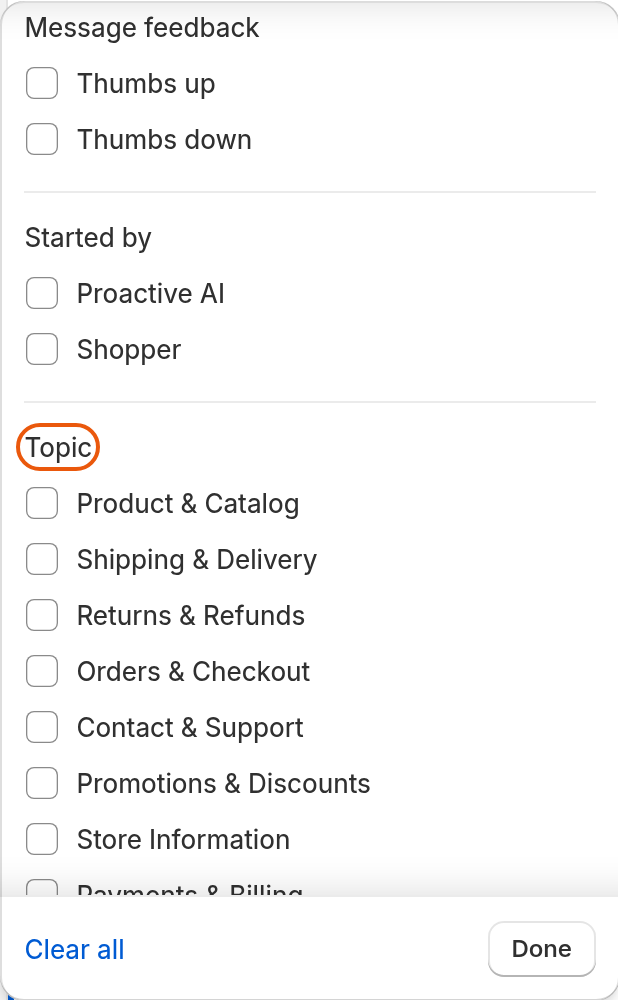
The Topic filter lists the topics found in your conversations.
See topics in Analyze
Analyze shows which topics shoppers ask about most. Two places count them:
Analyze › Activity: under View by, choose Topic to see Conversations by topic. Select a topic to open its conversations.
Analyze › Quality: Handovers by topic shows which topics reach your team.
A conversation can have several topics, so shares can add up to more than 100%.
What topics don't do
Topics have these limits:
Topics change nothing in Convi's answers. They only sort your conversations.
A topic says what a message was about, not how the shopper felt or how the conversation ended.
Related
Find and filter conversations in the inbox — every filter in Conversations.
Read a conversation: transcript, sources and details — everything in Details.
Answer the questions Convi couldn't answer — close the gaps a busy topic shows you.