
When you open a conversation, you see every message, what happened between the messages, and who the shopper is. This article explains each part, so you can check what Convi told a shopper and why. It is for store owners and team members who read shoppers' conversations.
Plans: every plan and the free trial; Shopper journey needs the Pro plan or higher, and isn't in the free trial · Where: Convi admin › Conversations · Who: the store owner, and team members whose role allows it · Time: about 5 minutes
Open a conversation
You open a conversation from the list in Conversations. To open one:
In the Convi admin, go to Conversations.
Select a conversation in the list.
The conversation opens on the right, with its messages in the middle. On a wide screen, Details is open beside them. On a narrow screen, select Details at the top of the conversation.
What's at the top of a conversation?
The top of a conversation shows its title and where it stands. The badges show Open or Resolved, or Handed over with the reason when it is with your team. A conversation that didn't start in your store's chat also shows its channel, such as Email or POS.
The buttons at the top are what you can do with the conversation:
Hand over passes it to your team. When it is with your team, the button reads Give back to AI.
Resolve marks it resolved. On a narrow screen, it is in the menu (…).
The menu (…) holds Conversation events.
To learn more, see Hand over a conversation and take it back.
Who wrote each message?
Each message in a conversation shows who wrote it, and how long ago. The table below lists the names you'll see.
Name on the message | Who wrote it |
Convi AI | Convi's AI |
The shopper's name, or Customer | The shopper |
You | Someone on your team, in the chat |
Email · Team, or Email · and a name | Someone on your team, by email |
A reply from Convi can hold more than text: product cards, a product comparison, or the suggested replies it offered the shopper.
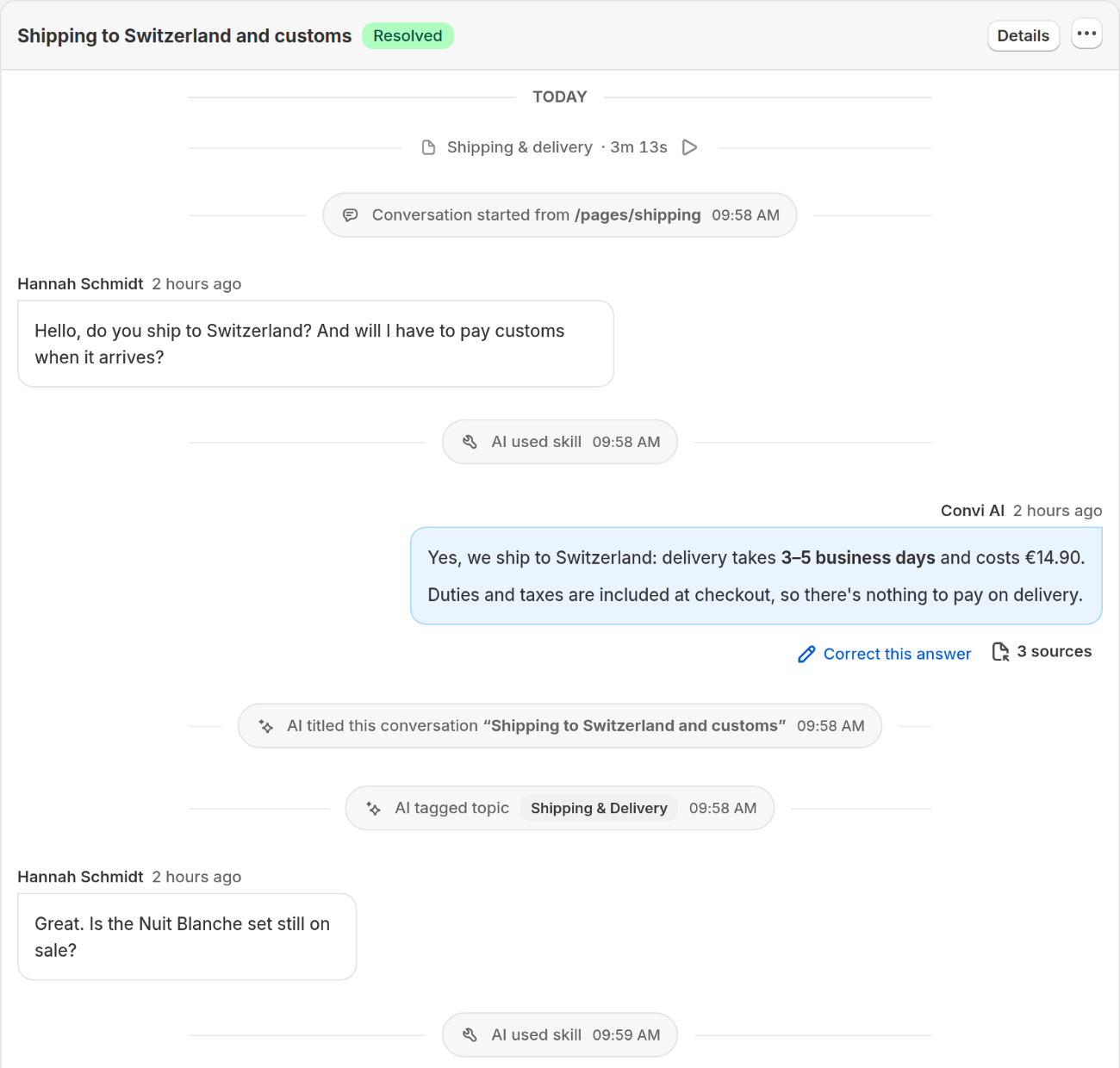
A conversation with AI & team events turned on. The shopper's messages are on one side and Convi's on the other.
What did Convi base a reply on?
Under each AI reply that used a skill or your knowledge, a small button shows how many sources it had, for example 3 sources. To see them:
Find the AI reply.
Select the button, for example 3 sources.
You'll see What this reply is based on. Each line is either a Skill Convi used or a Knowledge entry it read, with its name. To see the list without opening it, hold the pointer over the button.
A reply that used no skill and no knowledge has no button.
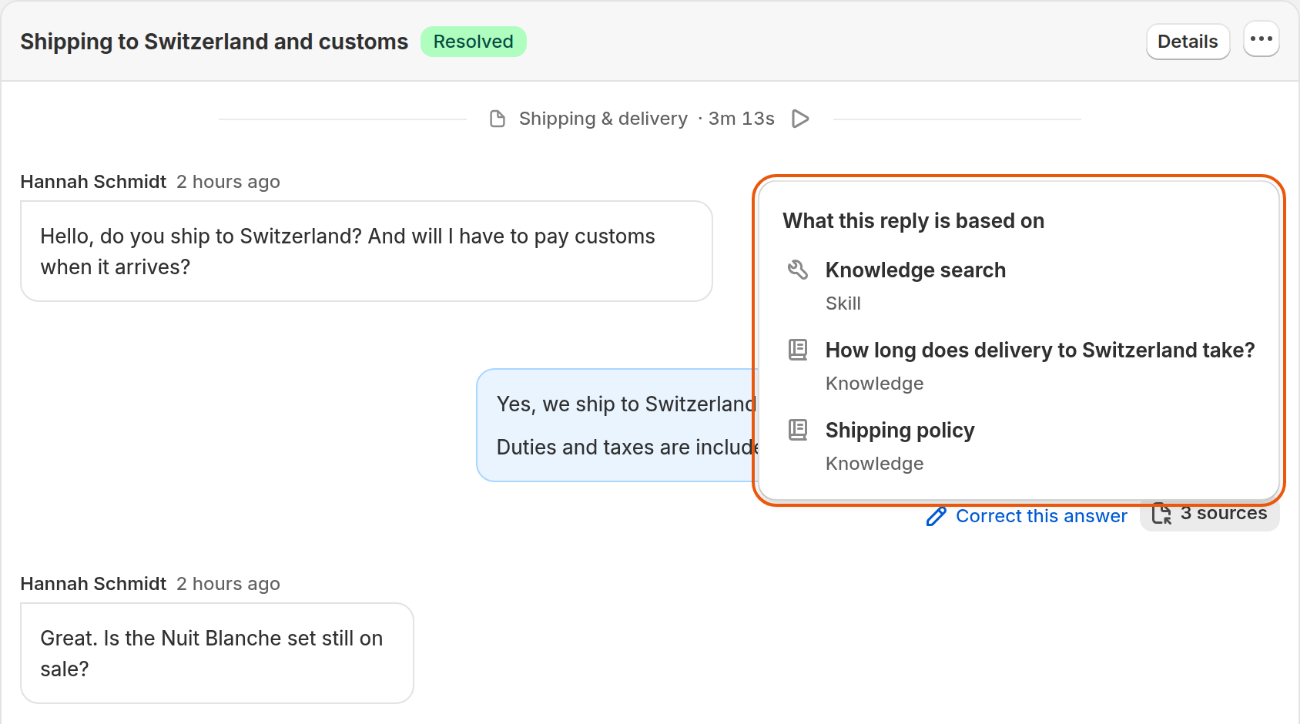
This reply used one skill and read two knowledge entries.
If the reply was wrong, select Correct this answer beside the sources.
Show or hide the events in a conversation
Events are the short lines between the messages. They show what happened outside the messages, such as a page the shopper opened or a skill Convi used. To choose which events you see:
Open a conversation.
Select the menu (…) at the top of the conversation.
Select Conversation events.
Tick the events you want to see.
The change is immediate. It applies to every conversation in this browser, so it stays as you set it when you open another one. The table below lists the events you can choose from.
Group | Events | Starts as |
Shopper (Pro and higher, not the free trial) | Pages & search, Cart, Recommendations, Checkout & order | On |
AI & team | Conversation status, Handover, AI skills, Title & topic, Orders, Contact details, Other | Off |
Shopper shows only in conversations from your store's chat. Under it, Show every step adds every page view, scroll and search. Without it, you see the key moments. On lower plans, in the free trial, and in conversations from other channels, no events show until you tick some.
When events are hidden, the end of the conversation says so, with a button to show them.
What's in Details?
Details holds what Convi knows about the conversation and the shopper. The table below lists its sections.
Section | What it shows |
Conversation | Summary, Topics, Started, Last activity, Messages, Channel, Responder, Status, Started by, Duration |
Shopper journey | What the shopper did on your store during the conversation (Pro and higher, not the free trial) |
Attributed Orders | The orders credited to this conversation, with their amounts and dates |
Contact | Name, Email, Phone, Country, City, Device, Page, Timezone |
Technical | Session ID, with a button to copy it |
A dash (—) means Convi doesn't have that detail. Started by reads "Shopper opened the chat", or names the nudge that started the conversation, for example Proactive AI (Product page help). Responder reads AI or Human. Page is the latest page the shopper chatted from.
If you write to the Convi team about a conversation, copy its Session ID and send it with your message.
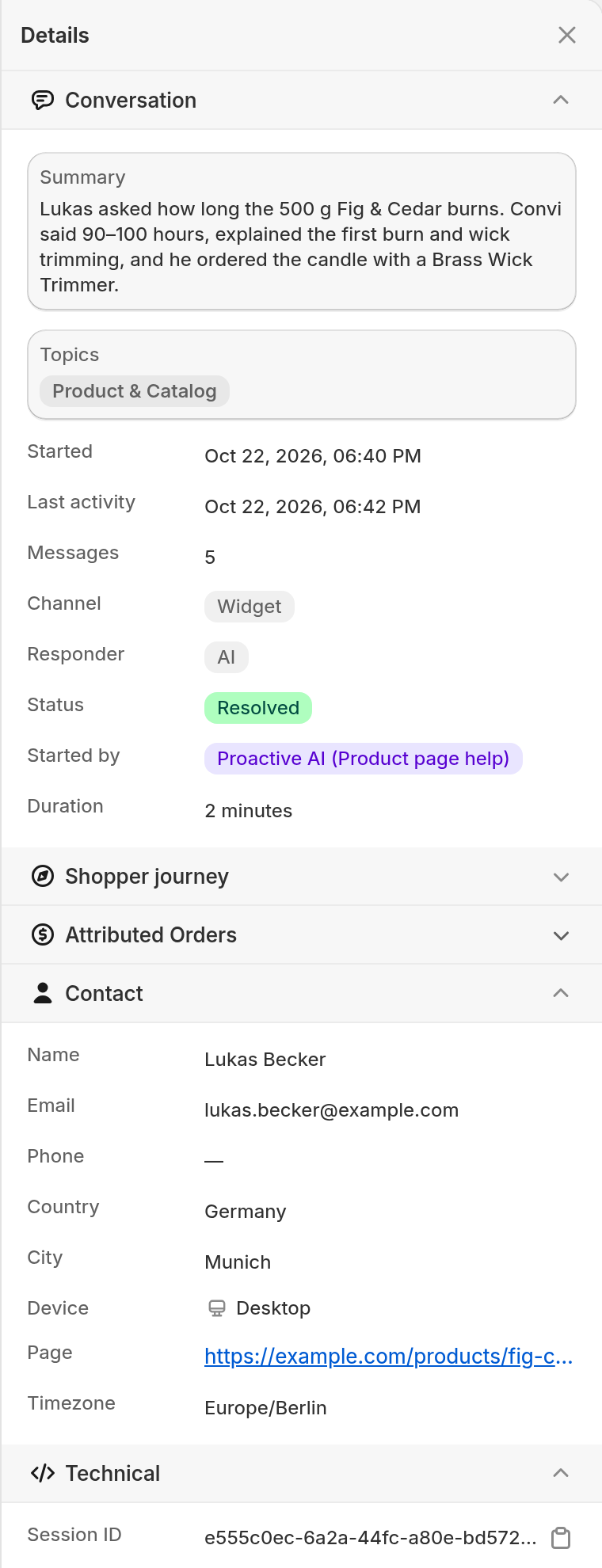
Details for a conversation that a nudge started on a product page.
What doesn't a conversation show?
A conversation has these limits:
What this reply is based on gives names only. It doesn't show the words Convi read.
The events you choose are kept in your browser, so another browser or person can see other events.
Suggested replies appear as they did for the shopper, but you can't select them.
A conversation from Shopify POS has no Hand over button, because a reply can't reach a POS device.
Related
Find and filter conversations in the inbox — find the conversation you want to read.
Hand over a conversation and take it back — answer the shopper yourself.
Answer the questions Convi couldn't answer — fill the gaps you find when you read conversations.