
Connect Zendesk so that a conversation Convi can't finish becomes a Zendesk ticket for your team. This article is for store owners whose team answers shoppers in Zendesk.
Plans: every plan and the free trial · Where: Convi admin › Integrations › Helpdesk, and your Zendesk account · Who: the store owner, and team members whose role allows it · Time: about 5 minutes
Before you start: you need a Zendesk API token that you saved earlier. See the next section.
Can I still connect Zendesk?
Convi connects to Zendesk with a Zendesk API token, and Zendesk is removing API tokens. Whether you can connect depends on your token and your Zendesk account. The table below shows each case.
Your case | What you can do |
Zendesk is already connected in Convi | Nothing to do now. The connection keeps working until April 30, 2027, as long as its token stays active |
You saved a token, and it's still active | Connect with it, as this article shows |
You saved a token, and Zendesk deactivated it less than 60 days ago | Reactivate it in Zendesk, then connect with it |
You have no saved token, or Zendesk deleted it | You can't connect. Zendesk stopped new tokens on October 27, 2026, and it shows a token's full value only once |
Your Zendesk account was created on or after July 28, 2026 | You can't connect. These accounts can't create or use API tokens |
Zendesk deactivates a token that isn't used for 30 days, and deletes it 60 days later. Convi uses the token only when it creates a ticket or runs a test, so a store with few handoffs can reach 30 days. To keep the token active, select Test handoff at least once every 30 days. It's in the Handover to human skill, and it shows when Zendesk is connected and ticked under Helpdesks. Each test creates a real ticket.
All API tokens stop working on April 30, 2027. After that date, a connection made with a token can't create tickets. If Zendesk is your only picked helpdesk, conversations then go to Needs help in Conversations, and your team gets an email alert.
If you can't connect, choose Reply in Convi under Where handoffs go. Your team then answers shoppers in Conversations.
What does the Zendesk connection do?
The Zendesk connection lets Convi create a ticket in Zendesk for each handoff. Connecting alone sends nothing, unless your store still uses the old Automate handover setting. Otherwise, tickets start only after you pick Zendesk under Where handoffs go, as this article shows.
When Convi hands a conversation over to Zendesk:
Convi asks the shopper for their email, if it doesn't have it yet.
The AI stops answering, and tells the shopper that your team will reply by email.
Convi creates the ticket.
The table below shows what the ticket holds.
Part of the ticket | What Convi sends |
Subject |
|
Comment | A short summary of the conversation, written by Convi's AI. If there's no summary yet, the shopper's last message |
Requester | The shopper's email and name. Without a name, the email is used for both |
The ticket doesn't hold the whole chat. The conversation also stays in Convi, under Needs help in Conversations, where you can read all of it.
Get your Zendesk details ready
Convi needs your subdomain, your email and your saved token. Token access must also be on in Zendesk. To get ready:
In Zendesk, open Admin Center. You need to be an administrator.
Go to Apps and integrations, then APIs, then API configuration.
Check that Allow API token access is selected. If it isn't, select it and select Save.
Go to APIs, then API tokens, and check that your token is active.
If Zendesk deactivated it, open the token's options menu and select Reactivate. Zendesk asks you to confirm, so select Reactivate again.
The table below shows what goes in each field in Convi.
Field in Convi | What to enter | Example |
Zendesk subdomain | The part of your Zendesk address before |
|
The email address you sign in to Zendesk with. The user must be verified | ||
API token | The token you saved |
Connect Zendesk in Convi
You connect Zendesk from its tile on the Integrations page. To connect it:
In the Convi admin, go to Integrations.
Under Helpdesk, find Zendesk and select Connect. The Configure Zendesk window opens.
Enter your Zendesk subdomain, Email and API token.
Select Test connection. You'll see "Connection successful!"
Select Connect. You'll see "Zendesk integration saved successfully."
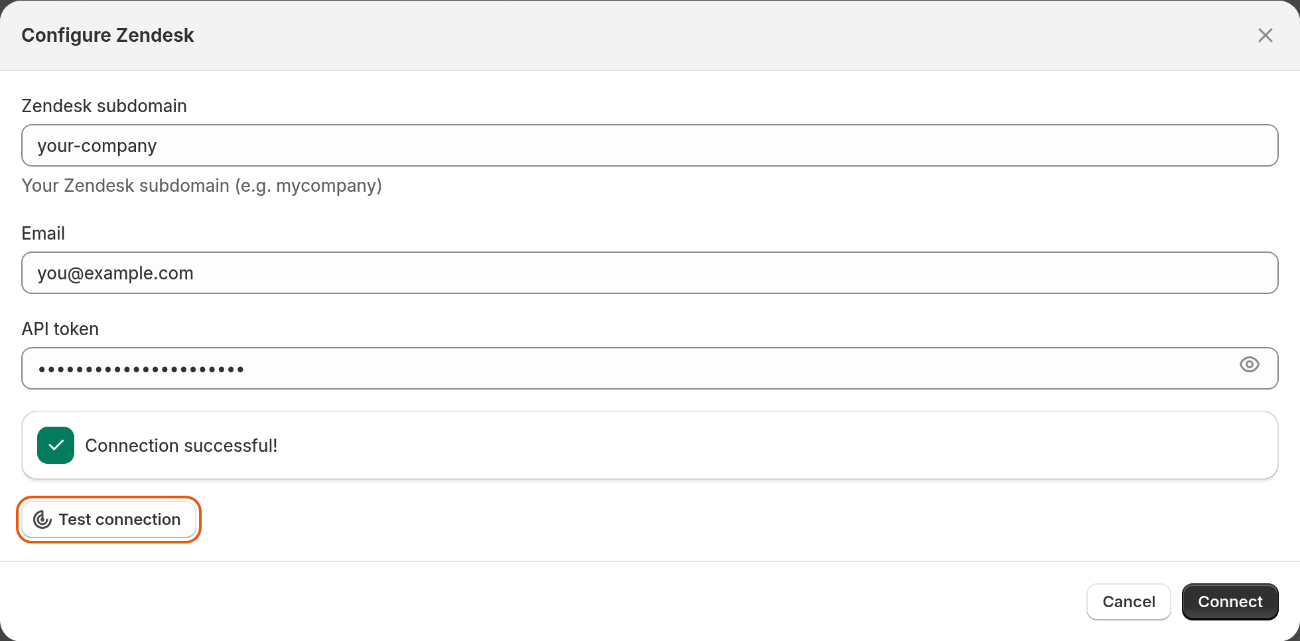
The Configure Zendesk window after a successful test.
The test is optional, and Connect works without it. But Convi doesn't check your details when it saves them, so test them first. The Zendesk tile now shows Connected.
Send handoffs to Zendesk
To send tickets to Zendesk, pick it in the Handover to human skill. To pick it:
In the Convi admin, go to Learn › Skills.
Find Handover to human and select Configure.
Under Where handoffs go, choose Send to your helpdesks.
Under Helpdesks, tick Zendesk.
To share the ticket number with the shopper, tick Include the ticket ID.
Select Test handoff. You'll see "Test ticket #… created in Zendesk" and a link to open it.
Select Save. You'll see "Skill updated successfully".
Test handoff creates a real ticket in Zendesk, with the subject "[Test] Convi handoff test". It uses your store's contact email as the requester. You can close it.
Check a real handoff
A real handoff shows you what your team will see. To check one:
Open your store in a private browser window.
Open the chat and ask to speak to a person.
Give an email address when Convi asks for one.
Open Zendesk. The new ticket should be there.
A chat on your live store counts like any shopper's conversation.
Change or disconnect Zendesk
You change the connection from the Zendesk tile on the Integrations page. Convi never shows the saved token, so you need your own copy to change anything. To change the connection:
Select Configure.
Enter the changes.
Enter your saved API token again.
Select Save. You'll see "Zendesk integration saved successfully."
Before you disconnect, make sure you have the token saved. You'll need it to connect again, and Zendesk won't create a new one. To disconnect:
Select Disconnect on the tile.
Select Disconnect again to confirm. You'll see "Zendesk integration disconnected successfully."
A disconnected helpdesk stays picked in Handover to human, and shows Disconnected there. Your other picked helpdesks still get tickets. If none is left, conversations go to Needs help in Conversations, and your team gets an email alert. The Handover settings call this list "Needs your reply".
What if no ticket appears in Zendesk?
Most ticket problems come from the details saved in Convi, or from a token Zendesk deactivated. The Zendesk tile shows Connected whenever details are saved, even if they no longer work, so use Test handoff to check them. The table below lists what you might see.
What you see | Likely cause | What to do |
"Connection failed. Please check your credentials and try again." | A wrong subdomain, email or token, a deactivated token, or token access is off | Enter only the subdomain, not the full address. In Zendesk, check Allow API token access, and check that the token is active |
"The test handoff didn't go through. Try again." | A wrong subdomain, or Zendesk didn't answer | Select Configure on the tile, and check the subdomain. Then try again |
"Zendesk rejected the connection. Reconnect it in Integrations and try again." | Zendesk deactivated or deleted the token, or the saved email is wrong | Reactivate the token in Zendesk, in APIs, then API tokens. If the email is wrong, select Configure on the tile, and enter it with your saved token. If the token is gone, choose Reply in Convi under Where handoffs go |
"Zendesk is limiting requests right now. Try again in a minute." | Zendesk is limiting API requests | Wait a minute, and test again |
The conversation is in Needs help, and your team got an email alert | Convi couldn't create the ticket in any picked helpdesk, or a reply limit handed the conversation over before the shopper gave an email | Answer the shopper in Conversations. Then select Test handoff |
No ticket, and no handoff either | The shopper didn't give an email, so Convi didn't hand over | Nothing to fix. Convi asks for an email before it hands over |
What the Zendesk connection doesn't do
The connection only creates tickets. It has these limits:
Replies you send in Zendesk don't appear in Convi.
Messages the shopper sends after the handoff don't reach the ticket.
Selecting Hand over yourself in Conversations doesn't create a ticket. Only Convi's own handoffs do.
Related
Hand over a conversation and take it back — the three choices under Where handoffs go, and when Convi hands over.
Choose what Convi can do with skills — every skill, including Handover to human.
Contact the Convi team — if tickets still don't arrive.