
You can still reach a shopper after a chat has ended, if they gave you their email. This article shows how to reply by email to a closed conversation, and how Convi emails your replies to a shopper who left while your team was answering. It is for store owners and team members who answer shoppers.
Plans: every plan and the free trial · Where: Convi admin › Conversations · Who: the store owner, and team members whose role allows it · Time: about 2 minutes
Reply by email to a closed conversation
Reply by email is at the bottom of a resolved conversation, if the shopper gave their email in a chat or wrote to you by email. To use it:
Go to Conversations and open the resolved conversation.
Under Reply by email, check who it goes to under To, and Their reply goes to.
Write your reply.
Select Send email.
The email appears in the conversation, with a 10-second countdown and Undo. Selecting Undo puts your text back in the box, and nothing is sent. Only the person who sent the email can undo it. After the countdown, the conversation shows "Emailed to" with the address and the time.
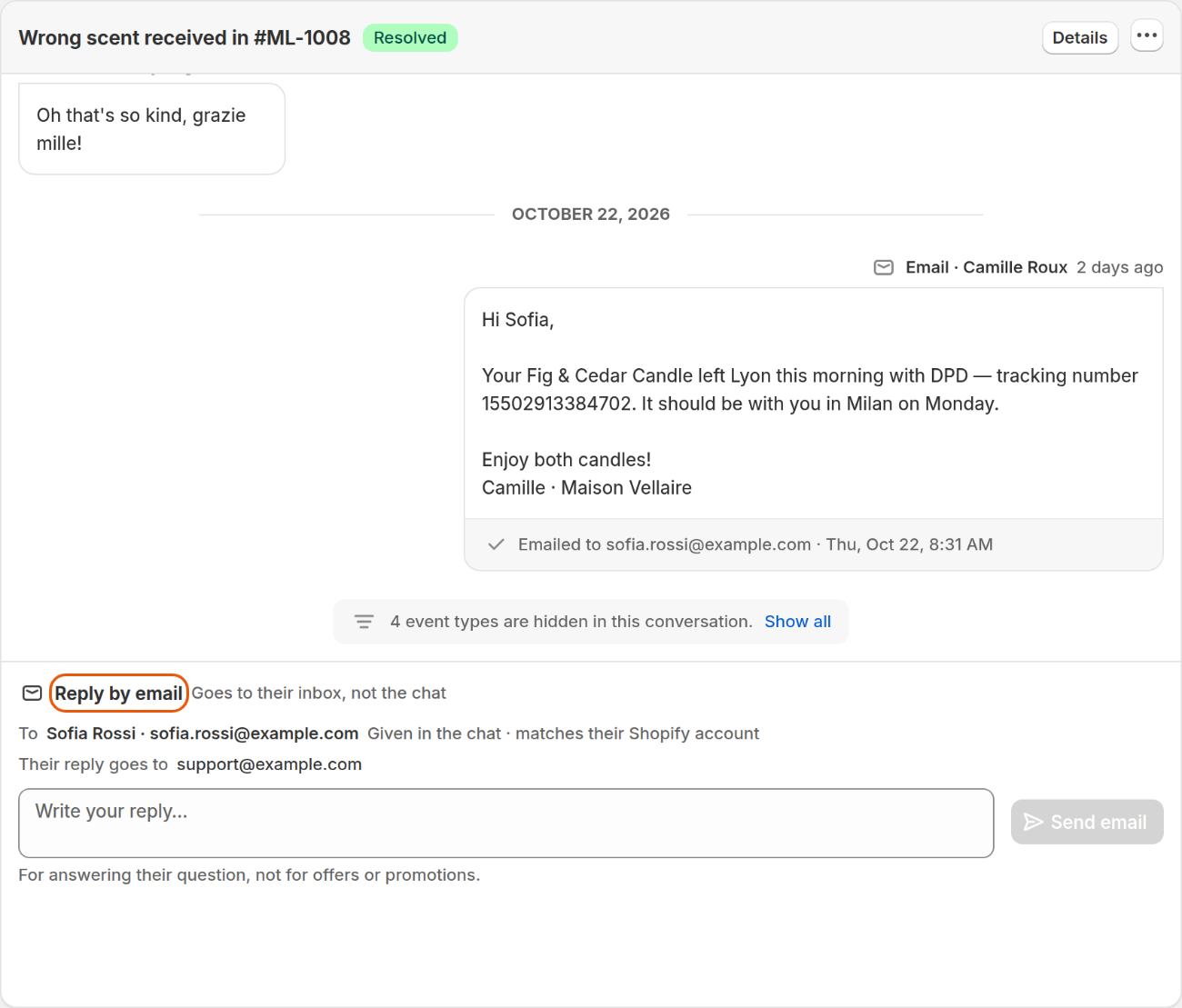
Reply by email shows who gets the email, and where their answer goes.
Which address does Convi use?
Convi only emails an address the shopper wrote in a chat, or wrote to you from. To shows where the address came from, as the table below explains.
Under To | What it means |
"Given in the chat · matches their Shopify account" | The shopper typed it, and it matches their account |
"Given in the chat · not confirmed" | The shopper typed it, and nothing confirms it's theirs. Convi adds "Not confirmed: leave out order and personal details." |
"The address they emailed from" | The shopper wrote to you by email. Your reply goes into their email thread |
If the shopper didn't give an address, you'll see "No email address from this shopper, so a reply can't reach them by email." An address that's only in their Shopify account, or only in the Lead capture form, isn't used.
What does the shopper receive?
The shopper receives a plain email with your words, sent in your store's name. It works like this:
Sender: your store's name, from an address Convi keeps for your store. To send from your own domain, see Send Convi's email replies from your own domain.
Subject: your store's name and "a reply to your question", in the shopper's language if Convi has it. Later emails in the same conversation keep the subject of the first. If the shopper wrote to you by email, your email is a reply to their own subject.
Text: your words as you wrote them. Convi doesn't translate them. Below them come a line that reminds the shopper where they asked, unless they wrote by email, and your store's name, website and support address.
The shopper's answer goes to the address under Their reply goes to: the support address of your Email channel, or your Shopify contact email. Unless the shopper wrote to you by email, it goes to that inbox, not to the conversation. If they wrote by email, their answer also appears in the same conversation. Convi's AI doesn't answer it, and the conversation stays Resolved, so check for it.
Use these emails to answer a question, not for offers or promotions.
What are the limits?
Convi limits how many emails it sends, to protect shoppers and your email reputation. The table below lists the limits, each counted over the last 24 hours.
Limit | Emails |
One conversation | 5 |
One shopper's address | 10 |
Your whole store | 200 |
An email you undo, or one that failed, doesn't count. A reply can be up to 5,000 characters. When you reach a limit, Convi tells you when you can send again.
Why can't I send the email?
Reply by email tells you when it can't send, or when an email didn't arrive. The table below lists what you may see.
What you see | What to do |
"Convi can't send this yet: your store has no support address for their answer." | Select Open Shopify settings and add a contact email |
"They marked an earlier email from your store as spam, so Convi won't email this address." | Reach them another way. Convi won't email this address |
"Convi can't email this address: an earlier email to it bounced or was reported as spam." | Reach them another way |
"This address can't receive email:" and a domain | The address can't work, so Send email is off |
"may be a typo for" and a domain | Check the address. Convi sends to the address they gave, not to the suggestion |
"Not delivered to" and an address | The email came back. The message says why |
"Couldn't send to" and an address | Nothing was emailed. Your text is back in the box, so send it again |
There's no Reply by email in conversations from Shopify POS.
How does Convi email a shopper who left the chat?
If a shopper leaves your store while your team is answering, Convi can also email them your replies from the chat. This applies to open conversations with your team, in your store's chat. Above the reply box, you'll see one of these:
"Shopper is offline · your reply will also be emailed to" and the address;
"Shopper is offline · they'll see your reply when they come back", when Convi can't email them.
You write in the chat as usual. Convi then does this:
It waits 2 minutes after your latest reply, so several replies go in one email. It never waits more than 10 minutes after your first reply. Under your reply you'll see "Emailing in" and a countdown.
It checks again that the shopper is still away.
It sends the email, and your reply shows "Emailed".
If the shopper comes back first, nothing is emailed, and your reply shows "Not emailed". The same happens if the conversation is resolved or given back to the AI before the email goes, if a limit is reached, or if the address is blocked. These emails count toward the same limits.

The line above the reply box says what will happen to your reply. The AI draft shows only in stores that have AI draft replies.
This is on by default. To turn it off:
Go to Learn › Skills.
Find Handover to human and select Configure.
Turn off Email my replies to shoppers who left the chat.
Select Save.
You'll see "Skill updated successfully".
What these emails don't do
Emailing a shopper has these limits:
You can't add files to an email.
You can't email several shoppers at once.
Unless the shopper wrote to you by email, you can't see their answer in the conversation. Look for it in the inbox under Their reply goes to.
Related
Hand over a conversation and take it back — answer shoppers in the chat.
Send Convi's email replies from your own domain — send from your own address.
Find and filter conversations in the inbox — find resolved conversations.