
Connect Mailchimp so that the emails shoppers give in the chat join an audience in your Mailchimp account. This article is for store owners who use Mailchimp for email marketing.
Plans: Starter and higher, and the free trial · Where: Convi admin › Integrations › Email & SMS marketing, and your Mailchimp account · Who: the store owner, and team members whose role allows it · Time: about 5 minutes
Before you start: you need a Mailchimp account with at least one audience, and a user level that can create API keys, such as Admin or Manager.
What does the Mailchimp connection do?
The Mailchimp connection adds the emails shoppers give in the chat to the audience you choose, with the tag "Convi".
Convi adds emails in two ways:
Past chats: when you connect, Convi also adds every email it has from past conversations, about two a second. This includes the account emails of signed-in shoppers, and the addresses of people who wrote to your store through the Email channel.
New chats: from then on, Convi adds each new email when a shopper gives it. For example, for Lead capture, to track an order, or to reach your team.
Mailchimp receives the email address and the tag, with no name and no conversation. A new address joins the audience as subscribed. An address already in the audience keeps its status and gets the tag.
Which plans include Mailchimp?
Mailchimp sync is on the Starter plan and higher, and in the free trial. On a lower plan, the Mailchimp tile shows Upgrade plan, and Upgrade to connect shows the plans that include it. If your plan changes to one without Mailchimp, Convi stops adding emails.
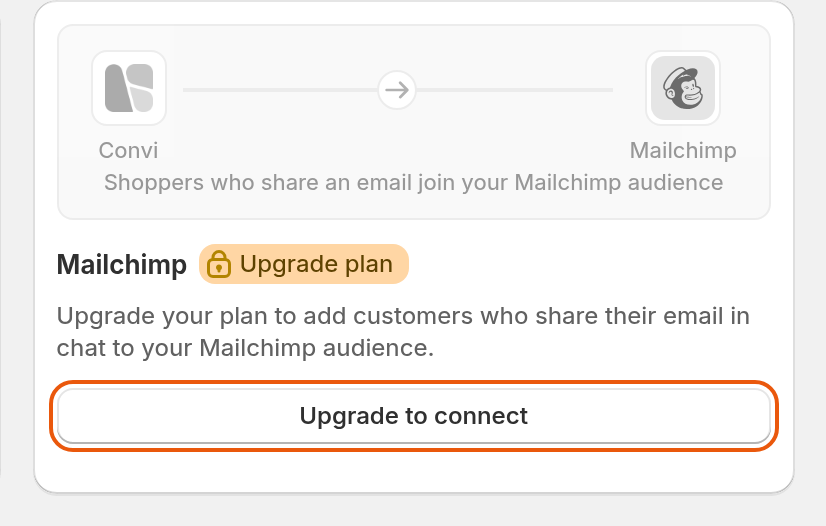
The Mailchimp tile on a plan that doesn't include it.
Create an API key in Mailchimp
Convi connects to Mailchimp with an API key. To create one:
In Mailchimp, select your profile icon and select Profile. The Convi window calls this Account & billing.
Open Extras and select API keys.
Select Create A Key.
Enter a name, for example "Convi".
Select Generate Key.
Select Copy Key to Clipboard.
Select Done. Mailchimp shows the full key only once.
Connect Mailchimp in Convi
You connect Mailchimp from its tile on the Integrations page. To connect it:
In the Convi admin, go to Integrations.
Under Email & SMS marketing, find Mailchimp and select Connect. The Configure Mailchimp window opens.
In API key, paste your key.
Select Test connection. You'll see "Connection successful!" and Audience appears. You can't save until the test passes.
Under Audience, select the audience. If your account has only one, Convi selects it for you.
Select Connect. You'll see "Mailchimp integration saved successfully."
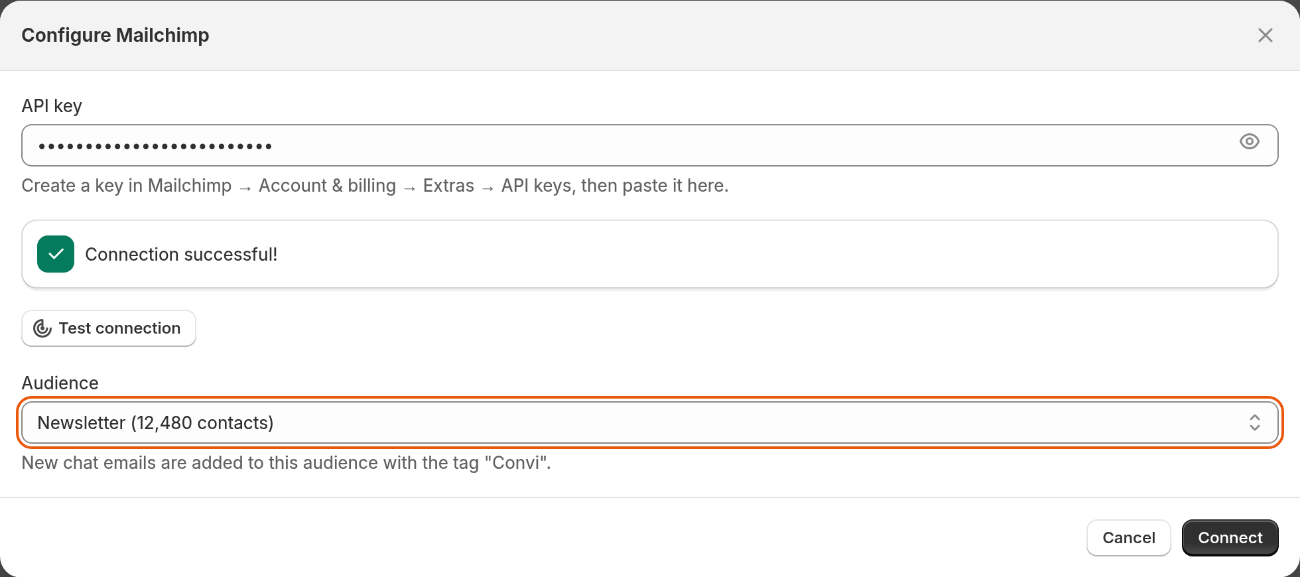
The Configure Mailchimp window. Each audience shows its number of contacts.
The Mailchimp tile now shows Connected, and Convi starts adding the emails from past chats.
Check that emails reach Mailchimp
Emails show up in the audience you chose, with the tag "Convi". To check:
Open your store in a private browser window.
Open the chat.
Give an email address, for example to ask for your team.
In Mailchimp, open the audience and look for the email, with the tag "Convi".
A chat on your live store counts like any shopper's conversation.
Change the audience
Convi syncs to one audience at a time. To change it:
On the Mailchimp tile, select Configure. The window shows the audience you're syncing to now.
In API key, paste your key again. If you didn't keep it, create a new one in Mailchimp first.
Select Test connection.
Under Audience, select the new audience.
Select Save. You'll see "Mailchimp integration saved successfully."
Each time you save, Convi goes through past chats again and adds their emails to the audience you selected. This also adds back anyone you removed from that audience, unless Mailchimp deleted them permanently. Contacts already in the old audience stay there.
What does Reconnect needed mean?
Reconnect needed means Convi can't reach your audience, so it has paused adding emails. This happens when Mailchimp refuses your saved key, or when the audience no longer exists. To reconnect:
If your key no longer works, or you didn't keep it, create a new one in Mailchimp.
On the Mailchimp tile, select Reconnect. The Reconnect Mailchimp window opens.
In API key, paste the key.
Select Test connection.
Under Audience, select an audience.
Select Reconnect. You'll see "Mailchimp integration saved successfully."
Reconnecting also adds the emails from the paused time, because Convi goes through past chats again. It also adds back anyone you removed from the audience, unless Mailchimp deleted them permanently.
What if Mailchimp won't connect?
The Mailchimp window shows a message when testing or saving fails. The table below lists each message.
What you see | What it means | What to do |
"This Mailchimp key is invalid. Check it and try again." | Mailchimp doesn't recognize the key | Copy the whole key again, or create a new one |
"Connection failed. Please check your credentials and try again." | Mailchimp didn't answer, or it's limiting requests | Wait a minute, and test again. If it fails again, create a new key |
"This Mailchimp account has no audiences yet. Create one in Mailchimp, then test the connection again." | The account has no audience to add emails to | Create an audience in Mailchimp, and test again |
"That audience no longer exists in Mailchimp. Test the connection again and pick another one." | The audience was deleted after you tested | Test again, and select another audience |
Disconnect Mailchimp
You disconnect Mailchimp from its tile on the Integrations page. A tile that shows Reconnect needed has no Disconnect button, so reconnect first. To disconnect it:
Select Disconnect on the tile.
Select Disconnect again to confirm. You'll see "Mailchimp integration disconnected successfully."
New emails stop going to Mailchimp. Contacts already in your audience stay there.
What the Mailchimp connection doesn't do
The connection only adds email addresses to one audience. It has these limits:
It doesn't send any email. You create your own campaigns and automations in Mailchimp.
It doesn't remove anyone from Mailchimp when you disconnect.
If a signed-in shopper gives a different address in the chat, Convi keeps the one on their account and doesn't add the new one.
It doesn't capture email addresses entered in Shopify POS conversations.
Related
Collect shoppers' emails with Lead capture — ask shoppers for their email in the chat.
Convi's plans and prices — what each plan costs and includes.
Contact the Convi team — if emails still don't arrive.