
You can choose the address shoppers see on Convi's email replies: Convi's shared address, an address with your brand name, or your own address on your own domain. This article shows you how to set each one. It is for store owners who already answer email with Convi.
Plans: Convi shared address: Starter and higher, and the free trial. Your brand name and your own domain: Pro and higher, and the free trial · Where: Convi admin › Channels › Email › Reply-from address, and your DNS host · Who: the store owner, and team members whose role allows it · Time: about 20 minutes, and up to 48 hours for DNS changes
Before you start: the Email card on the Channels page must show Connected.
Which address should you choose?
The three options differ in what shoppers see and how much setup they need. The table below compares them.
Option | Replies come from | Setup |
Convi shared address | None | |
Your brand name | Your myshopify name at conviapp.com, for example [email protected] | None |
Your own address | Your own address, for example [email protected] | DNS records at your domain host |
With all three, your support address stays the reply-to address, so shoppers' replies reach your inbox.
Use your brand name
To send from an address with your brand name:
In the Convi admin, go to Channels.
On the Email card, select Reply-from address.
Select Your brand name.
Select Save. You'll see "Reply-from address updated."
After you save, the grey box at the bottom of the window shows the new address, after "Replies send from". The image below shows the starting state, with Convi shared address still selected.
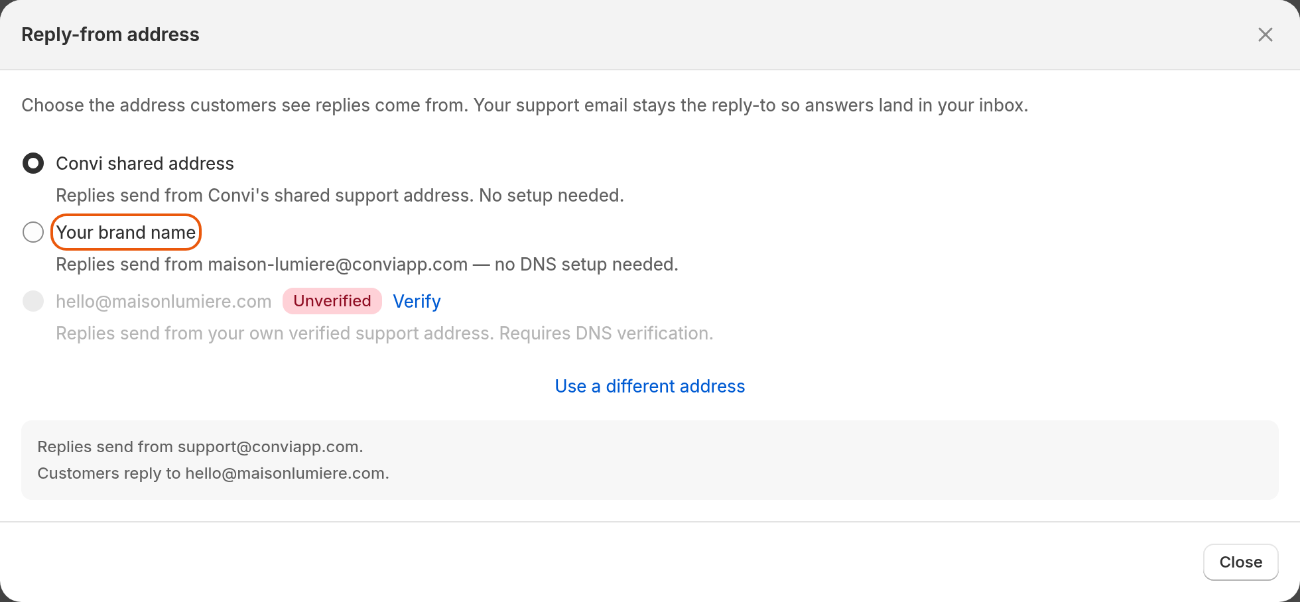
The Reply-from address window. This store has already added its own address. The grey box shows the current sender and reply-to addresses.
Add your own address
To send from your own domain, add one address on it. To add it:
In the Convi admin, go to Channels.
On the Email card, select Reply-from address.
Under Your sending address, enter your address, for example [email protected].
Select Add. The Verify your domain window opens.
The address must be on a domain you own. Convi refuses public email domains such as gmail.com, outlook.com or yahoo.com. It then shows "Your support email is on a public domain and can't be verified — use the Convi shared address or your brand name."
Verify your domain
Verifying proves to email providers that Convi may send on behalf of your domain. To verify:
In the Verify your domain window, under Where is your domain hosted?, choose your DNS host: AWS / Route 53, Shopify, GoDaddy, Namecheap, Bluehost, Cloudflare, Google Cloud or Other. Each host shows the record names in the form it expects.
Select Copy beside each name and value.
At your DNS host, add each record with the same type, name and value.
Back in the window, wait while "Verification in progress" shows. The window checks for about 3 minutes. After that, select Check again.
DNS changes can take up to 48 hours. You can close the window and come back. To come back, go to Reply-from address and select Verify beside your address.
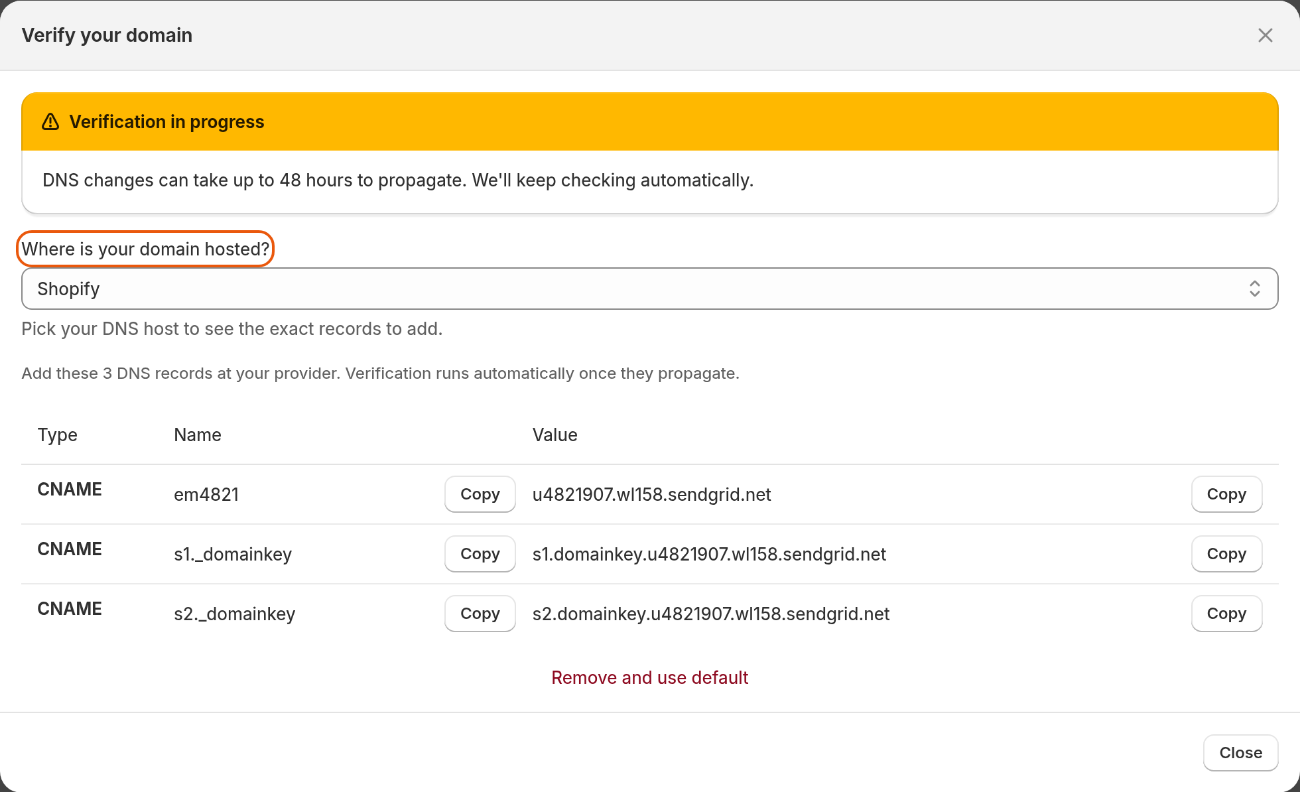
The Verify your domain window. Add each record at your DNS host, exactly as shown.
Start sending from your domain
Convi switches to your address when the Verify your domain window sees that your domain is verified. You'll see "Domain verified — replies now send from your own address."
Convi also keeps checking in the background for 3 days, about every 3 hours. If it verifies your domain while the window is closed, your choice in Reply-from address stays as it was. If your own address was already selected, replies now come from it. If not, finish like this:
Go to Reply-from address. Your address shows Verified.
Select your address.
Select Save. You'll see "Reply-from address updated."
The grey box at the bottom of the window shows the address shoppers see now.
Fix a domain that doesn't verify
After 48 hours the window says "Records not verified yet". Check these points:
Compare each record at your DNS host with the window, character by character.
In the window, choose your own DNS host. Hosts differ on whether the name includes your domain.
Select Check again.
Change or stop using your address
To use a different address, select Use a different address in the Reply-from address window, enter it and select Add. On a new domain, you verify again. Until then, replies that used your own address come from the Convi shared address, and Your brand name stays in use if you selected it.
To stop using your own address, select Convi shared address or Your brand name in the Reply-from address window, and select Save. To remove an address that isn't verified yet, select Verify beside it, then Remove and use default. You'll see "Custom domain removed. Replies use the Convi shared address." Replies then use the Convi shared address, even if you had selected Your brand name.
What doesn't your own domain change?
Your own domain changes only the address replies come from. Shoppers still write to your support address, and your forwarding rule still brings their emails to Convi.
If your free trial ends, or you move to a plan without this feature, replies go back to the Convi shared address.
Related
Contact the Convi team — get help if your domain doesn't verify.
Convi's plans and prices — the plans that include your own domain.